The custom password policy feature in Desk365 allows administrators to define secure password rules and session settings for both the agent portal and the support portal. This helps ensure consistent security standards across your helpdesk while giving you control over password complexity, expiration, and session timeouts.
This article explains how the password policy works and walks you through setting it up step by step.
Who can configure custom password policy?
Only admins or agents with permission to the settings tab can access and update password policy settings. Once updated, the policy applies immediately to all relevant users.
To find password policy settings:
- Go to Settings
- Navigate to Security > Password Policy
- You’ll see two tabs:
– Agent Portal
– Support Portal
You can configure policies for each portal separately.
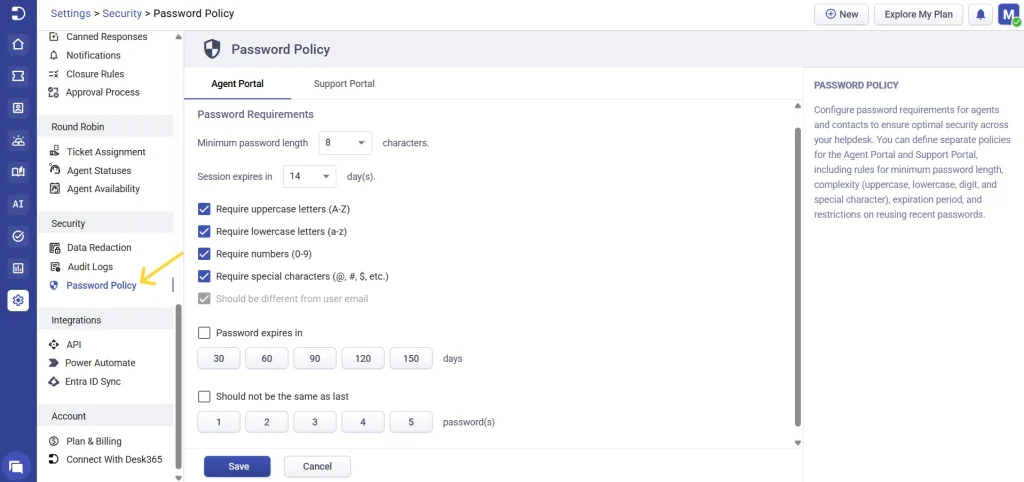
With password policy, you can:
- Define password complexity requirements
- Set minimum password length
- Control session expiration
- Enforce password expiration
- Prevent password reuse
- Automatically log users out when policies are updated, on next login, or upon a voluntary password change.
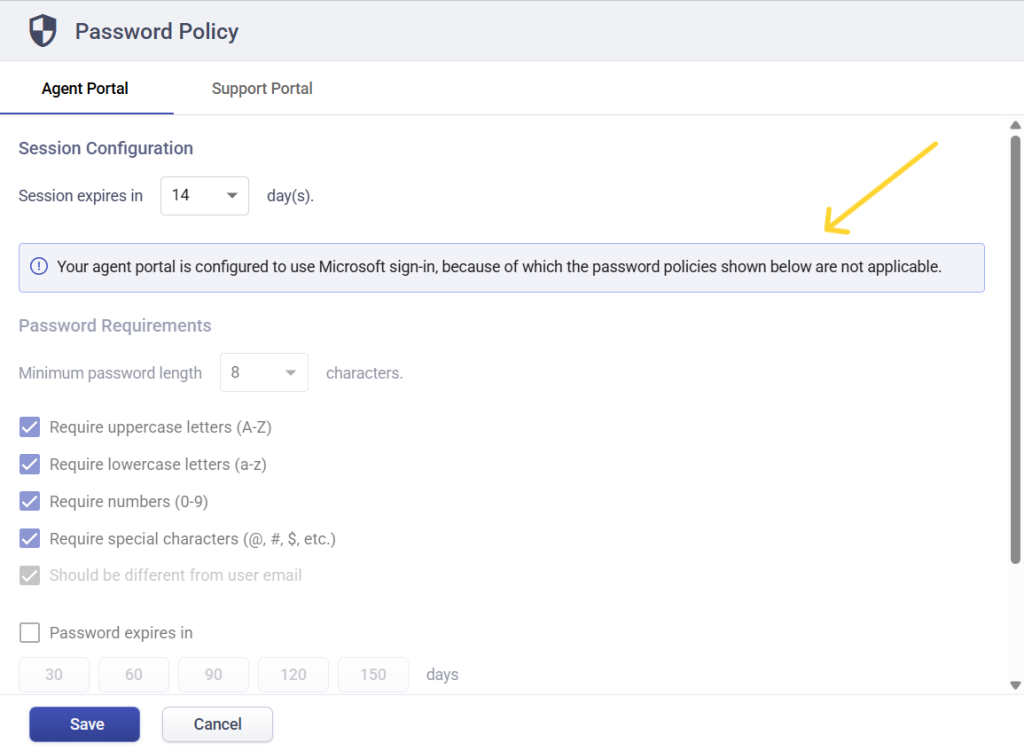
Important note: If your agent portal is configured to use Microsoft sign-in, password rules defined here will not apply to agents. In this case, authentication is managed by Microsoft, and Desk365 password settings are disabled for the agent portal.
Configuring password policy for the agent portal
- In the password policy page, select the agent portal tab
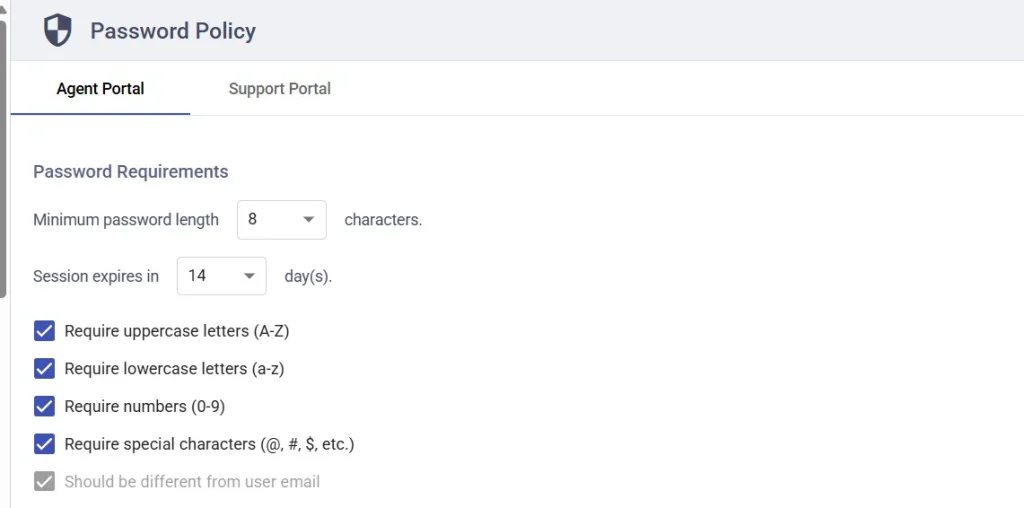
- Under session configuration, set how long an agent can stay logged in before being logged out automatically. This helps reduce risk from unattended or long-running sessions.
- Under password requirements, configure the following:
1. Minimum password length – Choose the minimum number of characters
2. Enable or disable password complexity rules:
– Require uppercase letters (A–Z)
– Require lowercase letters (a–z)
– Require numbers (0–9)
– Require special characters (such as !@#$%^&*)
– Ensure the password is different from the user’s email address
These rules ensure strong and secure passwords.
- To enforce periodic password changes enable password expires in and select one of the available durations – 30, 60, 90, 120, or 150 days. Agents will be prompted to reset their password once it expires.

- To prevent password reuse, enable ‘Should not be the same as last’ and select how many previous passwords cannot be reused (from 1 to 5). This prevents users from cycling back to old passwords.

- Finally, click save to apply the password policy
Configuring password policy for the support portal
The support portal settings work the same way as the agent portal but apply to end users or contacts accessing your helpdesk.
- Open the support portal tab
- Configure:
– Minimum password length
– Session expiration
– Password complexity rules
– Password expiration
– Password reuse restrictions - Click save
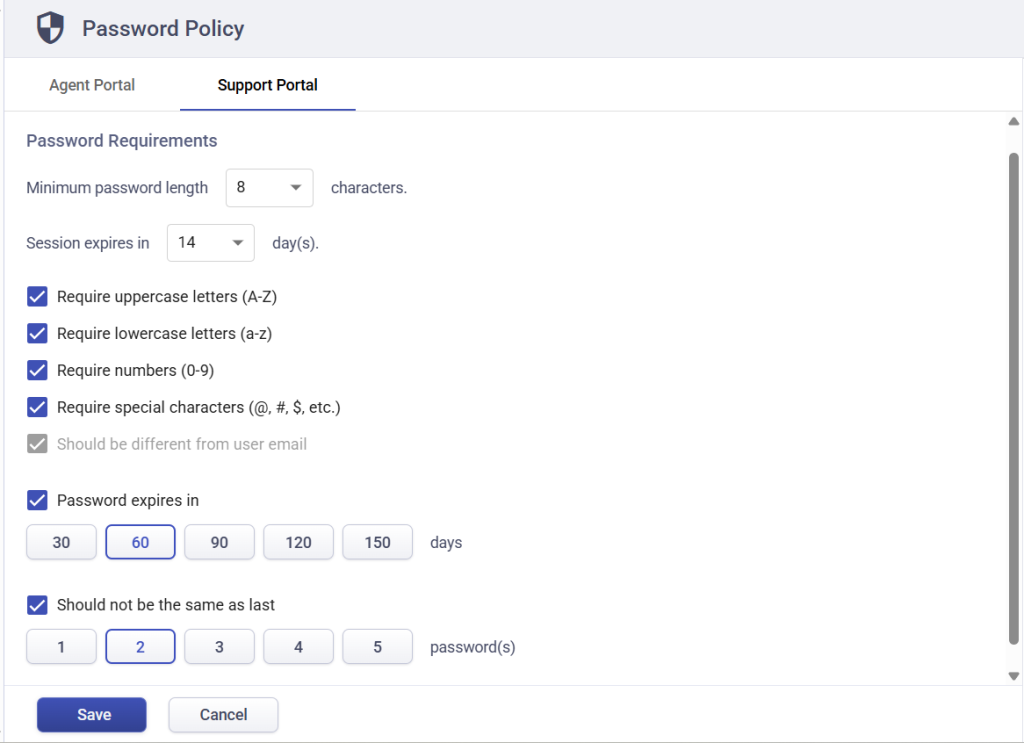
These rules ensure that customer and user accounts accessing the support portal also meet your security standards.
What happens when a password policy is updated?
When an admin (or any authorized role) updates the password policy, how and when it takes effect depends on the option selected.
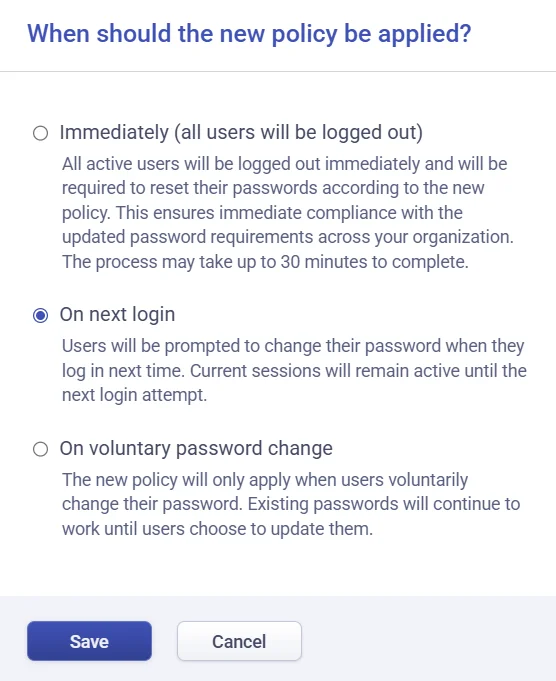
- Immediately – All active users will be logged out within a short time frame (30 minutes) and will be required to reset their passwords to comply with the new policy before logging in again. This ensures timely compliance across the organization without requiring an instant logout.
- On next login – Users remain logged in until they log out or their session expires. The next time they attempt to log in, they’ll be prompted to update their password according to the new policy.
- On voluntary password change – The new policy is applied only when users choose to change their password. Existing passwords continue to work until a voluntary update is made.
These options give admins full control over how quickly new password requirements are enforced, balancing security needs with user convenience.
Points to remember
- Password policy applies to both Agent Portal and Support Portal
- Agent portal password rules are disabled if Microsoft sign-in is enabled
- Similarly, when the support portal is configured to use only Microsoft sign-in, password policy rules are disabled for support users as well
- Session expiration helps reduce unauthorized access
- Password expiration and reuse rules improve long-term security
- Policy changes trigger an automatic logout for all affected users
Best practices
- Use at least 8–12 characters for passwords
- Enable all complexity requirements for better protection
- Set password expiration to 90 days or less for agents
- Combine password policy with SSO where possible for enterprise security
Password policy in Desk365 plays a key role in meeting modern security and compliance requirements by ensuring controlled access, strong authentication, and consistent enforcement of password standards across your helpdesk.
Automatic logout and mandatory password resets when policies change further support compliance with frameworks such as SOC 2 and HIPAA, where regular credential rotation, session control, and access governance are required. Together, these capabilities help organizations maintain a strong security posture while ensuring operational flexibility as teams and customer environments scale.