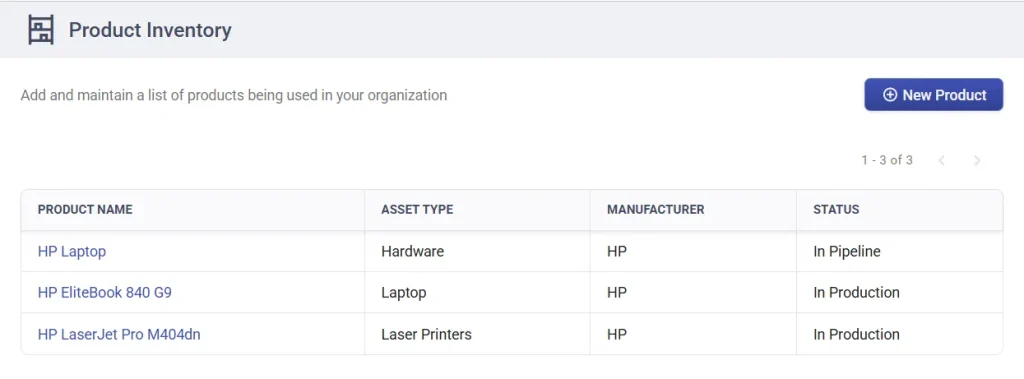
Product inventory in Desk365 represents the standard models or items your organization procures and maintains, such as a specific laptop model, printer series, or accessory type. Products act as templates from which individual assets are created.
An asset is a single, physical or logical instance of a product.
For example, HP EliteBook 840 G9 is a product, while the laptop assigned to a specific employee is an asset created from that product.
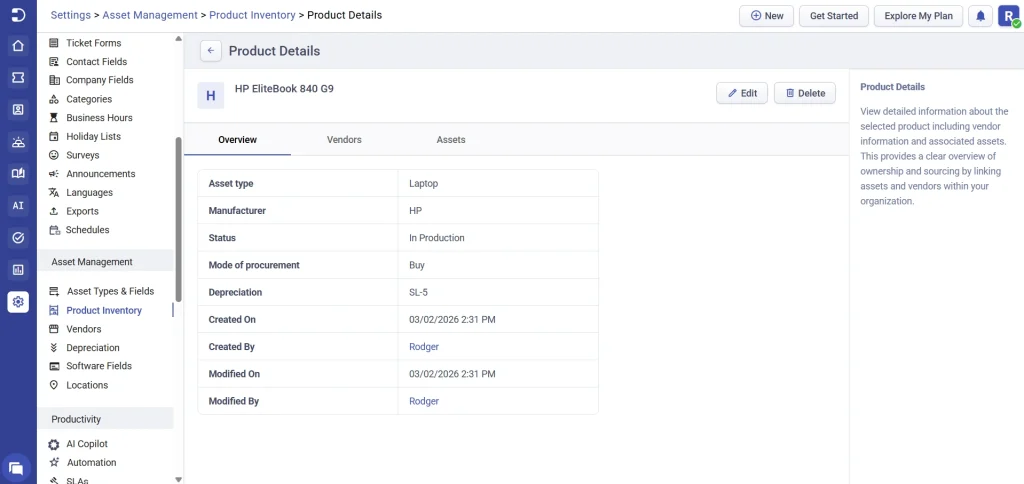
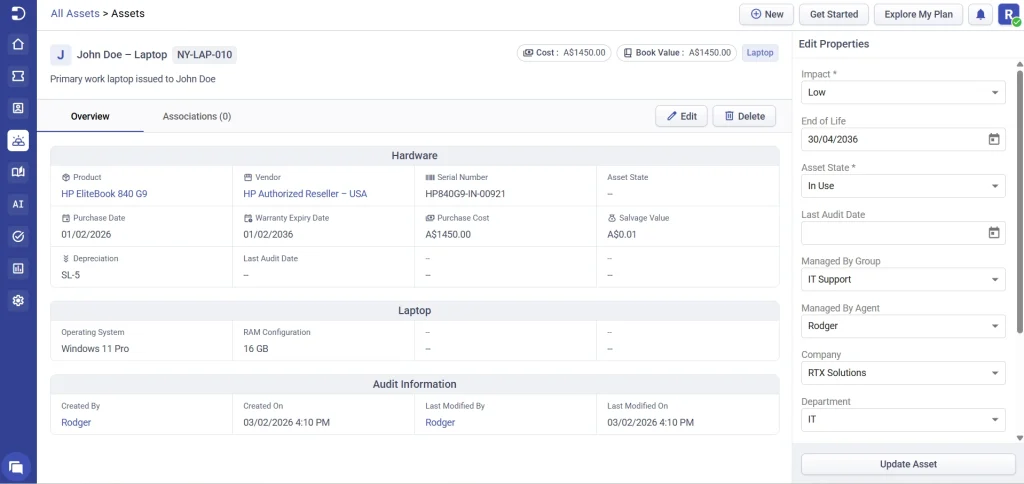
This clear separation ensures accurate tracking, reporting, and lifecycle management.
Why product inventory matters
Maintaining a well-defined product inventory helps you:
- Create assets consistently by standardizing models and specifications
- Associate vendors and manufacturers with products for easier procurement tracking
- Apply depreciation rules automatically to assets created from the product
- Plan procurement and replacements based on product usage and lifecycle
Adding a new product
To add a new product to your inventory, navigate to Settings > Asset Management > Product Inventory and click Add New Product.
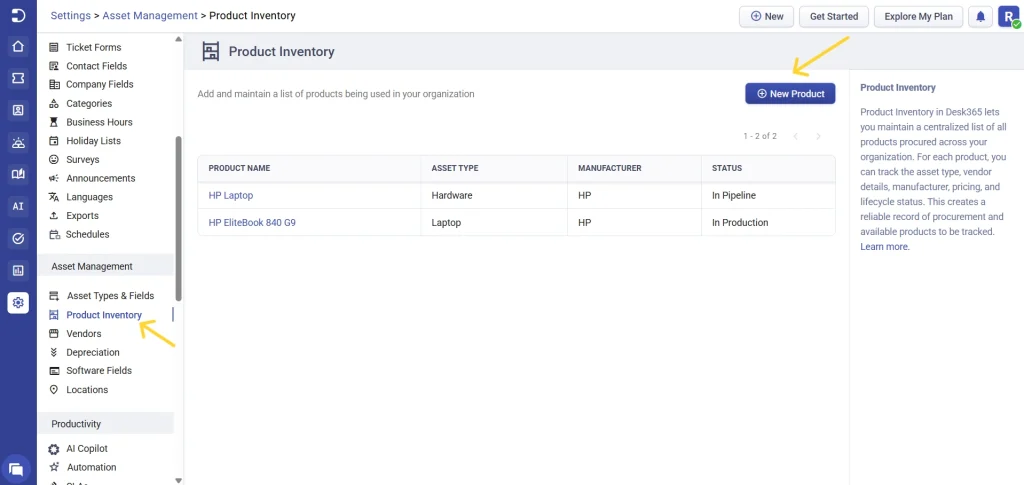
An Add New Product form will open, where you define the core details of the product:
- Product Name – The model or item name (for example, HP LaserJet Pro M404dn)
- Asset Type – The category the product belongs to, such as Laser Printer, Inkjet Printers or Multifunction Printer
- Manufacturer – The company that produces the product (for example, HP)
- Status – Indicates whether the product is active and in use (for example, In Production)
- Mode of Procurement – How the product is acquired (Buy, Lease, etc.)
- Depreciation – The depreciation method applied to assets created from this product
- Description – Optional details such as specifications or intended usage
- Click Save to add the product to your inventory.
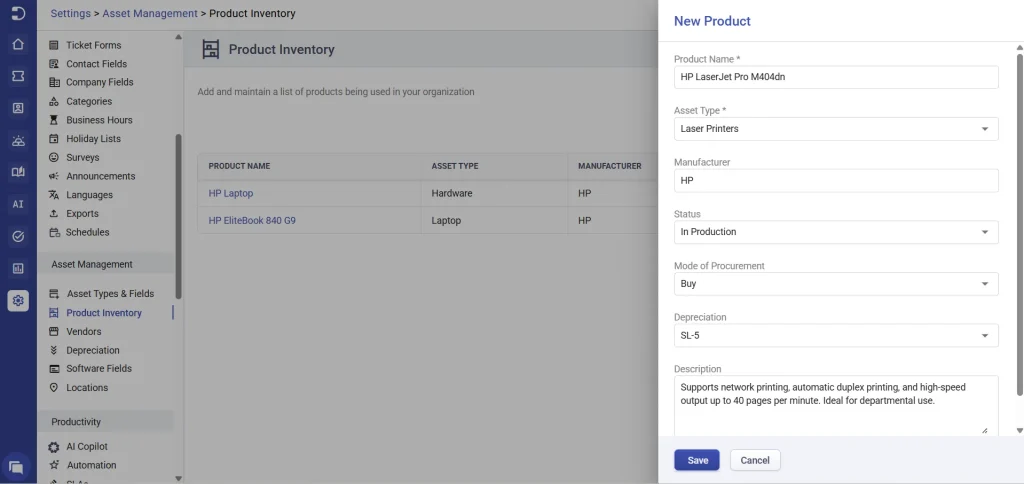
Once saved, this product can be reused to create multiple assets, each representing an individual printer assigned to a particular department. Each asset will inherit the product’s depreciation rules and classification, while still tracking unique details like serial number, warranty expiry, and assigned user.
Creating assets from a product
Once a product is created, you can use it to create individual assets assigned to users, locations, or departments.
For example, after creating the product HP LaserJet Pro M404dn, you can create multiple assets from it, each representing a specific physical printer installed in different areas such as the Finance department, HR cabin, or Reception. These assets inherit the product’s asset type and depreciation settings, while allowing you to track unique details such as serial number, purchase date, warranty expiry, assigned location, and current state.
This approach ensures consistency across assets while still giving full visibility into each individual item.
Asset creation is covered in detail here.
Common mistakes to avoid
- Confusing products with assets – Products define what the item is, while assets represent individual instances. Creating assets without first defining products leads to inconsistent data and poor reporting.
- Skipping depreciation setup – If depreciation is not configured at the product level, asset value tracking becomes manual and error-prone. Always set depreciation when the product is created.
- Retiring products without retiring assets – Retiring a product does not automatically retire assets created from it. Always review and update associated assets to avoid inaccurate inventory and lifecycle data.
Up next – Vendors and vendor associations