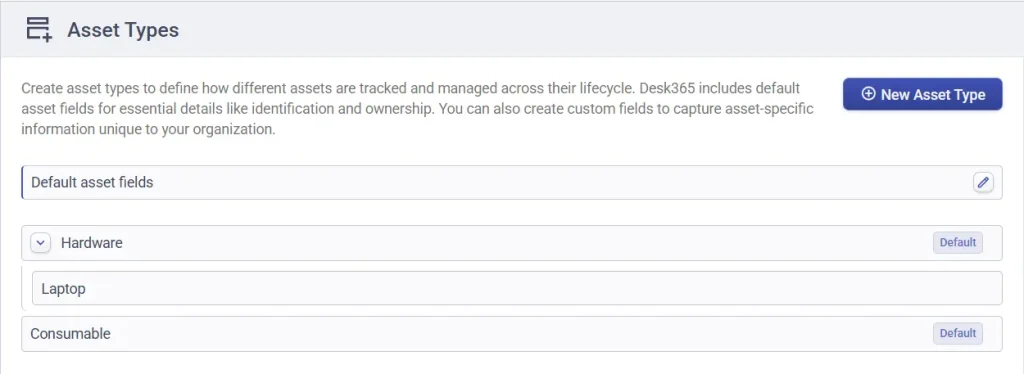
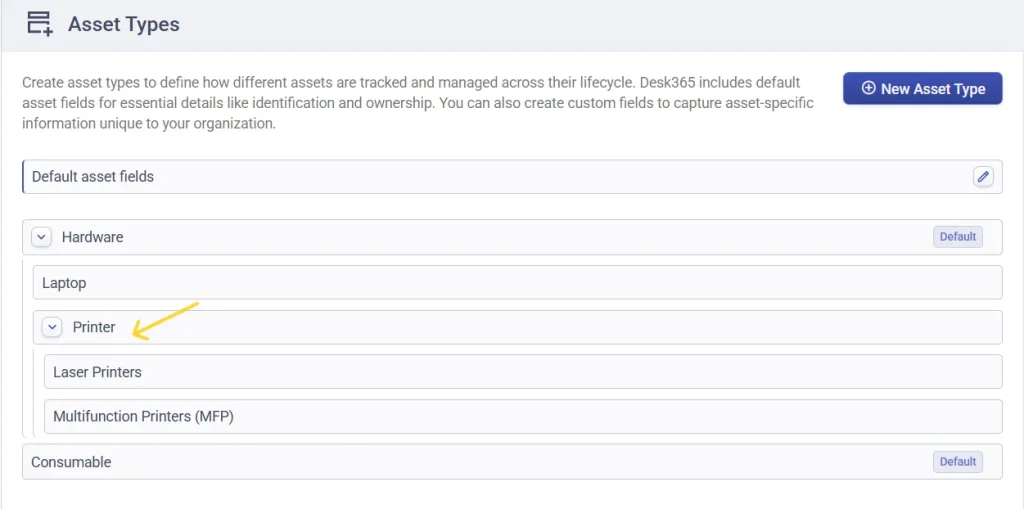
Asset types define what kind of assets your organization tracks. Examples include: – Hardware (laptops, desktops, printers) –Consumables (printer toner, ink cartridges) Custom types (network devices, IoT equipment)
Each asset type has its own set of fields that capture relevant information.
Default asset types and fields
Desk365 provides default asset types such as Hardware and Consumables. Each asset type includes its own asset-specific default fields to capture details unique to that category, along with a shared set of standard fields grouped under Asset Identification and Ownership & Assignment.
Understanding asset type field categories
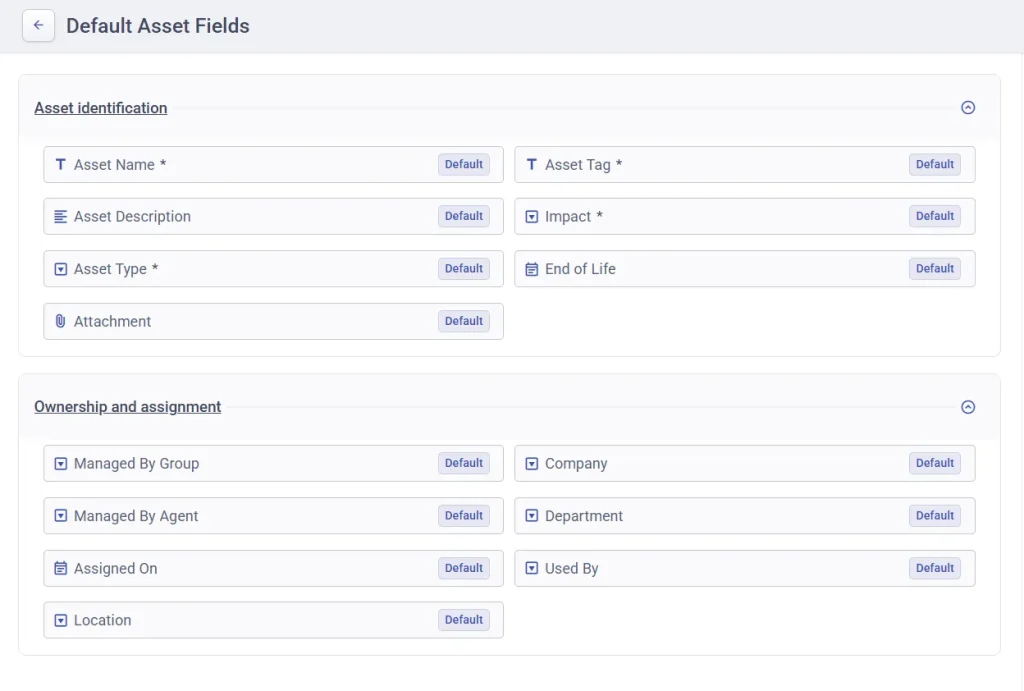
Asset identification fields describe what the asset is and how it is uniquely identified.
Ownership and assignment fields define who manages the asset, who uses it, and where it is located.
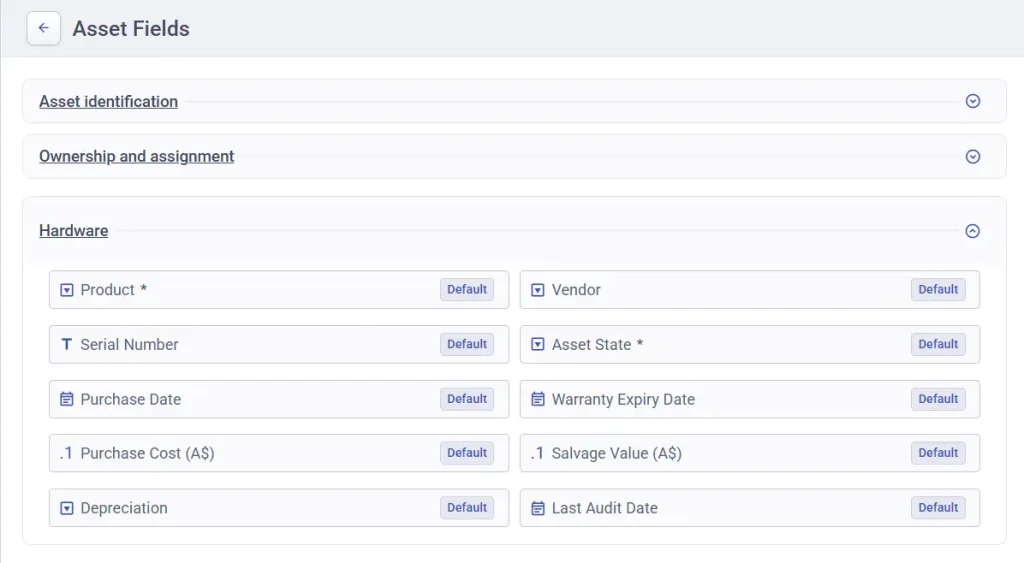
Hardware fields capture procurement, warranty, and lifecycle details for physical assets.
Consumables fields help track stock-based items such as accessories or supplies, including their vendor, availability, and quantity.
Default asset type fields — Detailed explanation
Asset identification
Field Name
Field Type
Description
Asset name
Text
The primary name used to identify the asset across Desk365. This should be human-readable (e.g., Dell Latitude 7420, Office Printer – Floor 3) so agents can quickly recognize it in tickets and reports.
Asset tag
Text
A unique internal identifier or tag assigned to the asset. Commonly used for barcode labels or IT inventory tracking to distinguish assets with similar names.
Asset description
Paragraph
A detailed description of the asset, including specifications, usage notes, or special handling instructions. Helpful for agents when diagnosing issues or validating replacements.
Impact
Dropdown
Indicates how critical the asset is to business operations (e.g., Low, Medium, High). Used to prioritize tickets linked to this asset.
Asset type
Dropdown
Categorizes the asset (e.g., Laptop, Server, Printer, Software). Asset types determine which additional fields appear and how the asset is managed.
End of life
Date
The expected date when the asset should be retired or replaced. Helps with lifecycle planning, budgeting, and proactive replacement decisions.
Attachment
File Upload
Allows supporting documents to be attached to the asset record, such as invoices, compliance certificates, manuals, or configuration files.
Ownership and assignment
Field Name
Field Type
Description
Managed by group
Dropdown
Specifies the support group responsible for maintaining the asset (e.g., IT Support, Network Team).
Company
Dropdown
Links the asset to a specific company or tenant in multi-company environments. Useful for MSPs or organizations with multiple business units.
Managed by agent
Dropdown
Assigns a specific agent as the owner of the asset for accountability and follow-ups.
Department
Dropdown
Identifies the department that owns or primarily uses the asset (e.g., Finance, HR, Engineering).
Assigned on
Date
The date the asset was assigned to an agent or department. Helps track usage duration and responsibility timelines.
Used by
Dropdown
Specifies the contact currently using the asset. This enables agents to quickly identify who is impacted when issues occur.
Location
Dropdown
Indicates where the asset is physically or logically located (e.g., Office – Dallas, Data Center A, Remote). Useful for audits, on-site support, and asset movement tracking.
Hardware
Field Name
Field Type
Description
Product
Dropdown
The product model or SKU (Stock Keeping Unit) associated with the asset. Helps standardize reporting and identify common issues across similar hardware.
Vendor
Dropdown
The supplier or manufacturer from whom the asset was purchased. Useful for warranty claims, renewals, and procurement tracking.
Serial number
Text
Manufacturer-provided serial number used for warranty validation, audits, and asset verification.
Asset state
Dropdown
Indicates the current condition of the asset (e.g., In Use, In Repair, Spare, Retired). Helps track availability and utilization.
Purchase date
Date
The date the asset was acquired. Used to calculate depreciation and warranty periods.
Warranty expiry date
Dropdown
The date the asset’s warranty ends. Helps teams proactively renew warranties or plan replacements.
Purchase cost
Decimal
The original purchase price of the asset. Used for depreciation calculations and financial reporting.
Salvage value
Decimal
The estimated residual value of the asset at the end of its lifecycle. Useful for accounting and disposal planning.
Depreciation
Dropdown
Defines the depreciation method applied to the asset. Helps finance teams track asset value over time accurately.
Last audit date
Dropdown
Records the most recent physical or logical audit of the asset. Useful for compliance and inventory verification.
Consumables
Field Name
Field Type
Description
Product
Dropdown
The consumable item being tracked (e.g., Printer Toner, Ink Cartridges).
Vendor
Dropdown
The supplier providing the consumable.
State
Dropdown
Indicates availability or condition (e.g., Available, Issued, Out of Stock).
Quantity
Number
Tracks the number of consumable units currently in inventory. Helps avoid shortages and over-ordering.
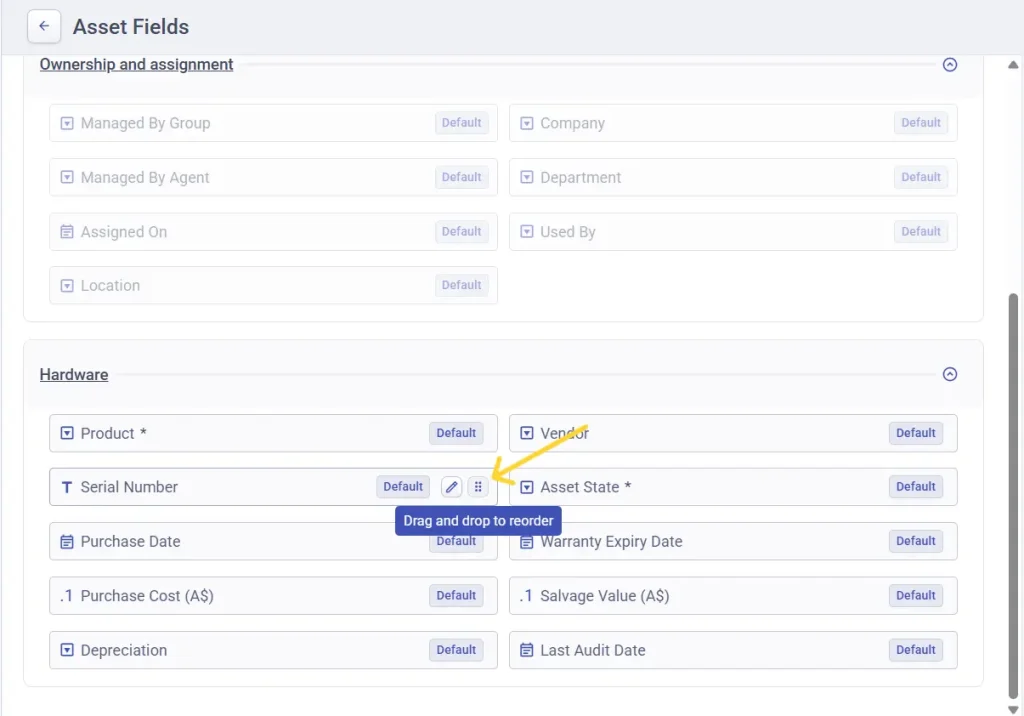
Fields under asset Identification and ownership and assignment are system-defined and cannot be edited or reordered. These fields ensure consistency across all asset records and provide a standard structure for identifying assets and assigning ownership.
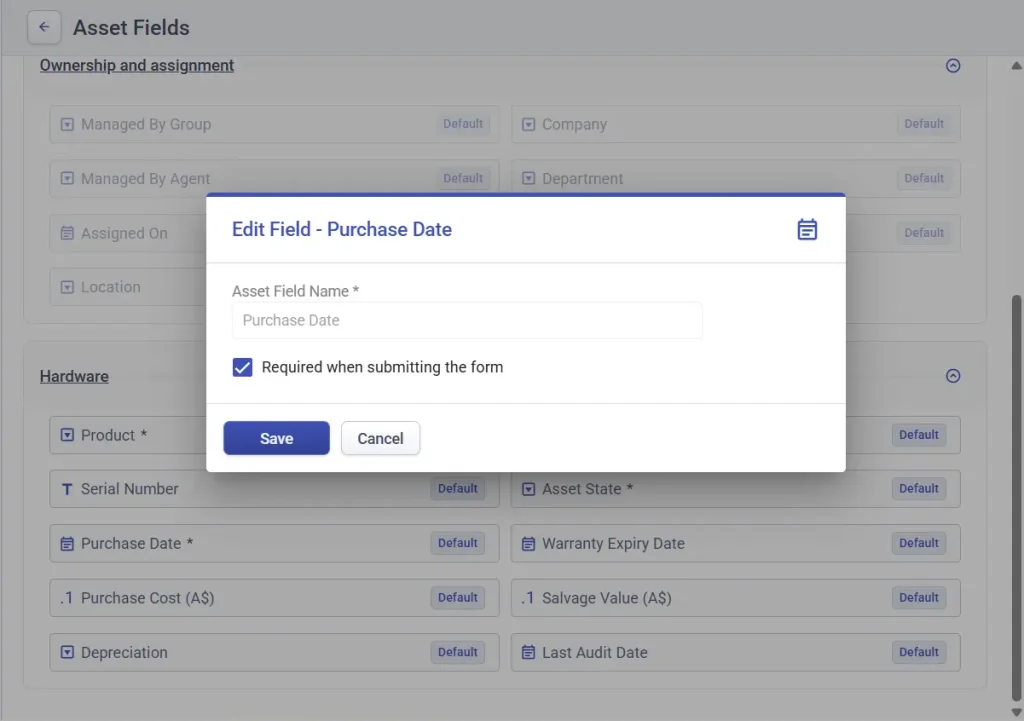
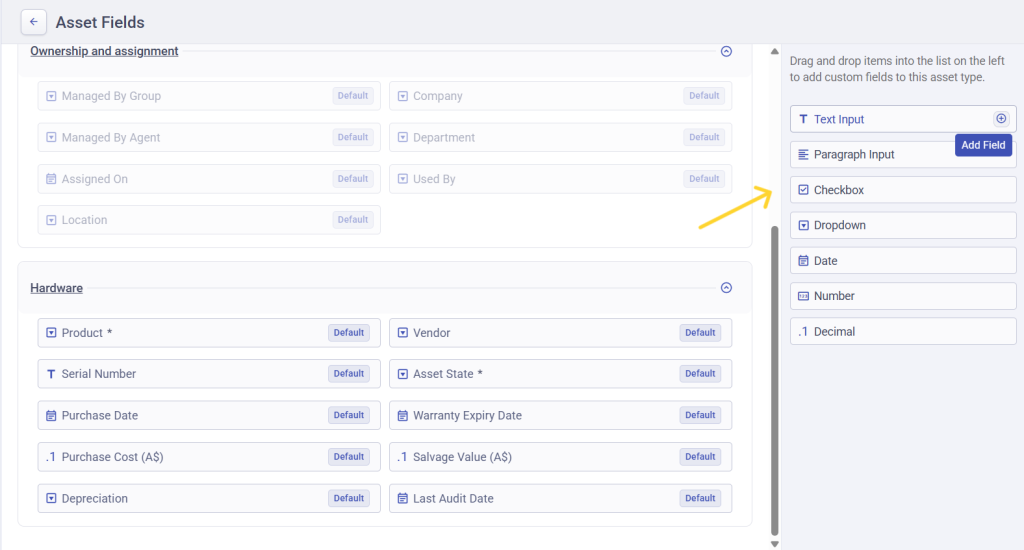
However, customization is available for hardware and consumables fields. In these sections, you can:
Edit existing fields to better match your tracking needs by marking fields as required or not
Add new fields where required by simply dragging and dropping single level field type from the right column
Use drag and drop to reorder fields and control how information appears to agents
Once these default fields are set up, you can move on to creating custom parent and child asset types that build on this foundation.
Creating custom asset types
Desk365 lets you create custom parent and child asset types to mirror real-world asset hierarchies and keep your inventory structured as it grows.
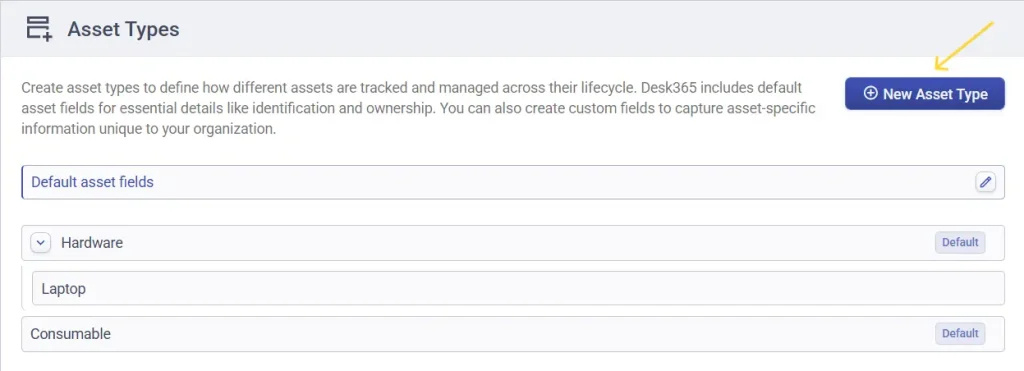
To create a new asset type, navigate to the asset types & fields menu click the ‘New Asset Type’ button.
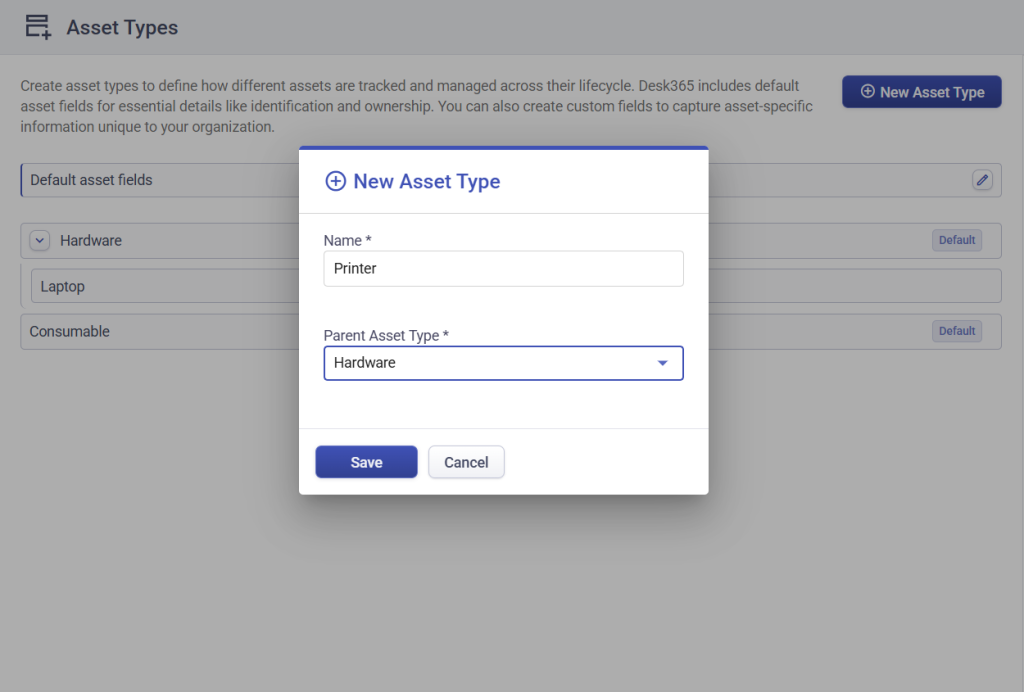
In the ‘Create New Asset Type’ window, enter a name for the asset type and select a Parent Asset Type.
For example, you can set Hardware as the parent asset type and then create child asset types such as Printer under it. Within Printer, you can further create more specific child asset types like Laser Printer or Inkjet Printer or Multifunction Printer to reflect your actual device landscape.
Each child asset type inherits the parent structure and default fields, while allowing you to capture more specific details at each level. This makes it easy to maintain consistency while still supporting granular tracking.
Asset types can be edited or deleted when they are no longer needed. However, parent asset types cannot be deleted if they have active child asset types. To delete a parent asset type, you must first delete or reassign its child asset types. This prevents accidental data loss and helps preserve the integrity of your asset hierarchy.
Common mistakes to avoid
1. Making too many fields mandatory early on
It’s tempting to mark every available field as required to capture complete information from day one. However, this often slows down asset creation and leads to incomplete or inaccurate entries when users are forced to fill in details they don’t yet have. A better approach is to start with only the most critical required fields, such as asset name, product, and state, and gradually introduce additional required fields as your asset management process matures.
2. Using free-text fields instead of dropdowns (when creating custom fields)
While Desk365 provides dropdowns by default for fields like Vendor, Asset State, Location, and Department, issues can arise when teams add custom fields as free-text instead of dropdowns.
Free-text custom fields allow multiple variations of the same value (for example, “HP”, “Hewlett Packard”, or “HP Inc”), which leads to inconsistent data over time.
To maintain clean, reportable data, always use dropdown fields when creating custom fields for values that should remain standardized, such as vendors, asset categories, or usage status.
3. Creating asset types without clear ownership
Defining asset types without assigning a responsible group or agent can result in unclear accountability. When issues arise, tickets may be delayed or misrouted because it’s not obvious who owns the asset. Always ensure that asset types—especially those tied to critical hardware or shared resources—have clear ownership through assigned groups or agents.
With asset types and fields set up correctly, the next step is to start building and maintaining your product inventory. In the next article, you’ll learn how to add products, track quantities, manage vendors, and keep your inventory accurate as assets are purchased, assigned, and retired.
Software fields
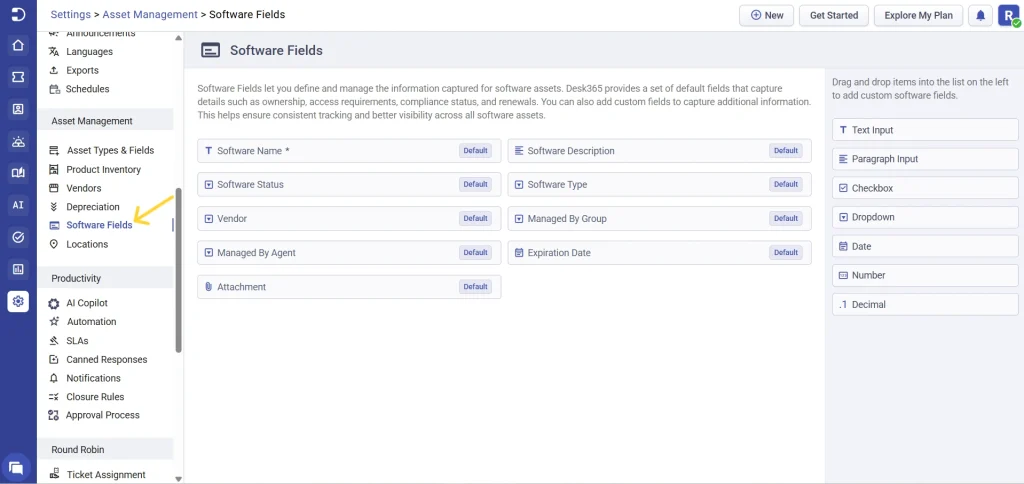
Alongside other asset categories, Desk365 also supports tracking software assets using software fields.
Software fields work very similar to asset fields, but they are designed specifically for tracking software licenses, subscriptions, and applications instead of physical devices.
You can configure software fields from Settings > Asset Management > Software Fields
Just like asset fields, Desk365 provides a set of default software fields to help you get started quickly. You can also add additional custom fields using drag-and-drop field types (text, dropdowns, dates, numbers) to match how your organization manages software.
Default fields include:
Software name and description
Status (Restricted, Managed, Disabled)
Type
Vendor
Responsible agent or group
Expiration dates
Attachments like license agreements or invoices
With asset types, fields, and software tracking in place, your Desk365 asset management setup is ready to support both physical and digital assets at scale.