Desk365’s AI Copilot is a powerful AI-driven feature designed to enhance agent productivity by automating knowledge base creation and summarizing lengthy ticket conversations. With AI Copilot, agents can efficiently manage tickets, reduce manual effort, and improve customer support responses.
AI Copilot offers three key AI-powered options:
- Generate KB Article – Automatically creates a knowledge base article from ticket details, making it easier to document solutions for future reference.
- Summarize Ticket – Generates a concise summary of ticket conversations, helping agents quickly grasp key details without scrolling through long threads.
- Draft with AI – Helps agents quickly compose replies by rephrasing text, correcting grammar, and translating responses into multiple languages.
This guide will walk you through enabling and using AI Copilot step by step.
Enabling AI Copilot
- Log in to your Desk365 account and navigate to Settings > Productivity >AI Copilot
- Enable AI Copilot features for your helpdesk option. Toggle the setting to Enable AI Copilot
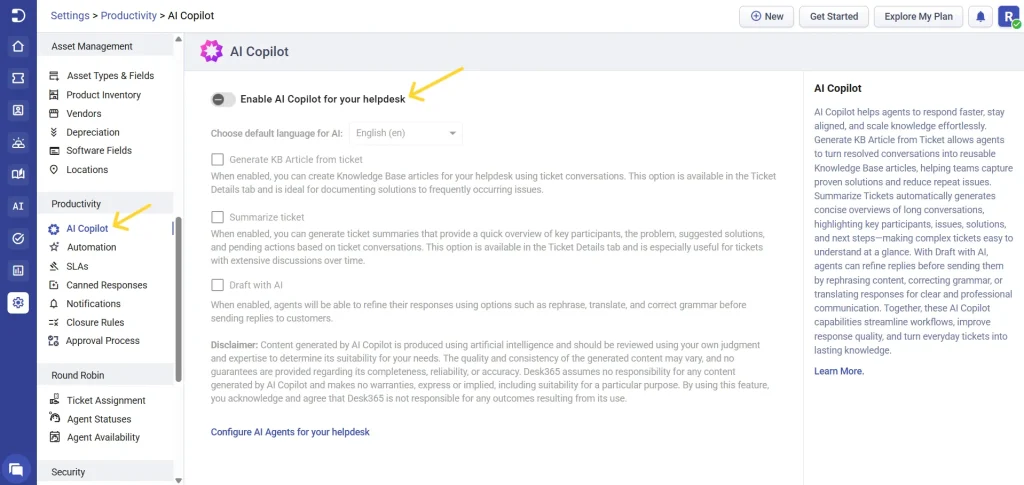
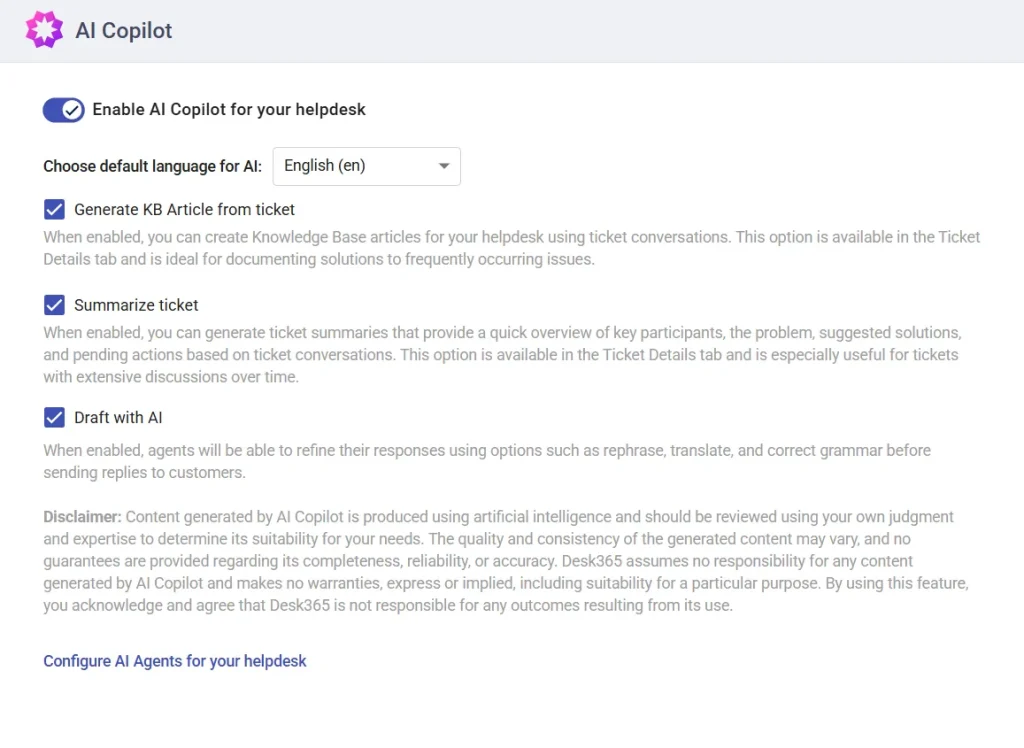
Once enabled, you can configure how AI Copilot works for your helpdesk. Select the default language for AI-generated content from the dropdown. Then, choose the features you want to activate by checking the relevant options — Generate KB Article from ticket, Summarize ticket, and Draft with AI. You can enable one or all features based on your requirements.
After selecting your preferred options, the changes are applied instantly, and the enabled AI capabilities will be available within the Ticket Details view for agents to use.
Using AI Copilot
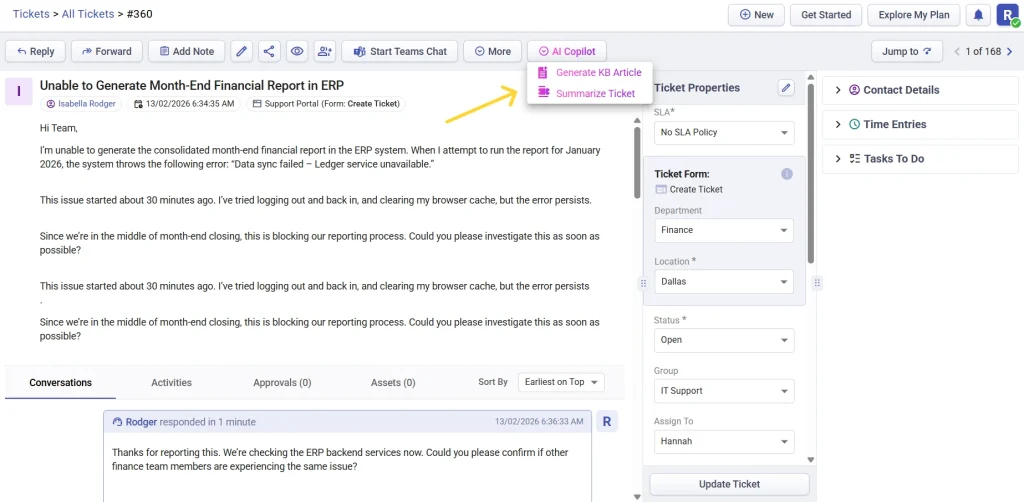
After enabling AI Copilot, agents will see it in the Ticket Details view.
- Generate KB Article
- Summarize Ticket
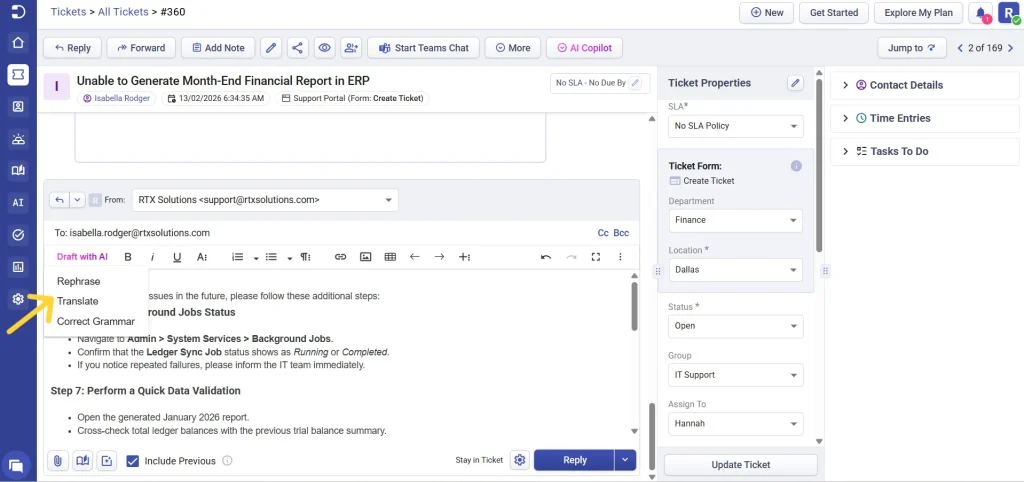
- Draft with AI
Let’s go through each feature step by step.
1. Generate KB Article
The Generate KB Article option allows agents to convert ticket details into a knowledge base (KB) article. This helps document commonly asked questions and resolutions, reducing repetitive ticket handling.
- Open a ticket that contains a resolution you want to document.
- Click on AI Copilot within the ticket details and select Generate KB Article.
- AI will process the ticket details and draft a knowledge base article allowing agents to:
– Edit the content to refine the article.
– Regenerate if a different version is needed.
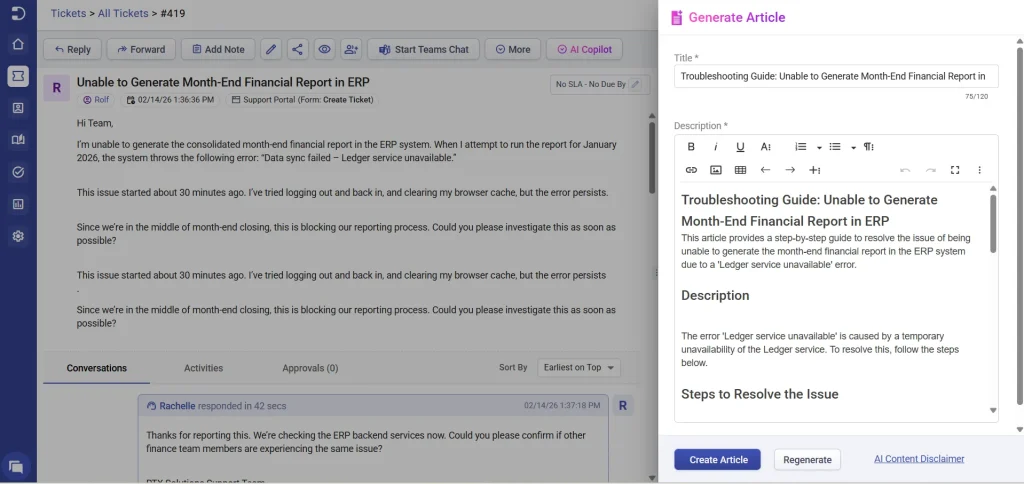
- Once satisfied, click Create Article. Choose the category and folder where you want to make the article available.
- Click Publish to add the article to the knowledge base.
2. Summarize Ticket
The Summarize Ticket option helps agents quickly review ticket conversations by generating a concise summary. This is useful when a ticket has multiple responses and interactions.
- Open a ticket that has a long conversation history.
- Click on AI Copilot within the ticket details and select Summarize Ticket.
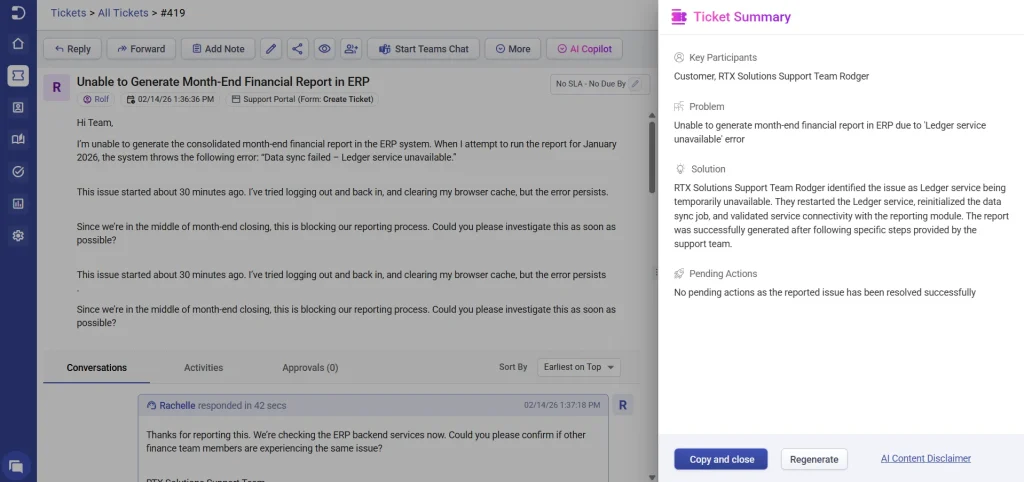
- AI will analyze the ticket conversation and generate a summary highlighting the key points allowing agents to:
– Regenerate if a different summary is needed.
– Copy and Close to save it to the clipboard for use in responses or notes
3. Draft with AI
The Draft with AI option helps agents write faster and clearer ticket responses directly from the reply editor. It can rephrase messages, correct grammar, or translate replies into multiple languages, helping agents respond confidently and professionally.
- Open a ticket and type your response in the reply editor.
- Click Draft with AI in the reply window.
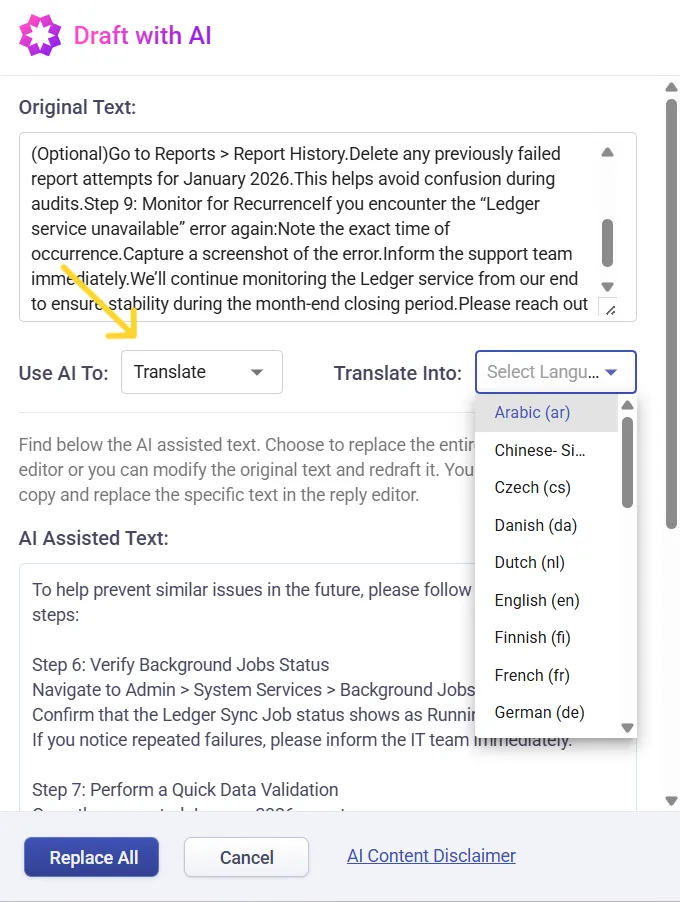
- Choose from the available options:
– Rephrase the response for clarity or tone
– Correct grammar automatically
– Translate the message into the required language
Review the AI-generated version and replace the original text fully or partially as needed.
This helps agents save time while still keeping full control over the final response sent to the requester.
AI Copilot in Desk365 simplifies ticket handling by automating knowledge creation, conversation summaries, and response drafting. By enabling Generate KB Article, Summarize Ticket, and Draft with AI, agents can:
- Reduce repetitive work and improve response time
- Build a well-documented knowledge base for future reference
- Quickly grasp key details in lengthy ticket conversations
- Write clear, professional responses faster with AI-assisted drafting
By leveraging AI-powered automation, Desk365 enhances the efficiency of support teams, ensuring faster resolutions and better customer experiences.