Assets are the foundation of asset management. An asset represents any physical or digital item that your organization owns, uses, or manages—such as laptops, desktops, printers, monitors, software licenses, or network equipment.
By creating assets in Desk365, you give your support and IT teams complete visibility into:
- Who is using an asset
- Where the asset is located
- Its purchase, warranty, and vendor details
- Its current condition and lifecycle stage
- All support tickets linked to the asset
Each asset has its own lifecycle and ownership, even if multiple assets belong to the same product model.
Asset vs product: Understanding the difference
It’s important to clearly understand the difference between products and assets.
- Product – A product represents a model or item type. Example: HP LaserJet Pro M404dn
- Asset – An asset is a real, individual instance of that product. Example: HP M404dn – Finance Dept
In Desk365:
- Products live in Product Inventory
- Assets live in Assets
A single product can have many assets created from it.
Before you begin
Before creating assets, make sure the following are already set up in your account:
- Asset types and asset fields
- Product inventory
- Vendors (optional, but recommended)
These configurations determine:
- Which fields appear on the asset form
- How assets are categorized
- What information you can capture for reporting and ticketing
How to create an asset in Desk365
- Go to the Agent Portal
- Click the New button at the top-right corner of the screen
- From the dropdown, select New Asset
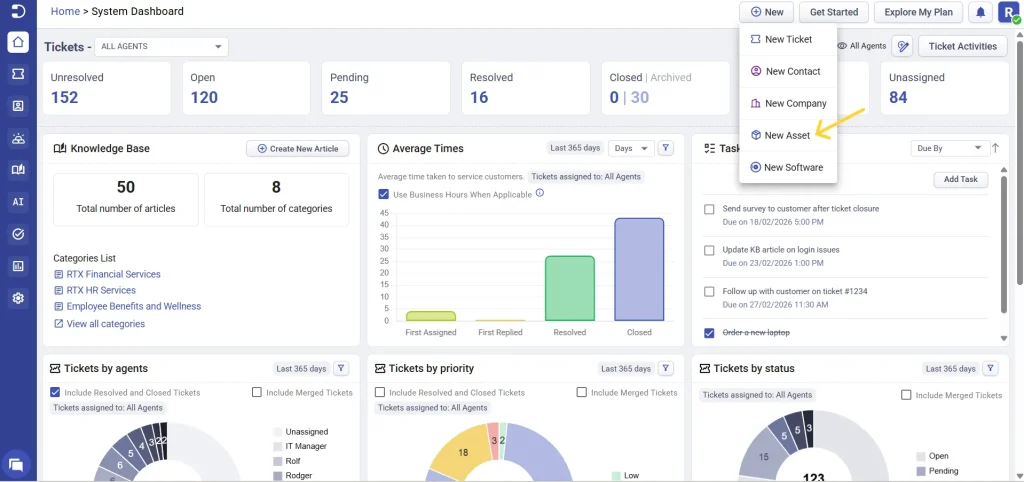
4. The New Asset form opens. You will see default asset field groups. Based on the asset type you select additional customized fields automatically appear
5. Fill in the asset details and click create
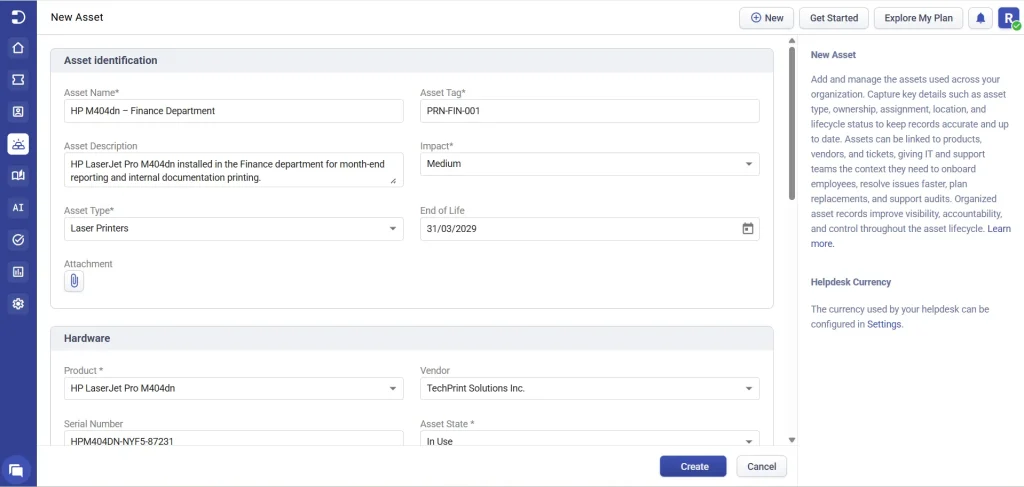
Once the asset is created:
- The asset is saved successfully
- It is automatically associated with:
– The selected product from inventory
– The selected vendor
– The asset becomes available for ticket linking and reporting
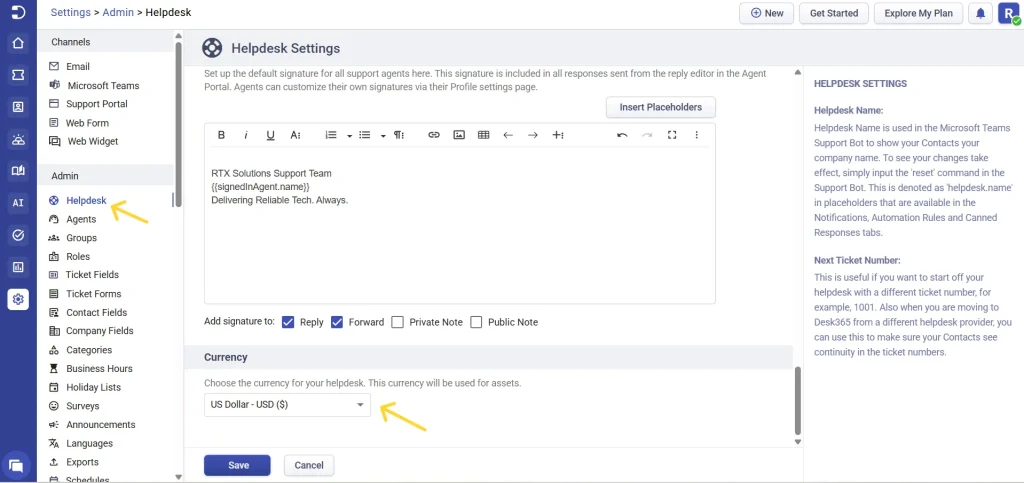
Note: Ensure the correct helpdesk currency is configured before entering financial details such as Purchase Cost, Salvage Value, and Depreciation.
The currency used by your helpdesk can be configured in helpdesk settings.
Go to Settings > Helpdesk Settings > Currency. Choose the currency for your helpdesk. This currency will be used for all assets
Creating and managing asset locations
Asset locations help you track where assets are physically or logically located. Locations are especially useful for organizations with:
- Multiple offices
- Different regions or countries
- Remote or field-based teams
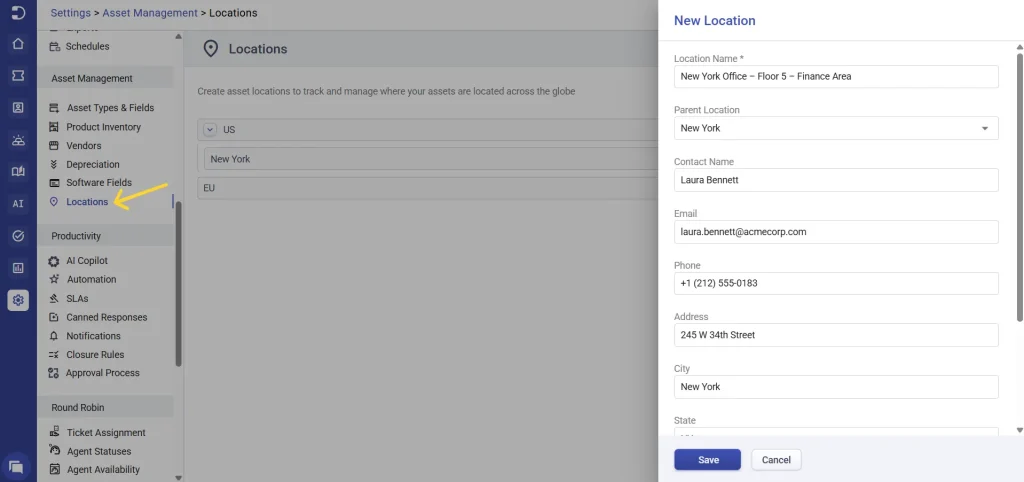
By default, Desk365 provides two locations, US and EU. To create a new asset location
- Go to Settings > Asset Management > Locations
- Click new location
- Fill in the location form fields
- Click Save to create the location.
How locations are used when creating assets
When creating or editing an asset:
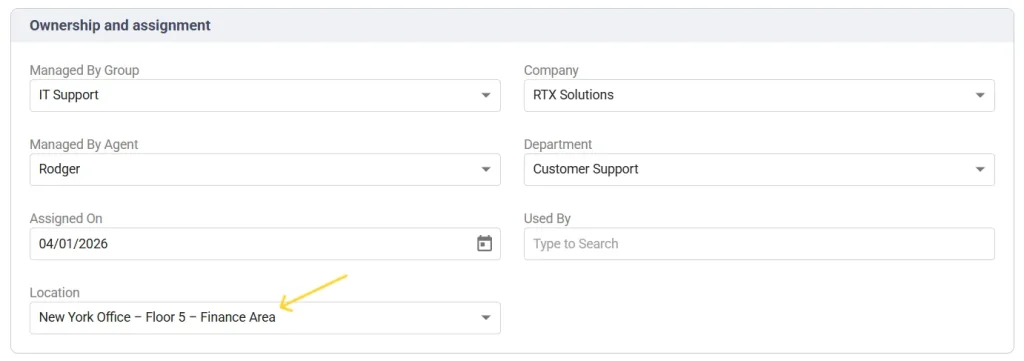
- Select a Location in the Ownership and Assignment section
- This links the asset to that physical or regional location
- Agents can later filter assets by location
- Location-based reporting becomes possible
Viewing and managing assets
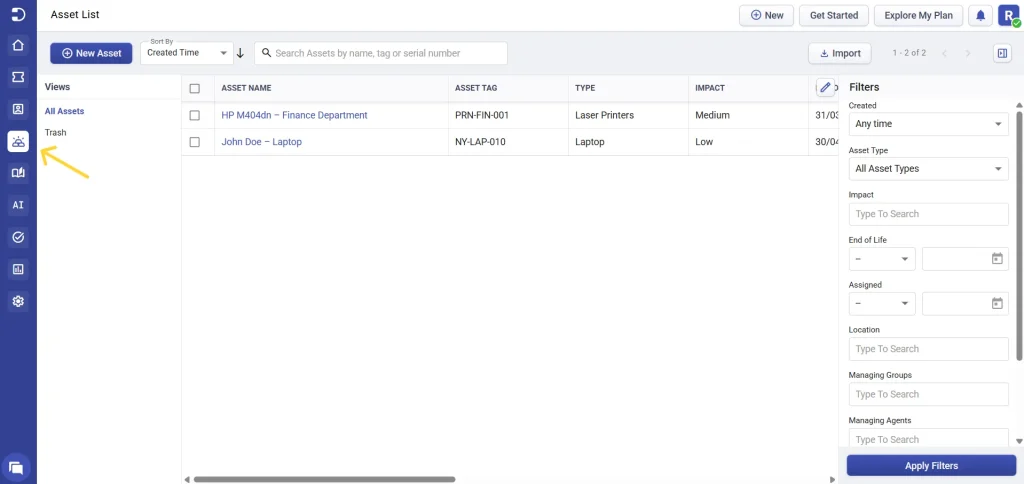
- Go to Assets > Assets List from the main menu
- All created assets are listed here
- Use search and filters to find assets quickly
- Click on an asset to open its detailed view.
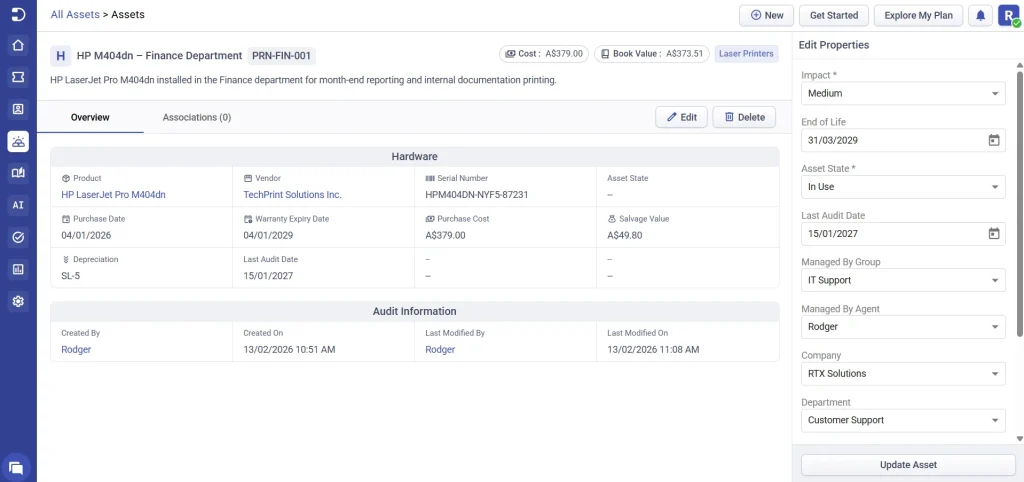
You can:
- Click Edit to update all asset details or,
- Quickly update properties from the right-side panel, such as:
– Assignment
– Asset State
– Impact
– Location - If an asset is no longer required click Delete
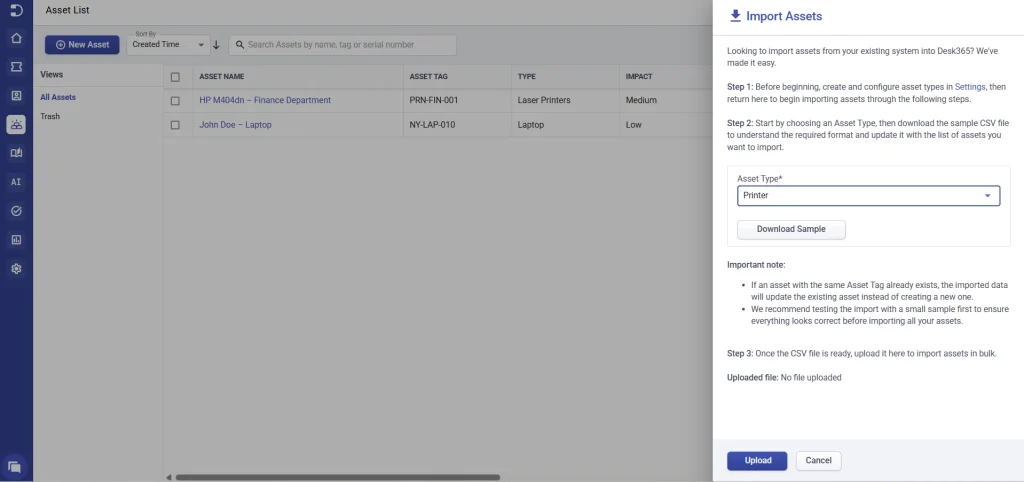
You can also import assets in bulk directly from the Assets List page. Click Import Assets in the top-right corner, select the required Asset Type, download the sample CSV to understand the format, update it with your asset details, and upload the file to create multiple assets at once. If an asset with the same Asset Tag already exists, the import will update the existing asset instead of creating a duplicate.
Linking assets and tickets
Linking assets to tickets helps agents understand the full context of an issue.
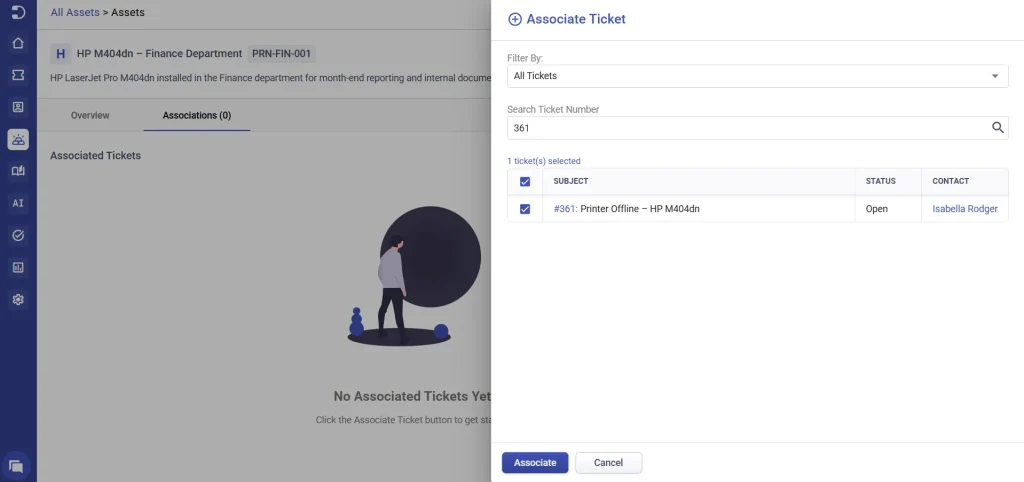
How to associate a ticket from an asset
- Open the asset
- Go to Associations > Associate Ticket
- Choose all tickets, or contact tickets
- Enter the ticket number
- Select the ticket and click Associate
The ticket now appears under the asset’s Associated Tickets section.
How to associate an asset from a ticket
- Open a ticket
- Go to Assets
- Click Associate Asset
- Select the asset type
- Choose the asset
- Click Associate
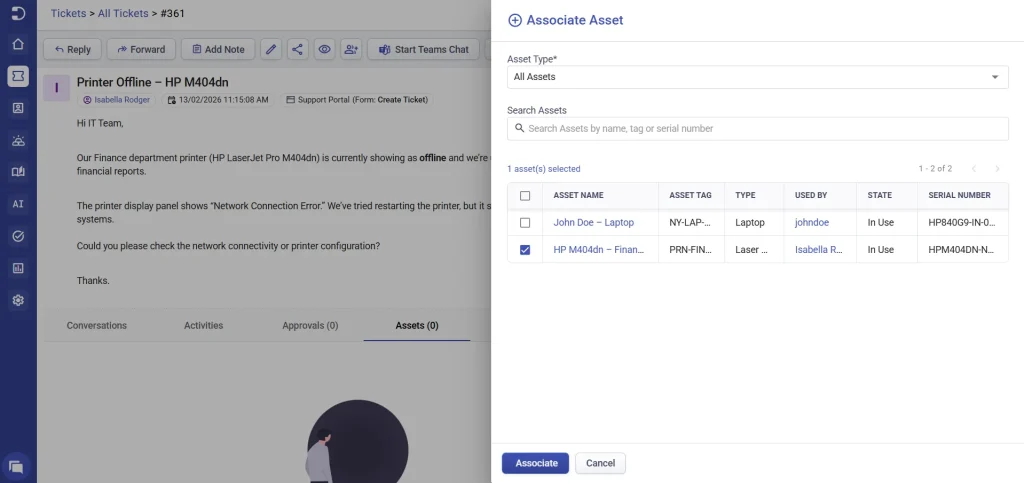
This ensures asset and ticket information stays connected.
Now that you know how to create and manage assets, continue with Understanding Asset Depreciation in Desk365
This will help you track asset value and plan replacements more effectively.