

The Desk365 AI Agent lets support agents and contacts get support directly from Microsoft Teams. They can ask questions, find answers from your Knowledge Base, create support tickets, and receive ticket updates without leaving Teams.
Before getting into how to setup Desk365 AI Agent in Microsoft Teams, make sure you have completed the Desk365 AI Agent Setup Guide. This guide covers the AI Agent configuration you need to complete in Desk365.
Once that setup is complete, follow the steps below to make the AI Agent available in Microsoft Teams.
Before you begin, make sure you have:
- An active Desk365 account with the AI Agent enabled.
- Microsoft Teams administrator permissions if your organization manages Teams apps centrally.
Step 1 - Configure who can access the AI Agent
You can control who can use the AI Agent in Microsoft Teams by configuring the Teams AI Agent Allowed Domains in Desk365.
Only contacts whose email addresses match an Allowed Domain will be able to access and use the AI Agent.
To add an Allowed Domain in Desk365:
- Go to Settings > Admin > Helpdesk Settings.
- Find Teams AI Agent Allowed Domains.
- Enter the email domain or domains you want to allow. For example: rtxsolutions.com, contoso.com, and fabrikam.com
- Click Save.
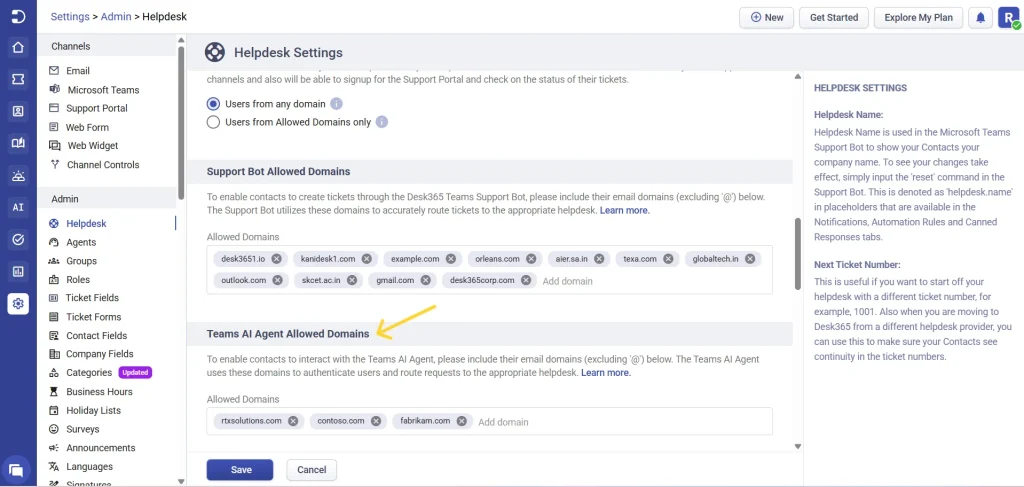
Only contacts whose email addresses match one of the configured domains will be able to interact with the Teams AI Agent.
If multiple Desk365 helpdesks are configured with the same email domain, the Teams AI Agent uses the subdomain of the helpdesk to route requests to the appropriate helpdesk.
Step 2 - Add ‘Desk365 AI Agent’ to Microsoft Teams
The Desk365 AI Agent is available as an app in Microsoft Teams.
You can either let contacts add the app themselves or deploy it for contacts through the Microsoft Teams Admin Center.
1. Let contacts add the AI Agent themselves
If your organization’s Teams policies allow contacts to install apps:
- Open Microsoft Teams.
- Select Apps.
- Search for Desk365 AI Agent.
- Select the app.
- Click Add.
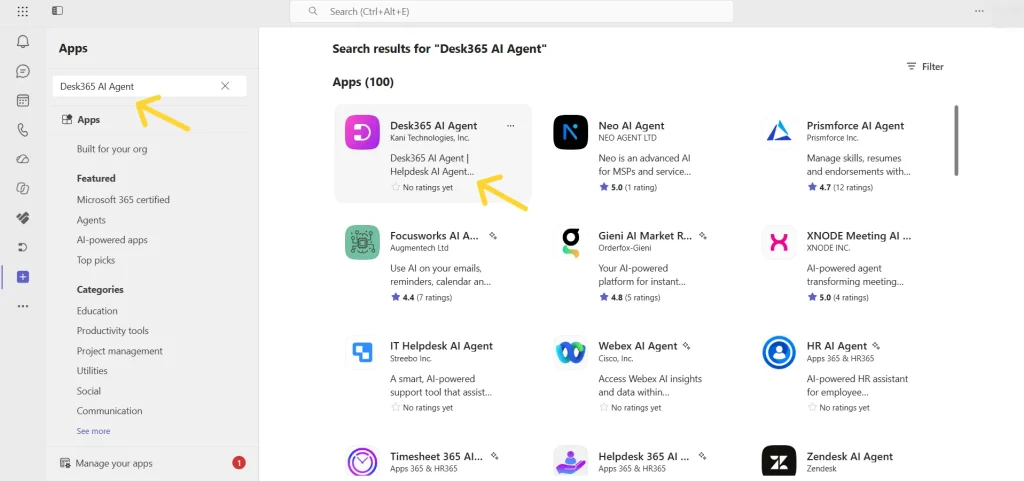
The AI Agent will then be available to that user in Teams.
If contacts cannot find or add the app, your organization’s Teams administrator may have restricted third-party apps. In that case, the administrator needs to allow and deploy the AI Agent.
2. Customize the Desk365 AI Agent
Before deploying the AI Agent to your contacts, you can customize how it appears in Microsoft Teams. This helps your contacts recognize the AI Agent and understand what it is used for.
To customize the Desk365 AI Agent:
- Sign in to the Microsoft Teams Admin Center.
- Go to Teams apps > Manage apps.
- Search for and select Desk365 AI Agent.
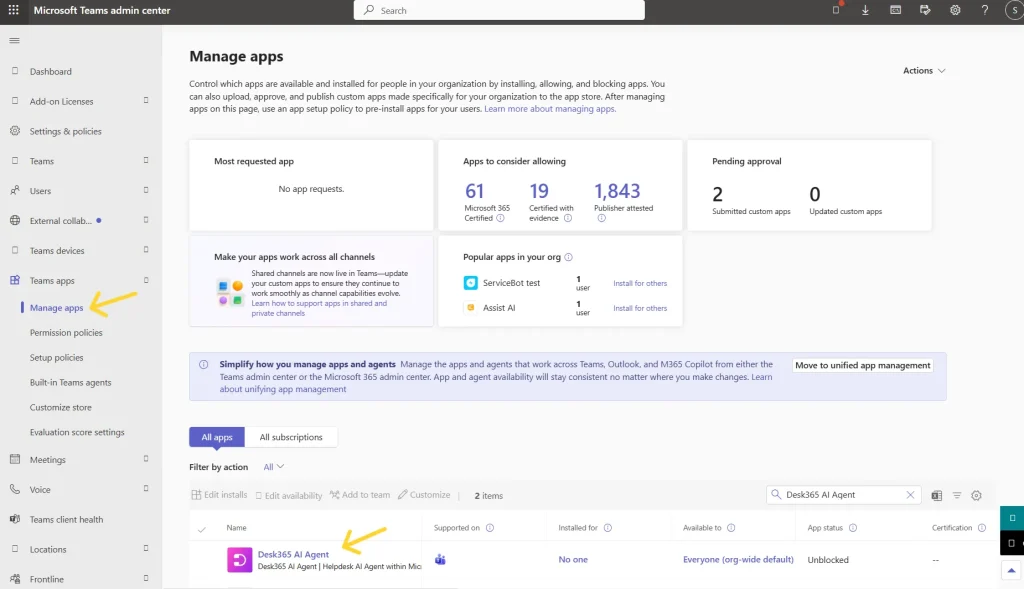
- Open Settings and Customization.
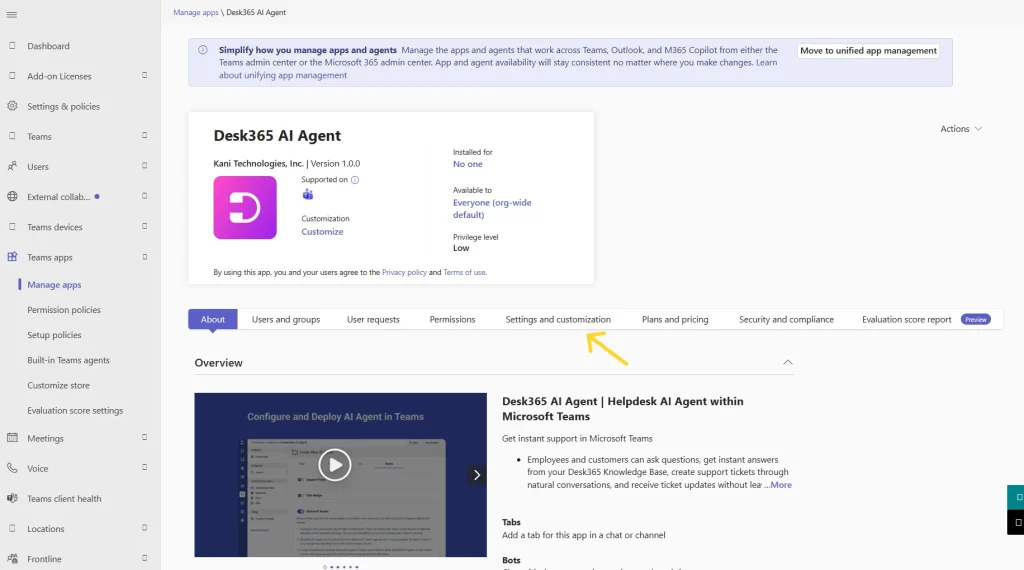
You can customize the following:
- Name: Enter the name you want contacts to see for the AI Agent.
- Short description: Add a brief description of the AI Agent. This appears alongside the app and gives contacts a quick idea of what it does.
- Long description: Add more details about the AI Agent and how contacts can use it for support.
- Small icon: Upload an icon that represents the AI Agent. This icon is used in places where a smaller app image is displayed.
- Large icon: Upload a larger version of the icon for places where a larger app image is displayed.
- Accent color: Choose an accent color for the AI Agent to match your organization’s branding.
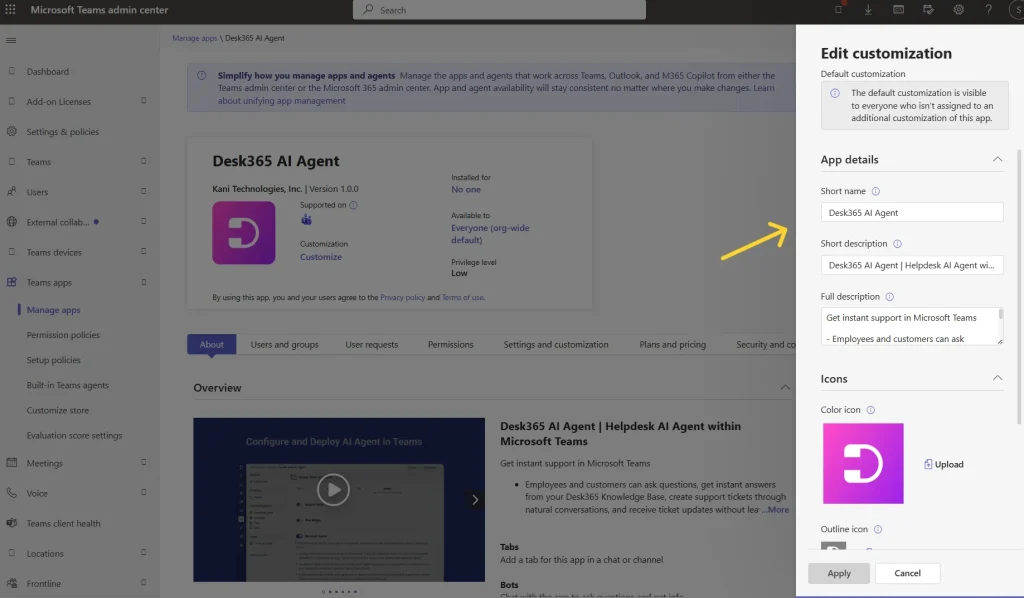
- Click Apply to save your changes.
Once you’ve customized the AI Agent, you can continue with the deployment steps below to make it available to your contacts.
3. Deploy the AI Agent for your organization
If you want to make the AI Agent available to multiple contacts, your Teams administrator can deploy it through the Teams Admin Center. To deploy the AI Agent:
- Sign in to the Microsoft Teams Admin Center.
- Go to Teams apps > Manage apps.
- Search for and select the Desk365 AI Agent.
- Open the Users and groups tab.
- Click Install app.
- Under Install to, select one of the following options:
– Everyone: Install the AI Agent for everyone in your organization, including guests and external users.
– Specific users or groups: Install the AI Agent only for selected users or groups.
– No one: Do not install the AI Agent for anyone.
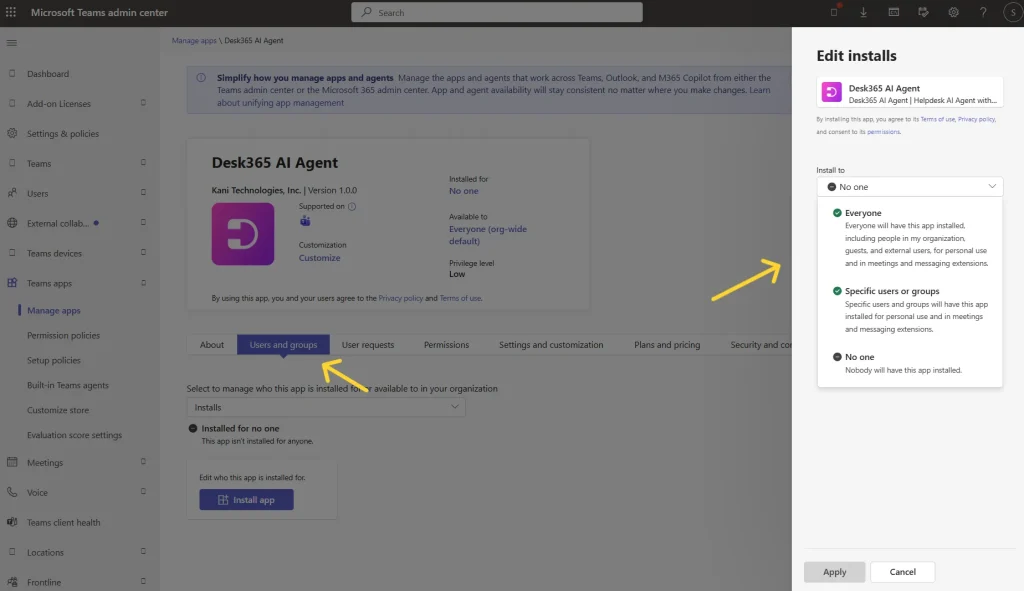
You can first deploy the AI Agent to a small group of contacts and test it before making it available to everyone.
Step 3 - Grant admin consent for the AI Agent permissions
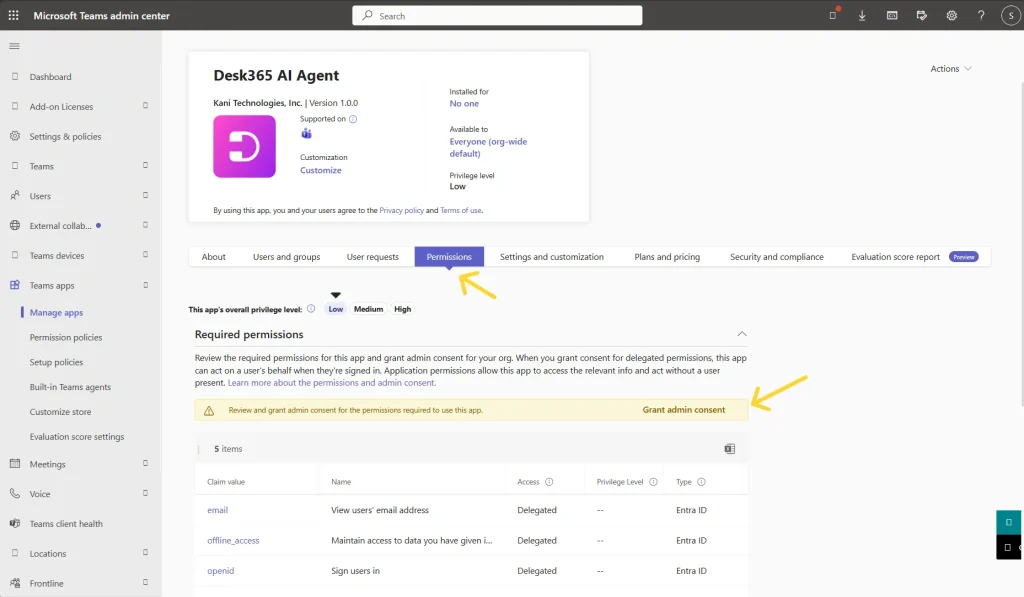
Before contacts can use the Desk365 AI Agent, your Microsoft Teams administrator needs to review and grant admin consent for the permissions the app requires. Admin consent lets the AI Agent sign contacts in and identify them when they start a conversation in Teams.
To review and grant admin consent:
- Sign in to the Microsoft Teams Admin Center.
- Go to Teams apps > Manage apps.
- Search for and select Desk365 AI Agent.
- Open the Permissions tab.
- Review the permissions listed under Required permissions.
- Click Grant admin consent.
Step 4 - Pin the AI Agent for contacts
If you want contacts to have quick access to support, you can pin the Desk365 AI Agent in Teams.
You can use app setup policies in the Microsoft Teams Admin Center to automatically install and pin the Desk365 AI Agent for contacts.
- Go to Teams apps > Setup policies in the Microsoft Teams Admin Center
- Select Global (Org-wide default) or create a custom policy for specific users or groups
- Under Installed apps, click Add apps, search for Desk365 AI Agent, and add it
- Under Pinned apps, click Add apps, search for Desk365 AI Agent, and add it
- Arrange the app in the desired position on the Teams app bar, then click Save
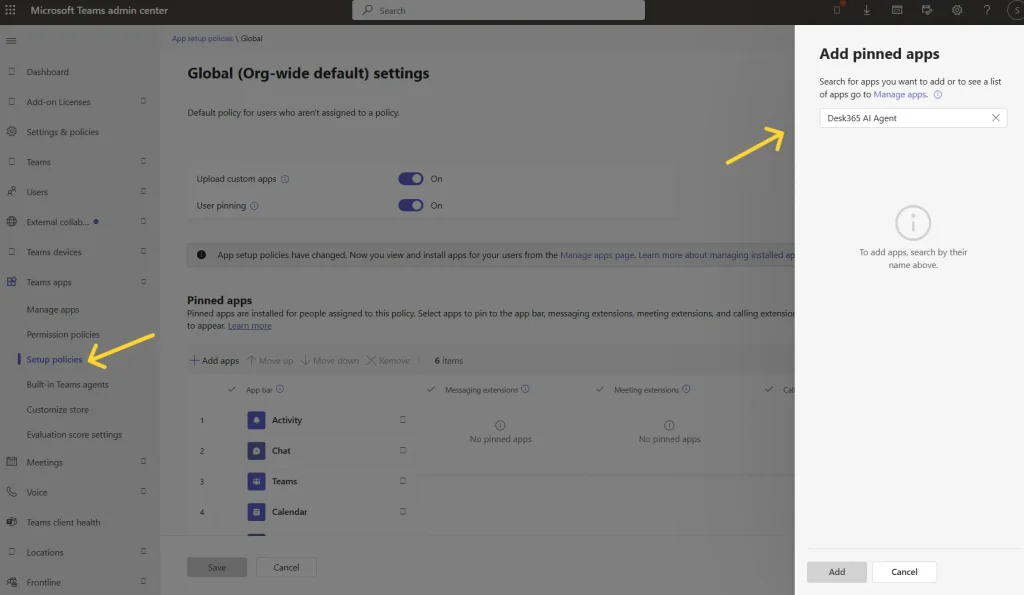
Once pinned, contacts can access the AI Agent directly from the Teams app bar instead of searching for it.
Note: You don’t need to upload a separate app package for the Desk365 AI Agent. The AI Agent is available directly through the Microsoft Teams app experience.
Step 5 - Start using the AI Agent in Microsoft Teams
Once the Desk365 AI Agent is available to you, open it from Microsoft Teams and start a conversation.
You can interact with the AI Agent just like you would with a support assistant.
Ask questions
Type your question in the chat.
For example: I have an issue regarding integration.
The AI Agent searches the Knowledge Base configured for your AI Agent and provides an answer based on your organization’s support information.
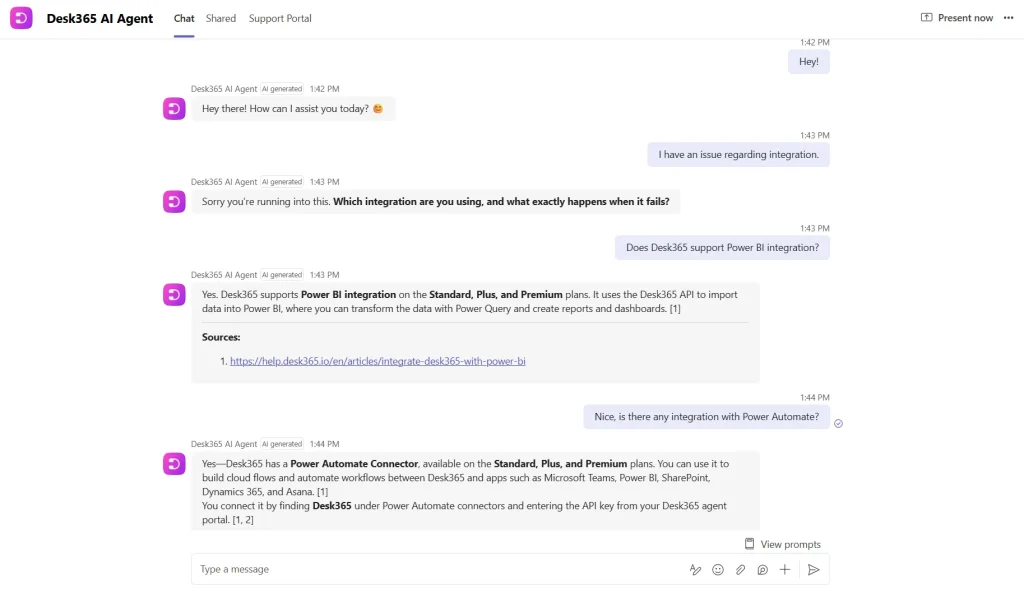
This means contacts can get help without opening the Desk365 Support Portal or searching through Knowledge Base articles themselves.
Create a support ticket
If the AI Agent cannot resolve an issue, it can help the contact create a support ticket.
Contacts can simply describe their issue in the conversation. The AI Agent can collect the required information, draft a ticket for review, and create the ticket for the support team.
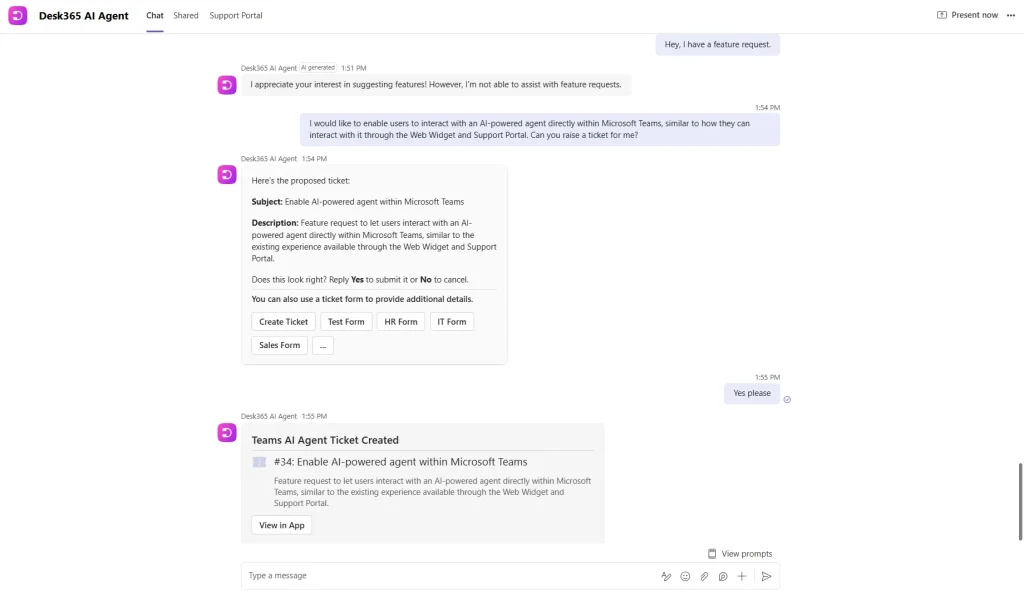
The AI Agent can ask for additional information when needed before creating the ticket.
Contacts can also create a ticket using a customizable ticket form when more structured information is required. The form can include custom fields and allow contacts to add file attachments.
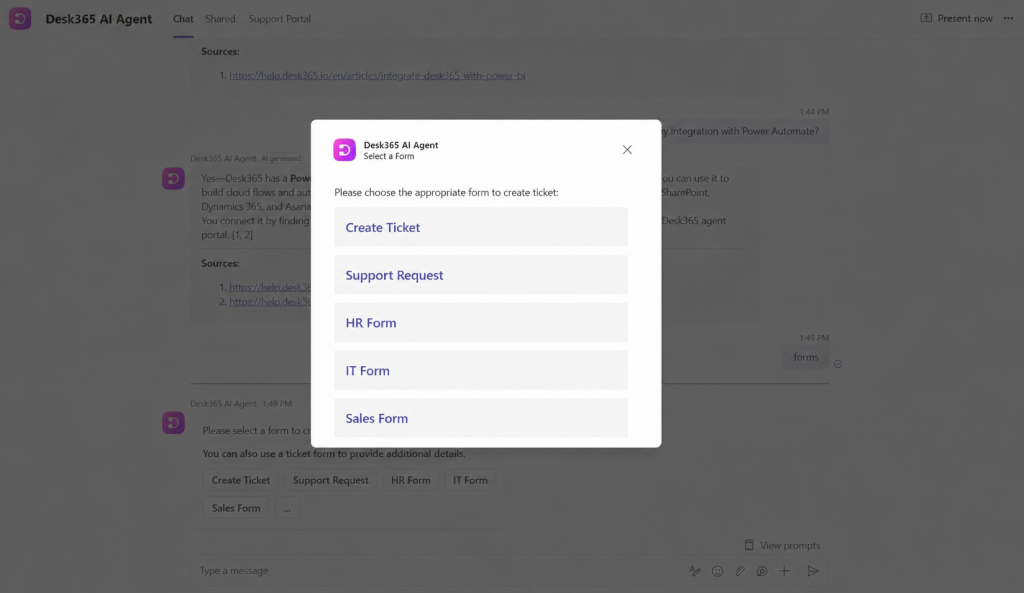
Get ticket updates in Teams
After a ticket is created, contacts can receive important updates directly in Microsoft Teams. Updates include:
- Ticket creation
- Replies from support agents
- Status changes
- Ticket assignments
- Approval requests
- Customer satisfaction surveys
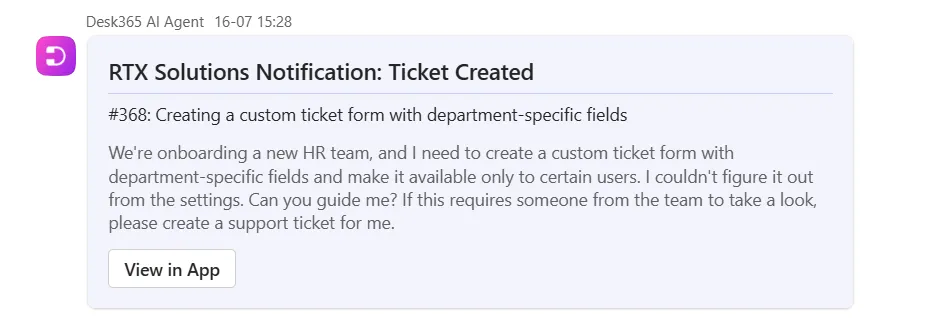
Contacts can also respond to approval requests and complete satisfaction surveys directly from Teams.
This means they can stay updated on their support requests without switching to another application.
Get better answers from the AI Agent
The AI Agent uses your Desk365 Knowledge Base to answer contacts’ questions. Keeping your Knowledge Base accurate and up to date helps contacts get more useful answers.
Your support team can use Desk365’s other AI features to maintain and improve your Knowledge Base and ticket responses.
For example, Generate KB Article from Ticket can help turn useful information from resolved tickets into Knowledge Base articles.
You can also use AI Copilot to help your support team work with tickets and Knowledge Base content.
Other useful AI features include:
AI Agent and AI Copilot: What's the difference?
If you’re using both features, the simplest way to think about them is:
AI Agent helps your contacts. It interacts with employees and customers, answers their questions, and helps them create and track support requests.
AI Copilot helps your support team. It helps support agents work more efficiently with tickets, responses, and Knowledge Base content.
Once the Microsoft Teams setup is complete, contacts can access Desk365 support without leaving Teams.
They can ask questions, get answers from your Knowledge Base, create support tickets, add attachments, and stay updated on their requests, all from one place.
Troubleshooting
Check with your Teams administrator to make sure Desk365 AI Agent is allowed and deployed for your user or group.
If your organization restricts third-party apps, the administrator may need to update the relevant Teams app policies.
Check the Support Bot Allowed Domains setting in Desk365. Go to Settings > Admin > Helpdesk Settings > Support Bot Allowed Domains and make sure the user’s email domain has been added to the list.
Make sure the relevant information is available in the Knowledge Base configured for your AI Agent. You can review the AI Agent configuration in the AI Agent Setup Guide.