

Audit logs in Desk365 provide a centralized view of activities performed across your helpdesk. Whether you’re reviewing configuration changes, investigating an issue, tracking ticket updates, or performing a compliance audit, audit logs help you quickly understand who performed an action, what changed, and when it happened.
This article explains how to access audit logs, the different log categories available, how to use filters to find activities, and the best practices for reviewing audit logs.
Note:
- Access to audit logs is controlled through user roles.
- Access logs are available for activities from June 28, 2026 onwards.
- Sign-out activities are available from August 9, 2026 onwards.
Configure role permissions
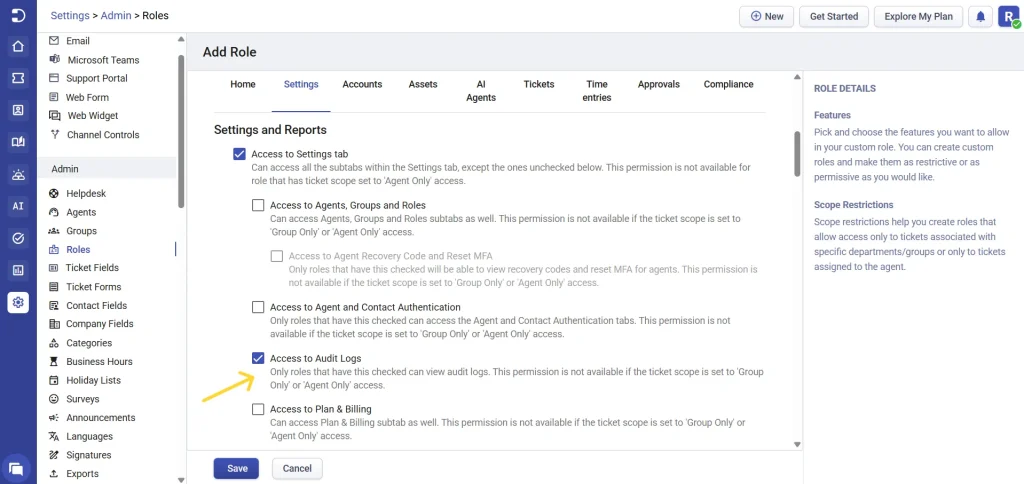
To grant access, navigate to Settings > Admin > Roles, then create a new role or edit an existing one. Under Feature Access > Settings and Reports, enable ‘Access to Audit Logs‘. This permission is available only for roles with global access ticket scope.
Accessing audit logs
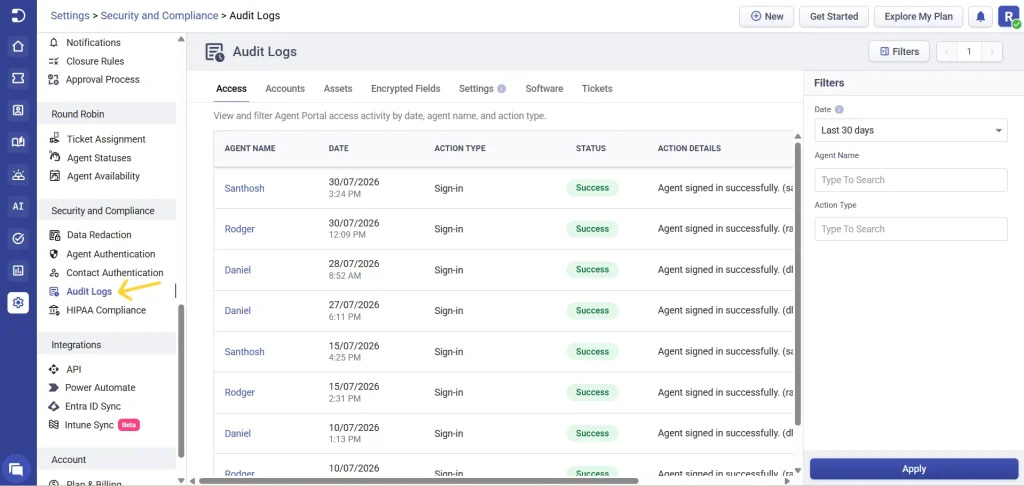
To access audit logs, navigate to Settings > Security and Compliance > Audit Logs
You’ll see seven log categories across the top of the page.
Understanding the audit logs
Each audit log category focuses on a specific area of Desk365. Depending on what you’re looking for, simply select the corresponding tab.
Every log records important information about an activity, such as:
- Who performed the action
- When it happened
- What action was performed
- Additional details related to the activity
Most log categories also include filters that help you quickly narrow down results. Depending on the selected log category, you can filter by:
- Date
- Performed By
- Activity In
- Action Type
- Source
Some log categories include fewer filters based on the type of activities they record.
After selecting the required filters, click apply to view the matching log entries.
1. Access logs
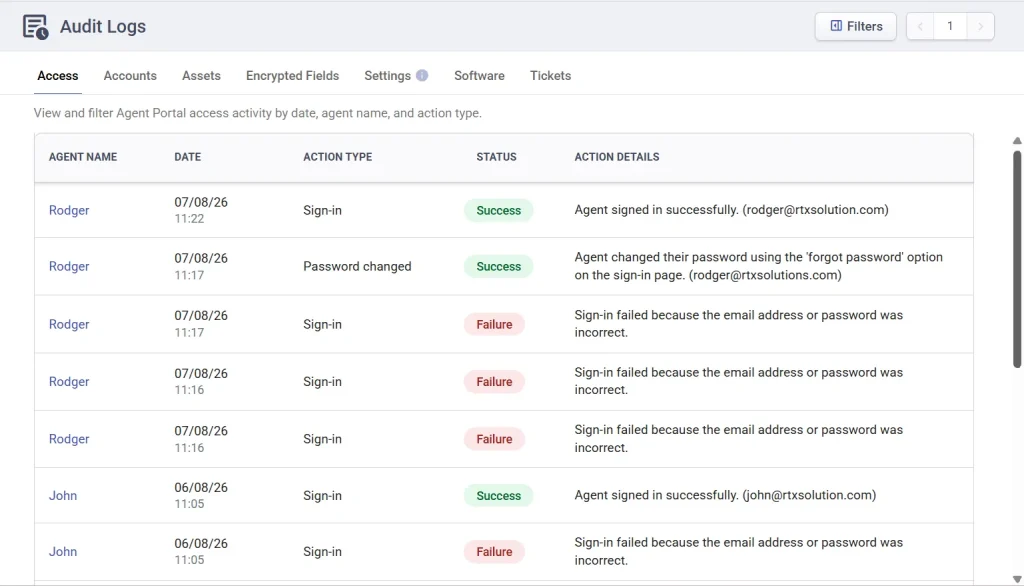
The access tab helps you monitor agent portal access activity. It records events such as agent sign-ins, sign-outs, and other access-related actions, making it easier to review account access or investigate login activity when needed.
Each log entry includes the agent’s name, the date and time of the activity, the action performed, and additional details about the event. You can use the available filters to quickly narrow down results by:
- Date
- Agent Name
- Action Type
Note: Access logs are available for activities from June 28, 2026 onwards. Sign-out activities are available from August 9, 2026 onwards.
2. Account logs
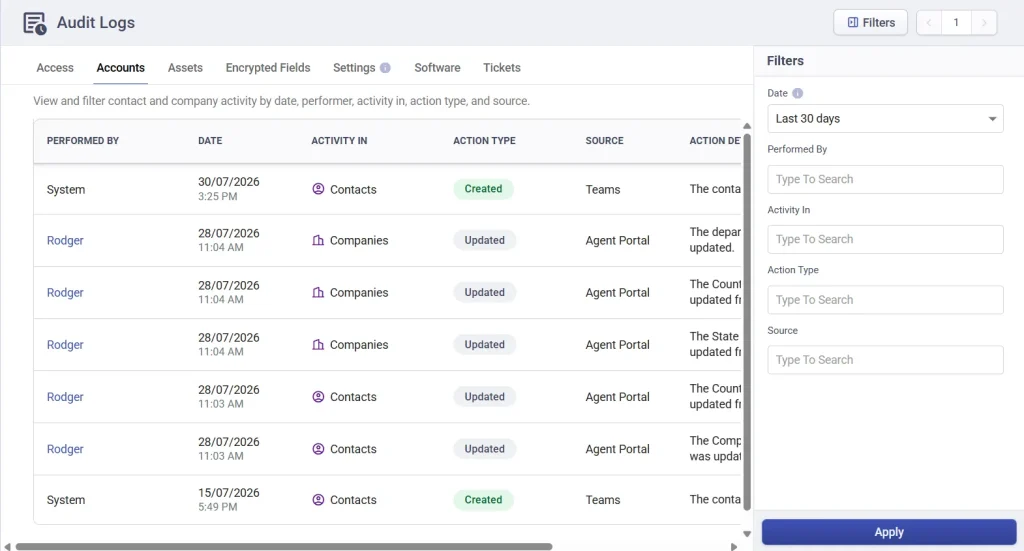
The accounts tab records activities related to your contacts and companies. Whether a contact is updated, a company is modified, or another account-related action is performed, the log provides a complete history of the activity, including the user who performed it.
To help you quickly find specific records, account logs can be filtered by:
- Date
- Performed By
- Activity In
- Action Type
- Source
3. Asset logs
If you’re using asset management, the assets tab provides an audit trail of activities performed on your assets. This includes actions such as creating or updating assets, deleting assets, and associating assets with tickets.
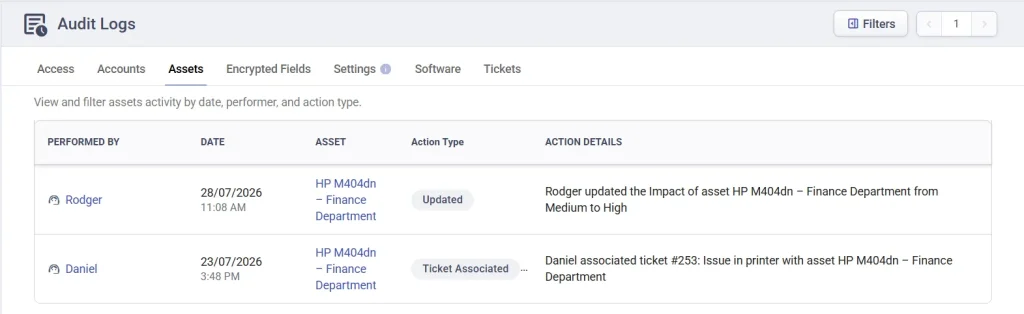
Each log entry displays the asset involved, who performed the action, when it occurred, and a detailed description of the activity. This makes it easy to review changes made to your asset inventory or investigate asset-related actions.
4. Encrypted fields
The encrypted fields tab records activities related to encrypted ticket fields and other security-sensitive configurations. It helps administrators monitor changes to encrypted field visibility, ticket properties, closure rules, and the source IP address from which the activity originated.
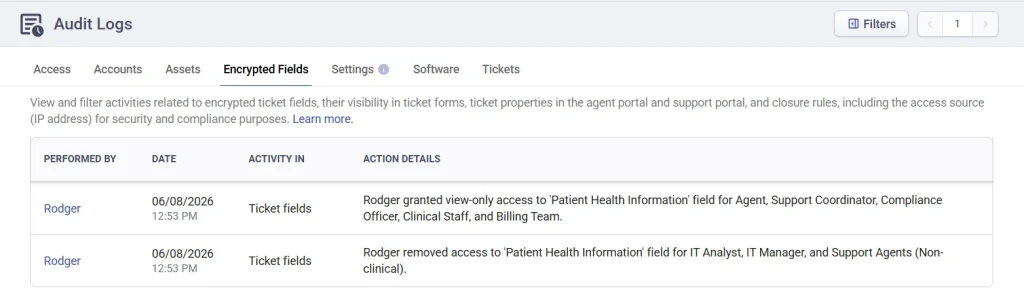
Learn more about encrypted field logs in Desk365.
5. Settings logs
The settings tab helps you keep track of configuration changes made across your Desk365 account. Whenever an administrator updates settings such as Helpdesk, Agents, Groups, Roles, Ticket Fields, Ticket Forms, Contact Fields, Company Fields, Categories, Business Hours, Holiday Lists, Surveys, Announcements, Languages, and Schedules, the activities are recorded here.
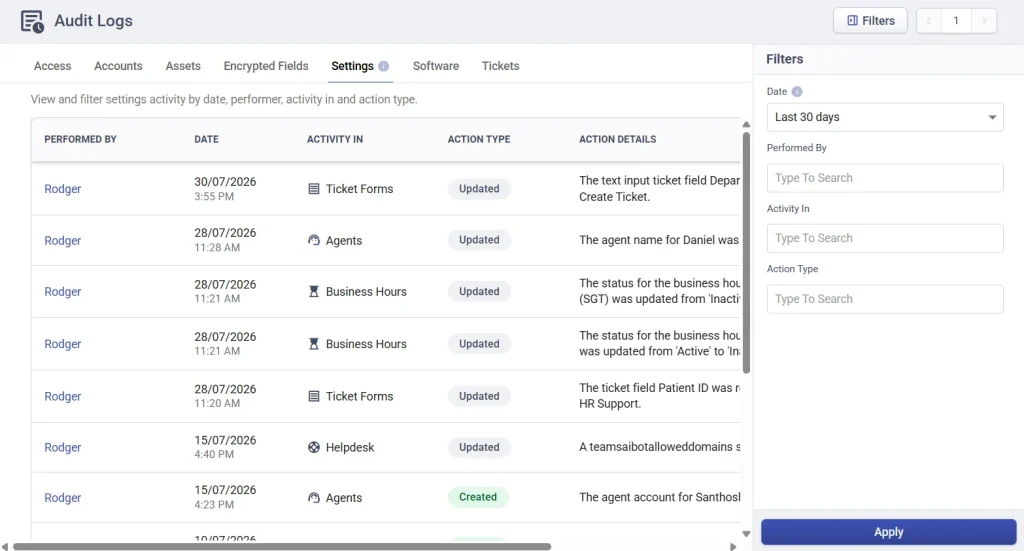
Like the other audit logs, you can filter the results by date, the user who performed the action, the area where the change was made, and the action type to quickly locate specific configuration changes.
6. Software logs
The software tab records activities related to your software inventory. It provides visibility into changes such as creating, updating, or deleting software records, allowing administrators to review how software information has changed over time.
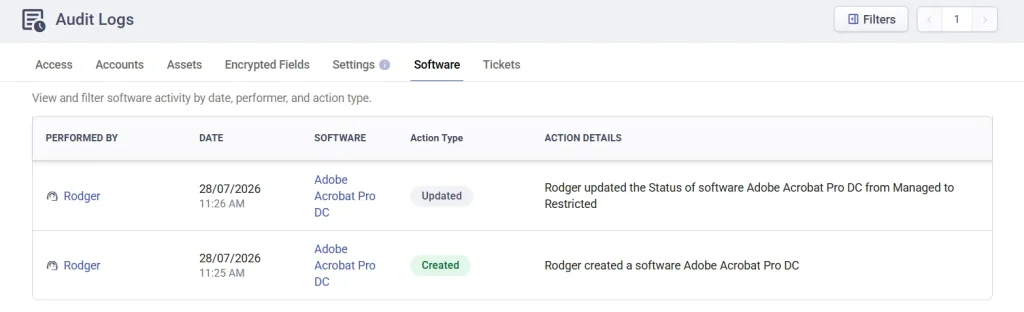
You can also use the available filters to quickly find activities performed by a specific user or within a particular date range.
7. Ticket logs
The tickets tab records activities performed on tickets, providing a complete history of ticket-related actions across your helpdesk. Each entry shows who performed the action, when it occurred, the ticket involved, and a summary of the activity.
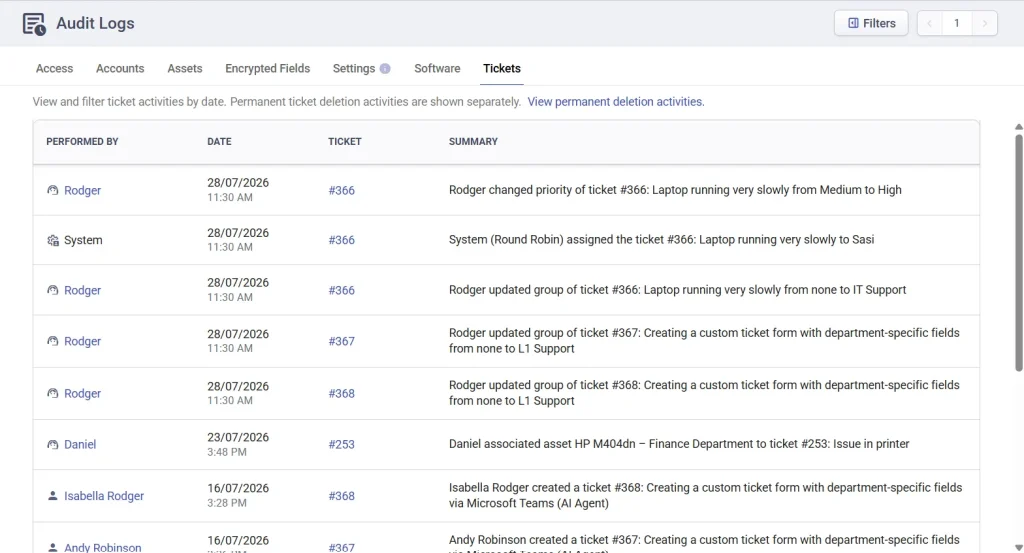
In addition to regular ticket activities, ticket logs include a separate view for permanently deleted tickets. Selecting ‘View permanent deletion activities’ lets you review tickets that have been permanently removed, helping maintain accountability and providing a complete audit trail.
Best practices
- Review audit logs regularly to monitor important changes made across your helpdesk.
- Use the date and user filters to quickly investigate configuration changes or support issues.
- During compliance or internal audits, review the appropriate log category instead of searching through multiple areas of Desk365.
- Limit audit log access to administrators or trusted roles using role permissions.
- Use the dedicated ticket and access logs when investigating user actions or troubleshooting unexpected changes.