Contact authentication settings allow you to control how end users or contacts access your support portal and define the security measures required during sign-in. This includes configuring login methods, enabling multi-factor authentication (MFA), setting password rule, and managing session behavior.
These settings help ensure secure access to your support portal while giving you flexibility to manage authentication based on your organization’s needs.
However, it is important to note that only admins or agents with permission to access Settings can view and configure contact authentication.
To access these settings:
Go to Settings > Security and Compliance > Contact Authentication
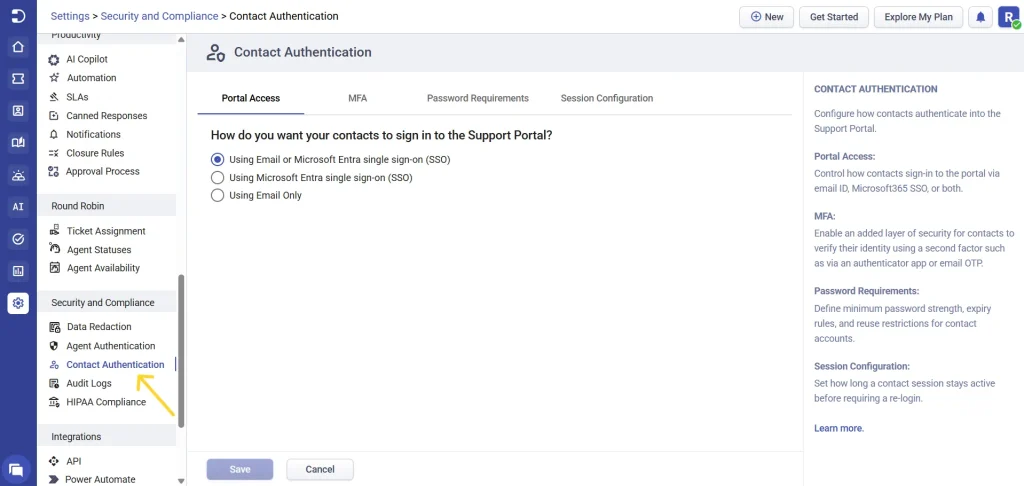
Available settings in contact authentication
Contact authentication includes the following sections:
- Portal Access
- Multi-Factor Authentication (MFA)
- Password Requirements
- Session Configuration
1. Portal access
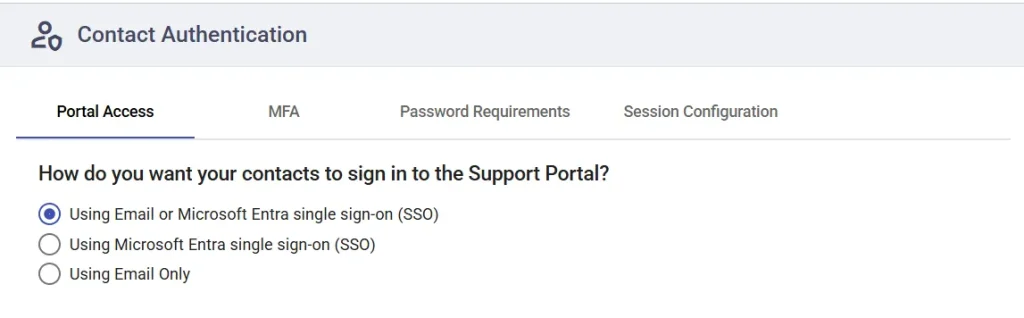
Portal access controls how contacts sign in to your support portal. You can choose how you want your contacts to sign in by selecting one of the following options:
- Using Email or Microsoft Entra single sign-on (SSO)
- Using Microsoft Entra single sign-on (SSO) only
- Using Email only
2. Multi-Factor Authentication (MFA)
Multi-Factor Authentication adds an extra layer of security by requiring contacts to verify their identity using an additional method during login.
When MFA is enabled, contacts must complete a second verification step along with their password.
If your support portal is configured to use Microsoft Entra single sign-on, the MFA settings as shown in the image are not applicable to contacts signing in via Microsoft. In such cases, multi-factor authentication is managed by Microsoft.
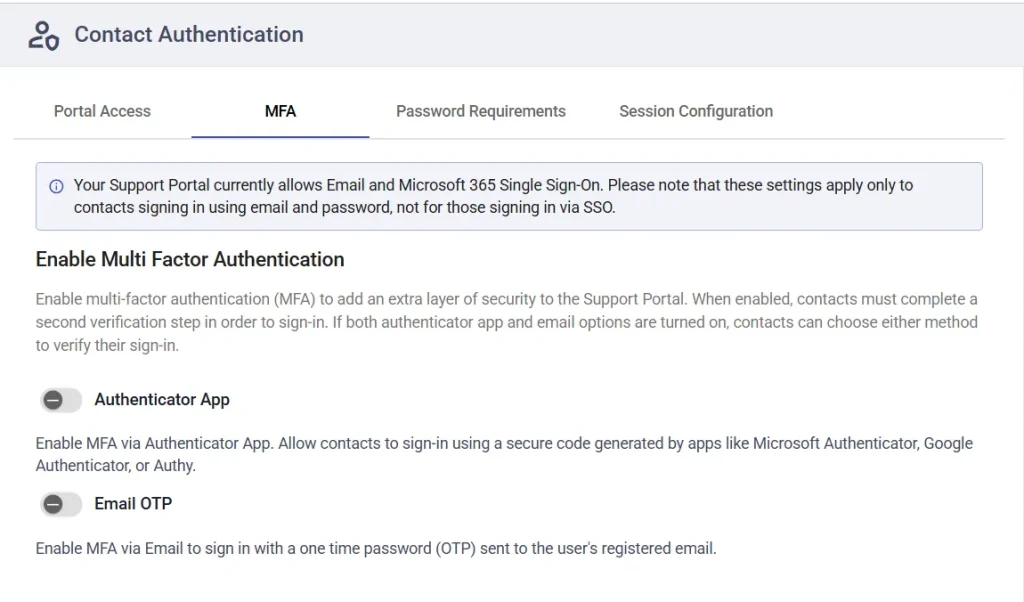
1. Authenticator App: Enable this option to allow contacts to use an authenticator app such as:
– Microsoft Authenticator
– Google Authenticator
– Authy, etc.
Contacts will enter a time-based authentication code generated by the app during login.
2. Email OTP: Enable this option to allow contacts to receive a one-time password (OTP) via email during sign-in.
3. Using multiple methods: If both Authenticator App and Email OTP are enabled, contacts can choose either method when signing in.
This provides flexibility while maintaining strong security. For step-by-step setup and behavior, refer to the detailed MFA article.
3. Password requirements
Password requirements allow you to define password rules for contact accounts to ensure strong and secure credentials.
You can configure:
- Minimum password length
- Password complexity (uppercase, lowercase, numbers, special characters)
- Password expiration duration
- Password reuse restrictions
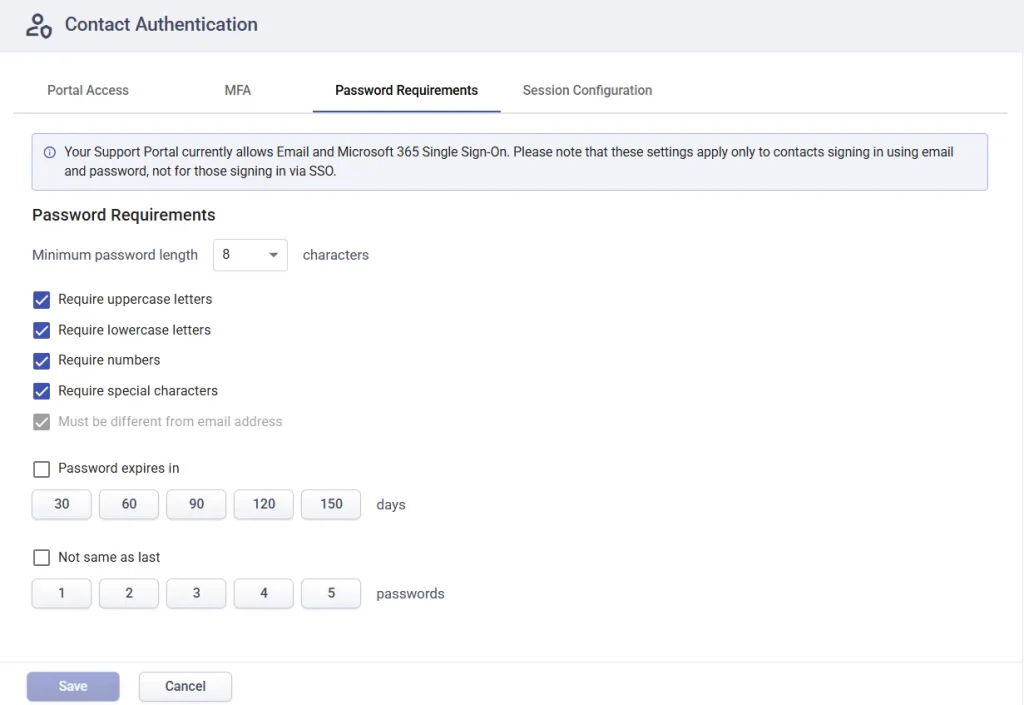
These rules help enforce consistent password standards across all contact accounts.
For detailed configuration steps, refer to the Password Policy article.
4. Session configuration
Session configuration controls how long contacts remain logged in before being automatically signed out.
You can define session timeout to:
- Reduce risks from unattended or shared devices
- Ensure users re-authenticate after a period of inactivity
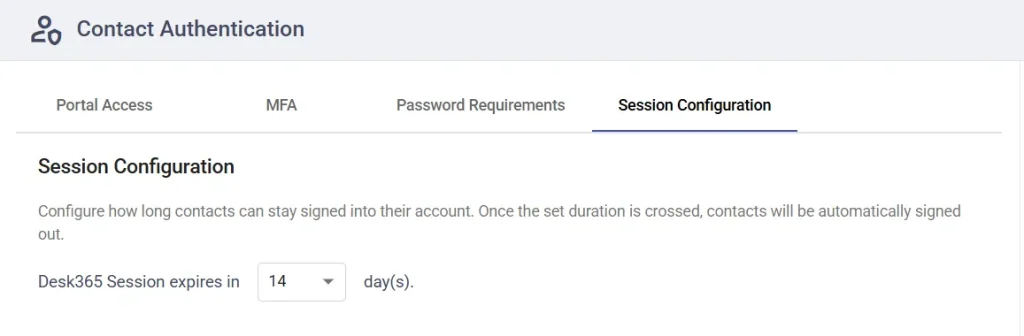
This is especially useful for maintaining security when users access the support portal from public or shared systems.
Best practices
- Enable MFA for all contacts to strengthen account security
- Use strong password requirements with a minimum of 8–12 characters
- Set session timeouts to prevent long inactive sessions
- Use Microsoft Entra SSO for centralized authentication where possible
Contact authentication in Desk365 helps you secure access to your support portal by enforcing strong authentication practices, ensuring that only authorized contacts can access their tickets while maintaining a smooth user experience.