

Microsoft Intune integration with Desk365 requires an application to be registered in Microsoft Entra ID admin center. This application allows Desk365 to securely connect to your Microsoft Intune environment and synchronize managed devices into Asset Management.
This guide walks you through creating the application, granting the required Microsoft Graph API permissions, and collecting the credentials needed when creating an Intune Sync profile in Desk365.
Before you begin you’ll need:
- Administrator access to the Microsoft Entra admin center
- Permissions to register applications and grant Microsoft Graph API permissions
Step 1: Register a new application
- Sign in to the Microsoft Entra admin center.
- Navigate to app registrations.
- Click new registration.
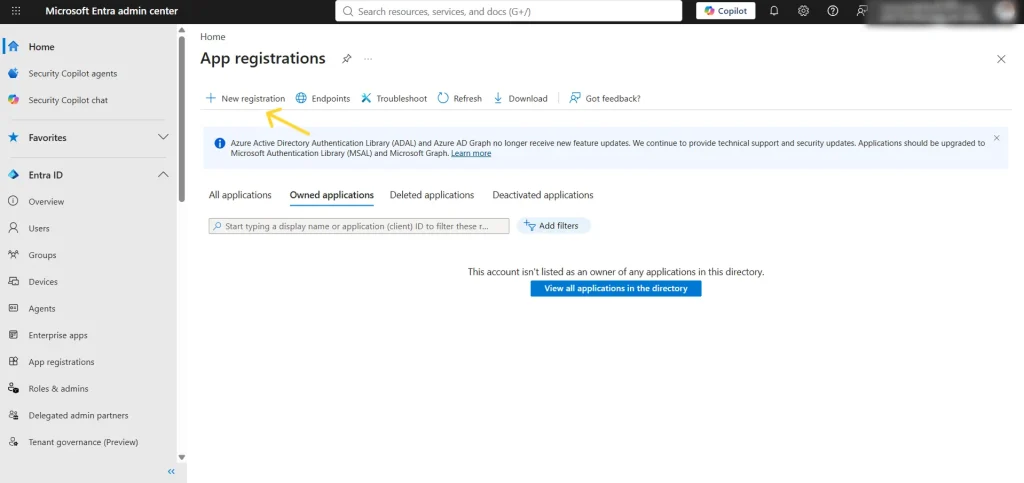
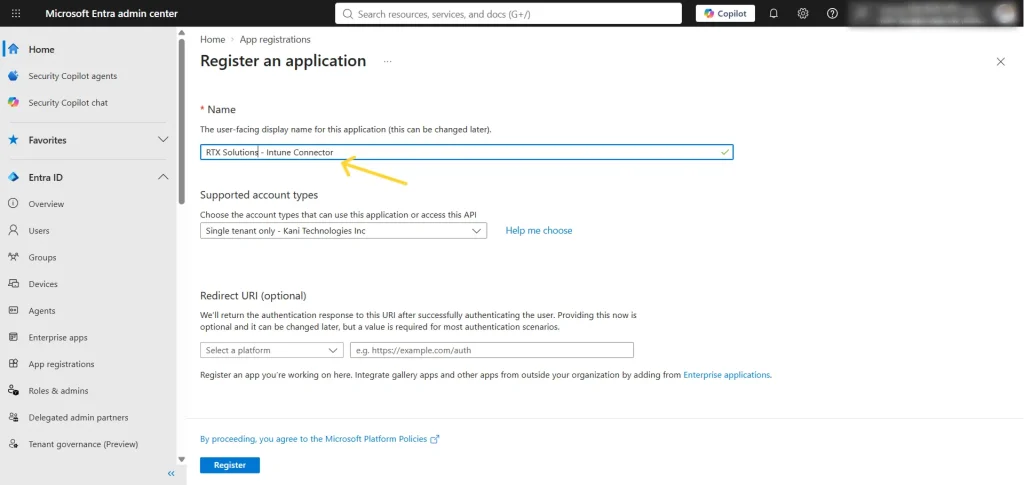
- Enter a descriptive display name for the application.
- Click register.
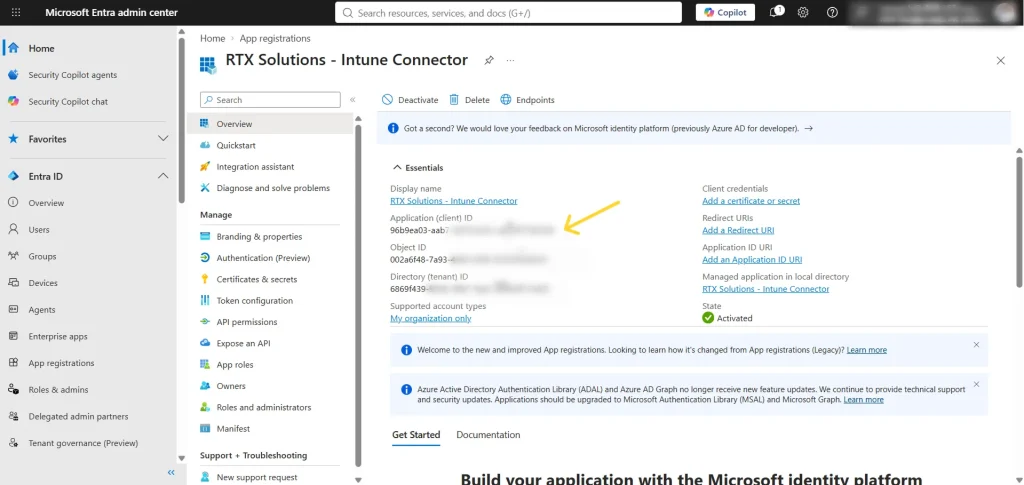
Your application is now created. On the overview page, you’ll find important information, including the Application (Client) ID, Directory (Tenant) ID, etc. You’ll need these values later when connecting Intune to Desk365.
Step 2: Grant Microsoft Graph API permissions
The registered application requires Microsoft Graph API permissions to access managed devices in Microsoft Intune.
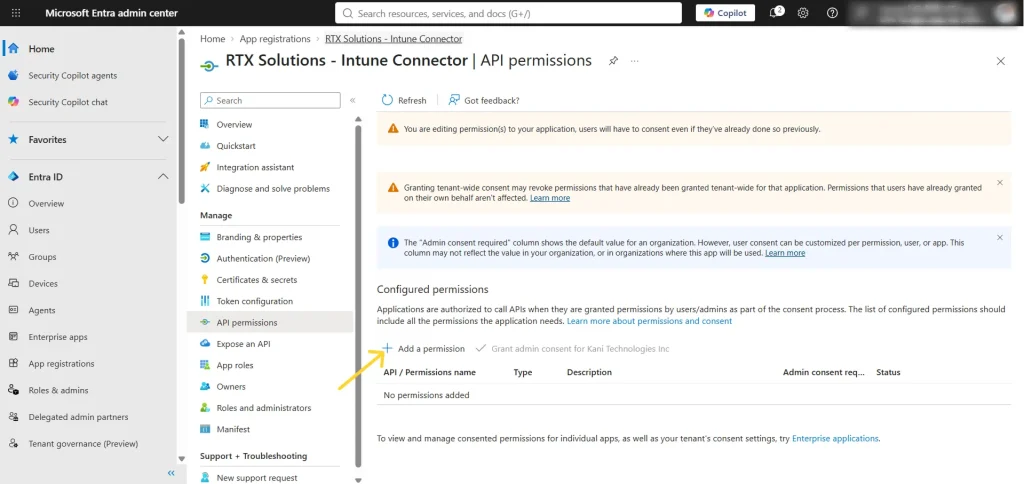
- Open your registered application.
- Select API permissions.
- Click add a permission.
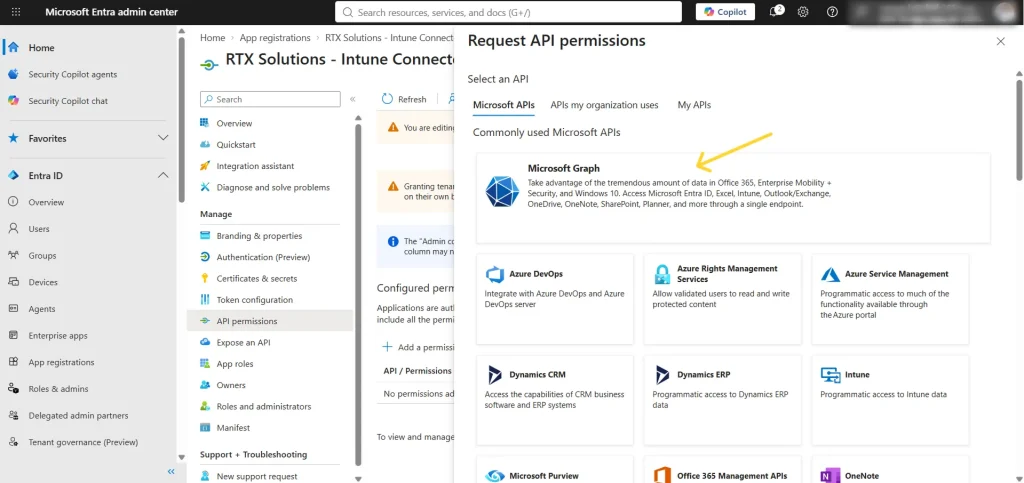
- Choose Microsoft Graph.
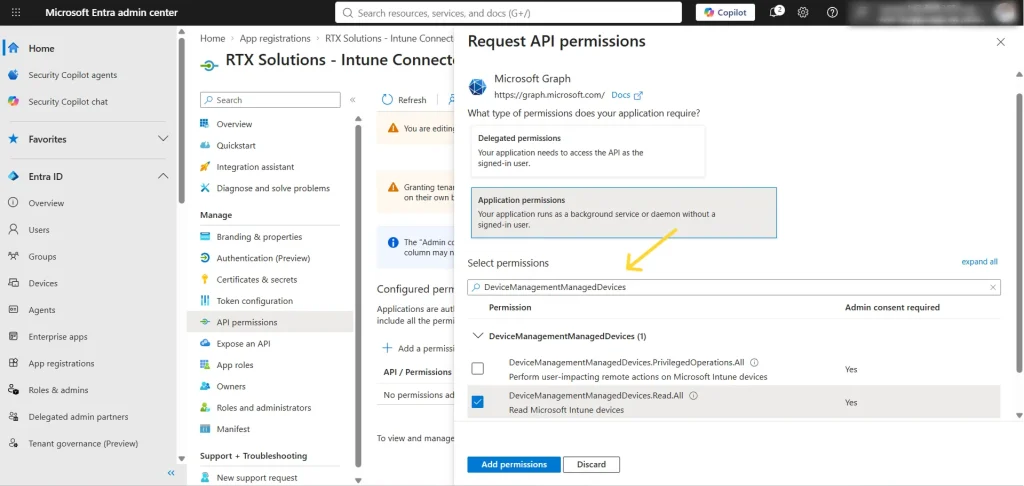
- Select application permissions
- Search for DeviceManagementManagedDevice
- Select DeviceManagementManagedDevices.Read.All.
- Click Add permissions
Step 3: Grant admin consent
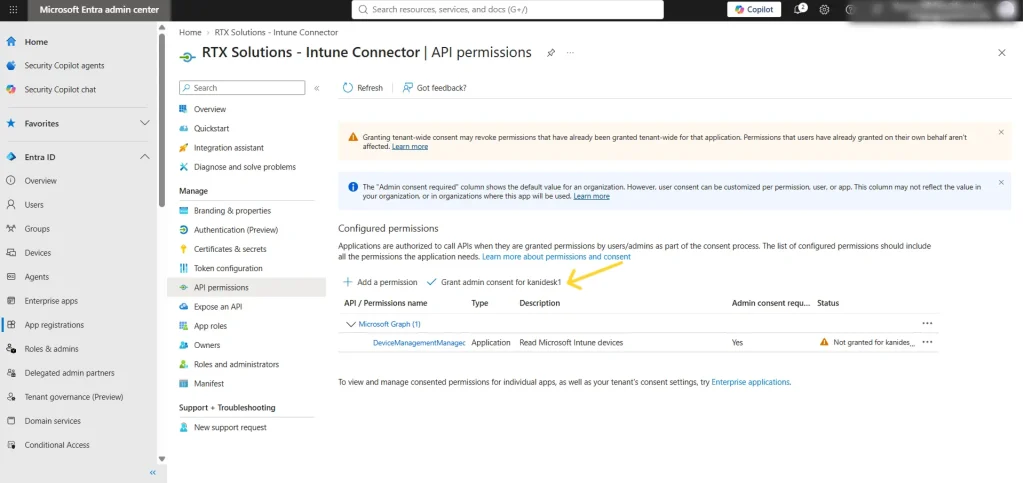
After adding the permission, administrator consent must be granted before Desk365 can access your Intune devices.
- On the API permissions page, click grant admin consent for <Tenant Name>.
- Confirm the action when prompted.
- Verify that the status column shows granted for <Tenant Name>.
Step 4: Create a client secret
Desk365 uses a client secret together with the Client ID and Tenant ID to establish a secure connection.
- In your application, navigate to Certificates & secrets.
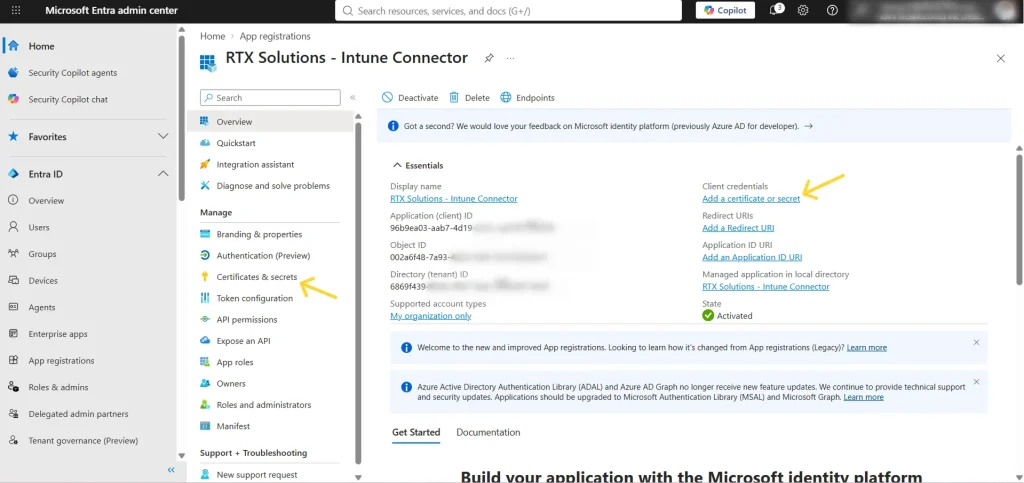
- Under Client secrets, click New client secret.
- Enter a description and choose an expiration period.
- Click Add.
Copy the generated Client Secret immediately and store it securely.
Next steps
Your Microsoft Entra ID application is now configured with the required Microsoft Graph permissions and authentication credentials needed for Microsoft Intune integration.
You’re now ready to connect the application to Desk365 and configure your Intune synchronization settings.
Continue with the Integrate Microsoft Intune with Desk365 guide to learn how to:
- Create an Intune Sync profile in Desk365
- Verify your Microsoft Entra connection
- Choose the devices you want to synchronize
- Configure automatic synchronization schedules
- Map Microsoft Intune fields to Desk365 asset fields
- Import your managed devices into Desk365 Asset Management