The following Desk365 contact field types can be synced from Microsoft Entra ID:
Desk365 Field Type
Entra ID Attribute Type
Notes
Text Input
String
-
Paragraph
String
-
Checkbox
Boolean
True/False values
Date
DateTime
Only the date is saved
Number
Integer
Range: -999,999,999 to 999,999,999
Decimal
String
Only 2 decimal places allowed (extra digits are rounded)
Dropdown
String
Must match the dropdown option text in Desk365 custom dropdown
URL
String
URL validation applied
Before you begin
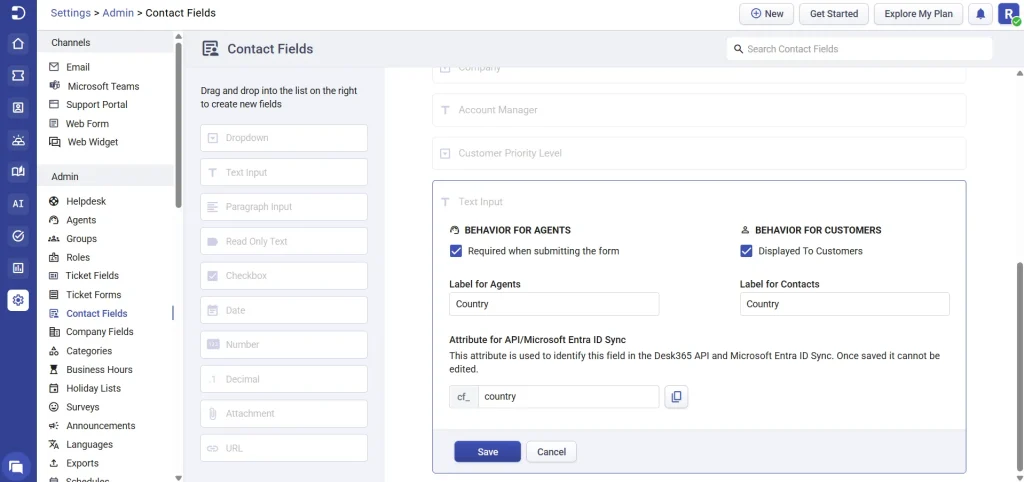
You will need the API Name of the custom contact field in Desk365.
To find it:
Go to Settings > Admin > Contact Fields.
Click Contact Fields.
Open the required field or create a new one.
Copy the Attribute for API Name.
You will use this in Microsoft Entra ID attribute mapping.
How to sync custom contact fields
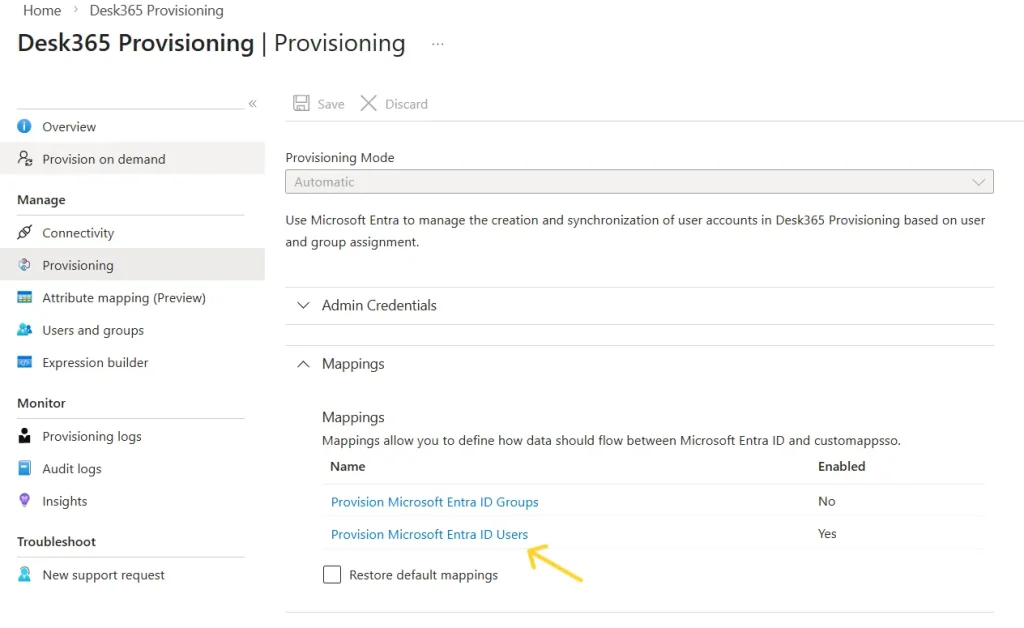
Step 1: Open the Desk365 App in Entra ID
Go to Microsoft Entra ID.
Click Enterprise Applications.
Select Desk365 Provisioning.
Go to Provisioning.
In the mapping sections, click Provision Microsoft Entra ID Users.
Step 2: Edit attribute list
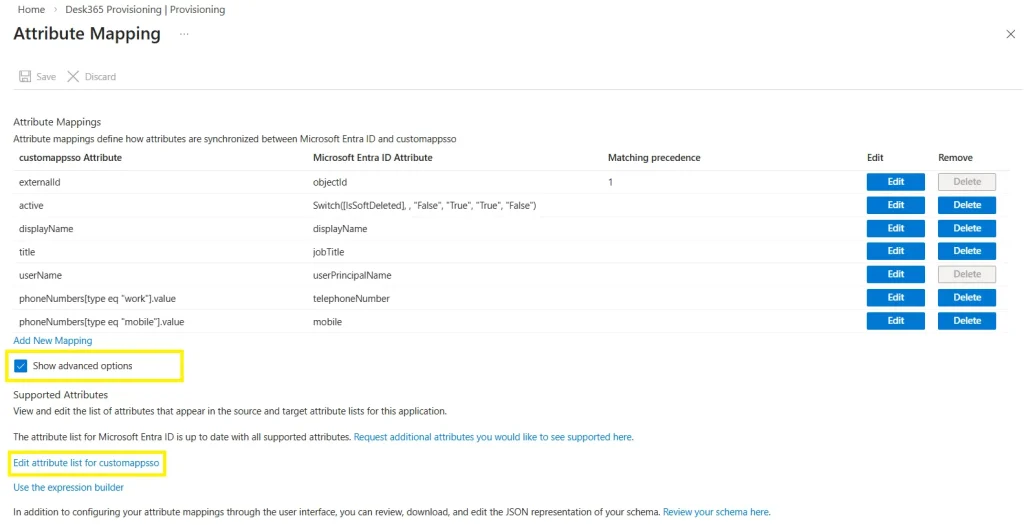
Scroll down to click show advanced options
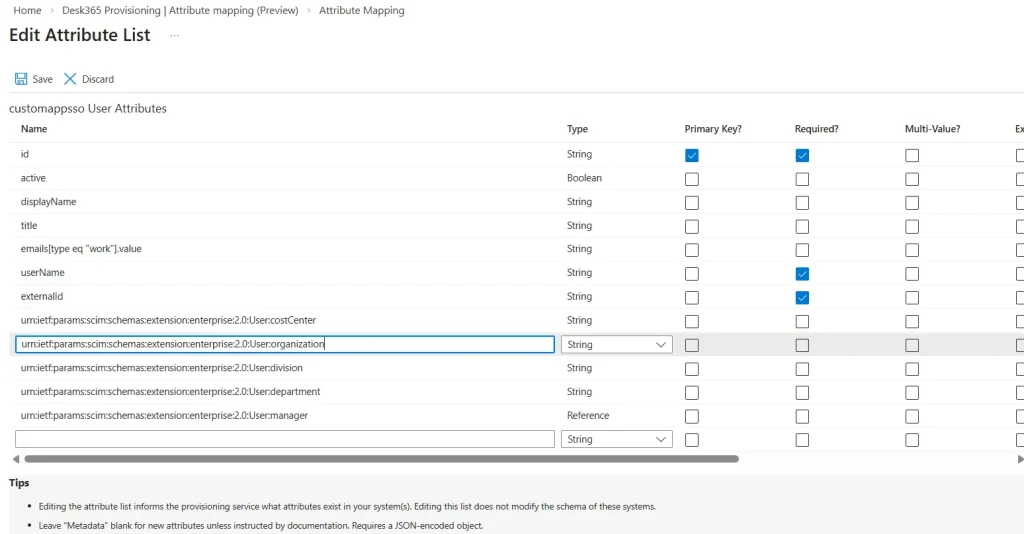
Select Edit attribute list for customappsso for Desk365.
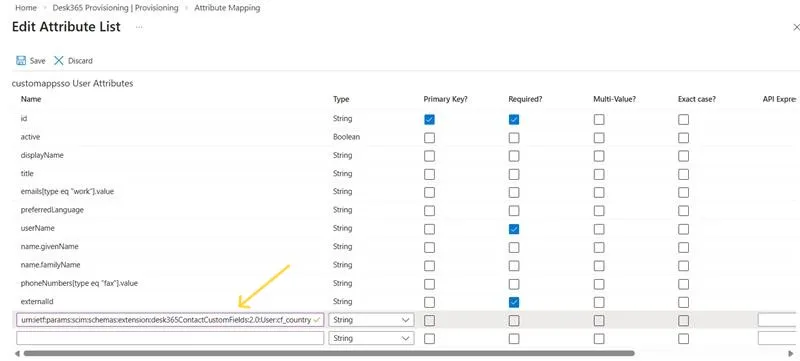
Add a new item at the bottom of the attribute list table
Combine “urn:ietf:params:scim:schemas:extension:desk365ContactCustomFields:2.0:User” with the attribute name that you have copied from Desk365’s contact custom field (cf_country)
For example: urn:ietf:params:scim:schemas:extension:desk365ContactCustomFields:2.0:User:cf_country
Choose the correct data type.
Leave the remaining columns blank.
Click Save to return to the attribute mapping page.
Step 3: Create the mapping
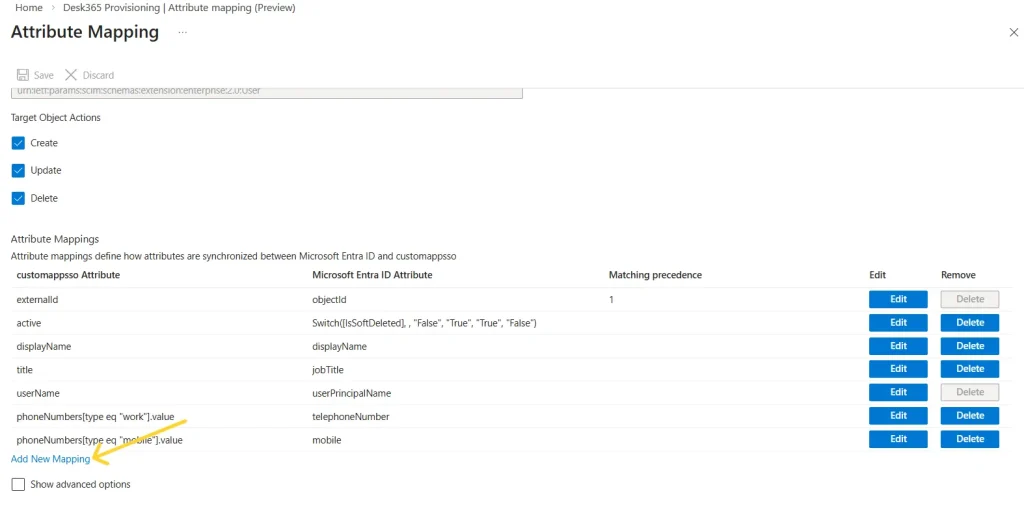
Scroll to the bottom of the Attribute Mappings page.
Click Add New Mapping.
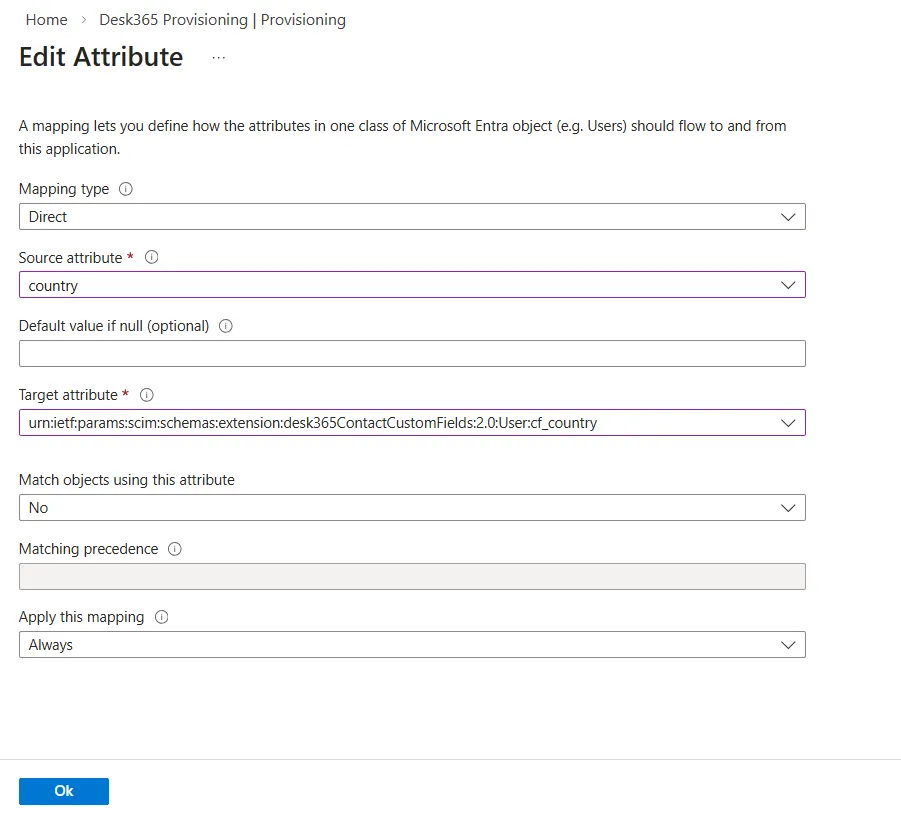
Fill in the details: – Mapping Type: Direct – Source Attribute: Select the Entra ID attribute (example: country) – Default Value: Leave blank – Target Attribute: Select the custom attribute you created urn:ietf:params:scim:schemas:extension:desk365ContactCustomFields:2.0:User:cf_country – Match objects using this attribute: No – Apply this mapping: Always
Click Save.
Confirm to complete the setup.
When a user is created or updated in Microsoft Entra ID, the contact in Desk365 will update automatically. Make sure provisioning is turned Onfor changes to syncautomatically
Syncing contact company name from Entra ID to Desk365
You can also sync the default Company Name field from Microsoft Entra ID to Desk365.
The steps are the same as above, with a small change in the URN used.
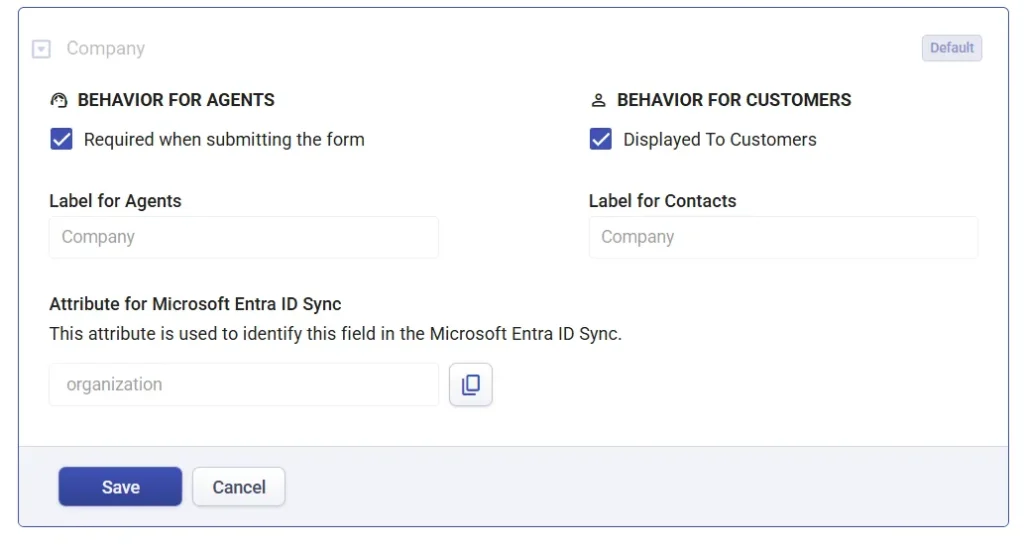
Copy the API name of the default Company field
Follow all steps mentioned earlier until you reach Edit attribute list.
Instead of the previous URN, use the Enterprise schema below and combine it with the API name of the default Company field (organization) urn:ietf:params:scim:schemas:extension:enterprise:2.0:User:organization
Note:
If urn:ietf:params:scim:schemas:extension:enterprise:2.0:User:organization is already available in the Edit attribute list, you do not need to add it again.
In that case, skip the edit attribute list step and proceed directly to Create the mapping section.
Add it as a new item in the attribute list table.
Choose the correct data type and leave the remaining columns blank.
Click Save.
Create the mapping
Scroll to the bottom of the Attribute Mappings page.
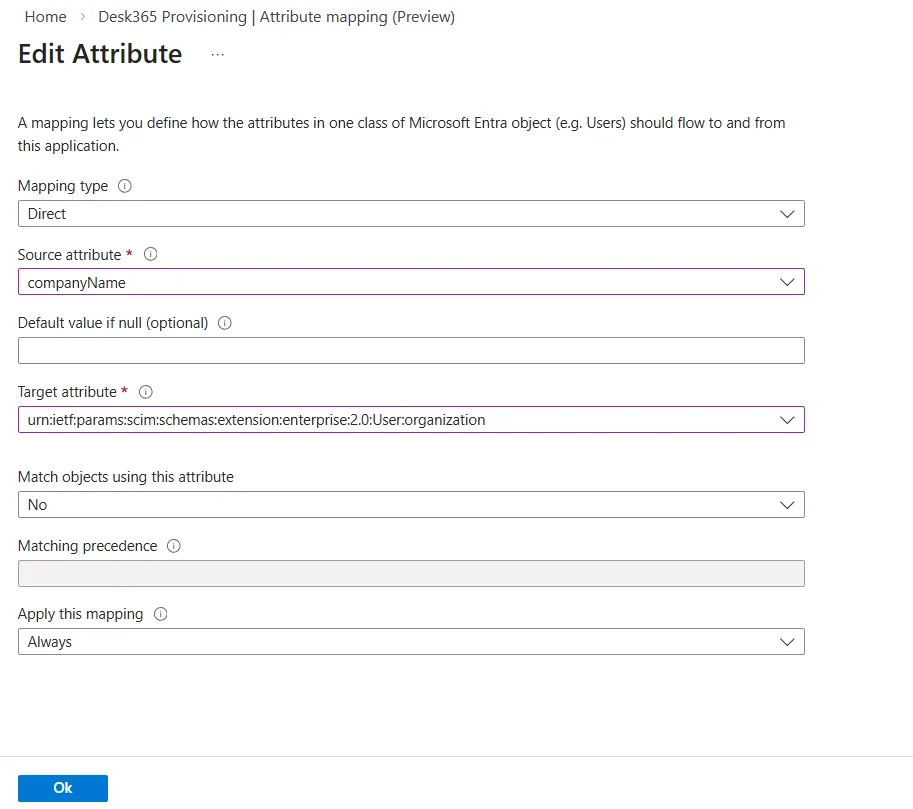
Click Add New Mapping.
Fill in the details: – Mapping Type: Direct – Source Attribute: Select the Entra ID attribute (example: companyName) – Default Value: Leave blank – Target Attribute:urn:ietf:params:scim:schemas:extension:enterprise:2.0:User:organization – Match objects using this attribute: No – Apply this mapping: Always
Click Save.
Confirm to complete the setup.
Now, when a user’s Company Name is created or updated in Microsoft Entra ID, it will automatically update in Desk365.
Ensure provisioning remains On for continuous synchronization.
Syncing contact department from Entra ID to Desk365
Before syncing the contact department from Entra ID, ensure that the attribute mapping for the company name (organization) is already configured. If not, please follow the steps outlined above to sync the contact company name from Entra ID to Desk365.
Note:
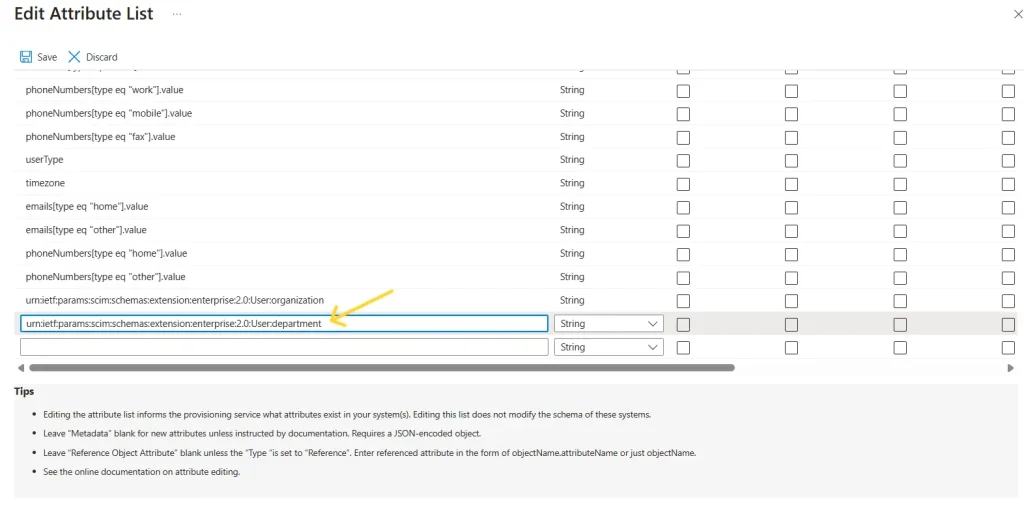
If urn:ietf:params:scim:schemas:extension:enterprise:2.0:User:department is already available in the Edit attribute list, you do not need to add it again.
In that case, skip the edit attribute list step and proceed directly to Create the mapping section.
Add it as a new item in the attribute list table.
Choose the correct data type and leave the remaining columns blank.
Click Save.
Create the mapping
Scroll to the bottom of the Attribute Mappings page.
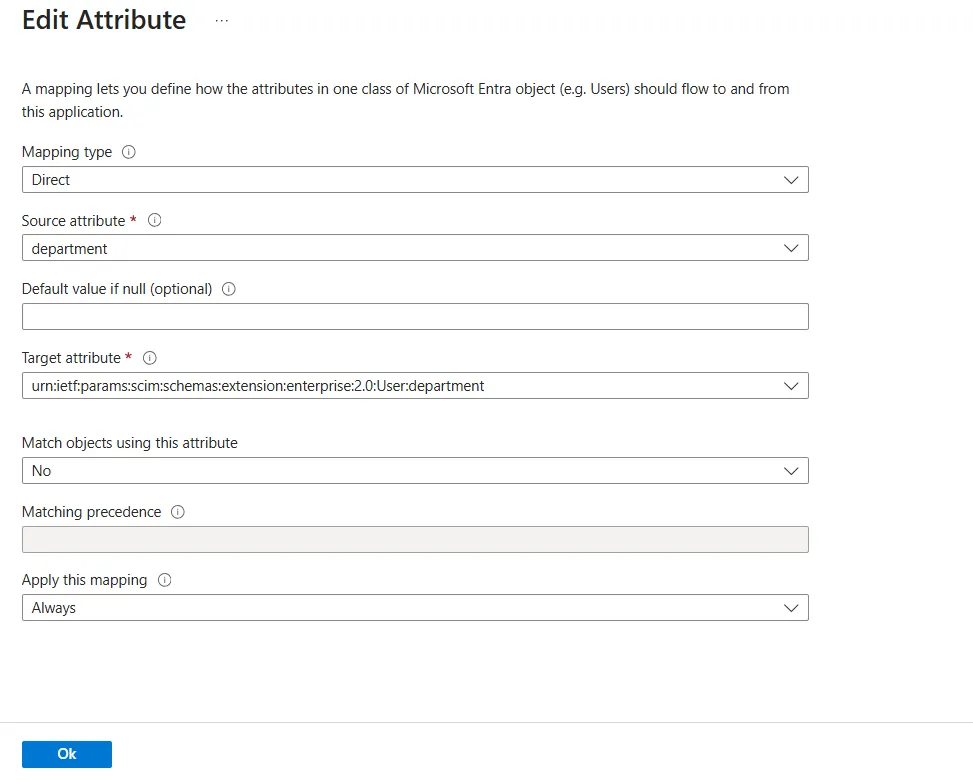
Click Add New Mapping.
Fill in the details: – Mapping Type: Direct – Source Attribute: Select the Entra ID attribute (example: department) – Default Value: Leave blank – Target Attribute: urn:ietf:params:scim:schemas:extension:enterprise:2.0:User:department – Match objects using this attribute: No – Apply this mapping: Always
Click Save.
Confirm to complete the setup.
Now, when a user’s department is created or updated in Microsoft Entra ID, it will automatically update in Desk365.
Ensure provisioning remains On for continuous synchronization.