


Microsoft Intune integration allows you to sync your organization’s managed devices from Microsoft Intune directly into Desk365 Asset Management. Once configured, your Intune devices are automatically imported into Desk365 based on your sync schedule, making it easier to manage assets and keep your inventory up to date.
Before you can connect Microsoft Intune with Desk365, you’ll need to register an application in the Microsoft Entra admin center and grant the required Microsoft Graph API permissions.
Let’s go through the setup step by step.
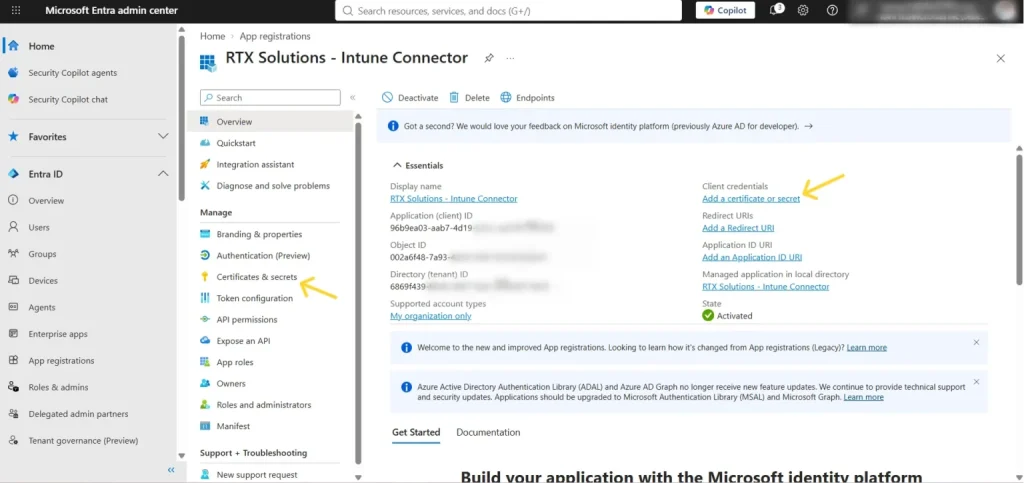
Step 1: Register an application in Microsoft Entra
Register an application in Microsoft Entra ID by following the ‘How to register an application in Microsoft Entra ID‘ guide. Once completed, return here to continue configuring your Intune Sync profile.
Step 2: Create an Intune sync profile in Desk365
In the Desk365 agent portal, go to, Settings > Integrations > Intune Sync
Click new Intune profile.
Give your profile a name so it’s easy to identify later.
Then enter the following information from the Microsoft Entra application you created earlier:
- Client ID
- Tenant ID
- Client Secret
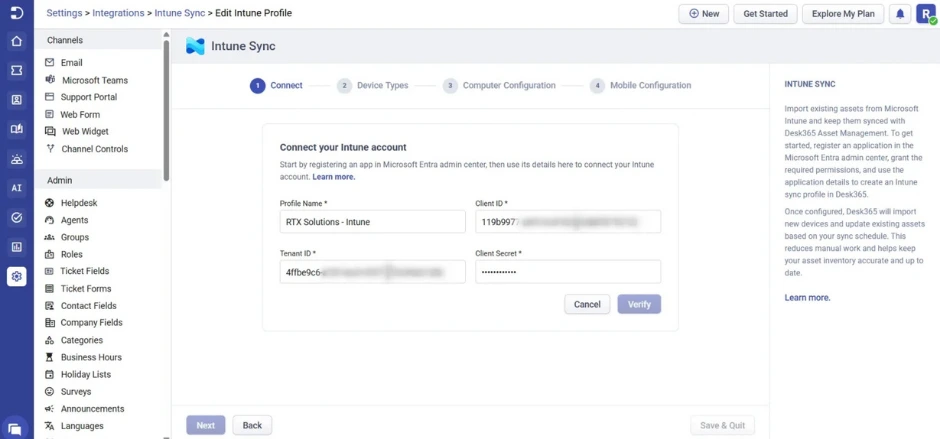
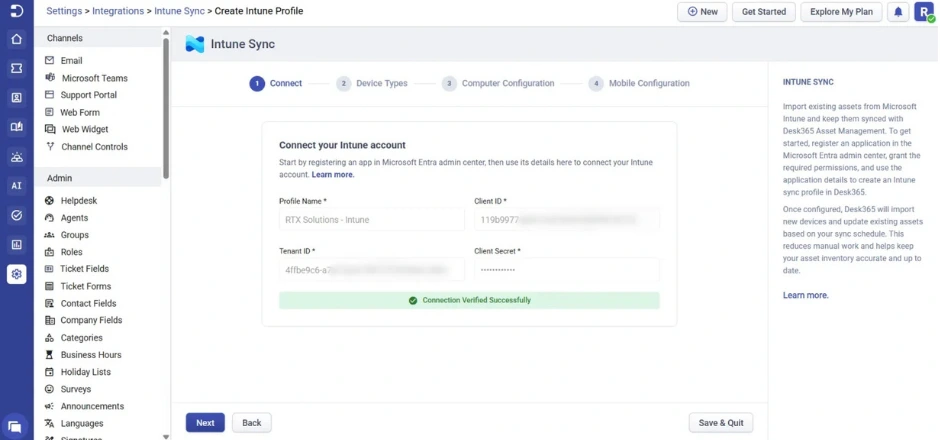
Once you’ve entered the details, click the verify button.
If everything is correct, Desk365 will successfully connect to your Intune account.
Step 3: Choose what you want to sync and how often
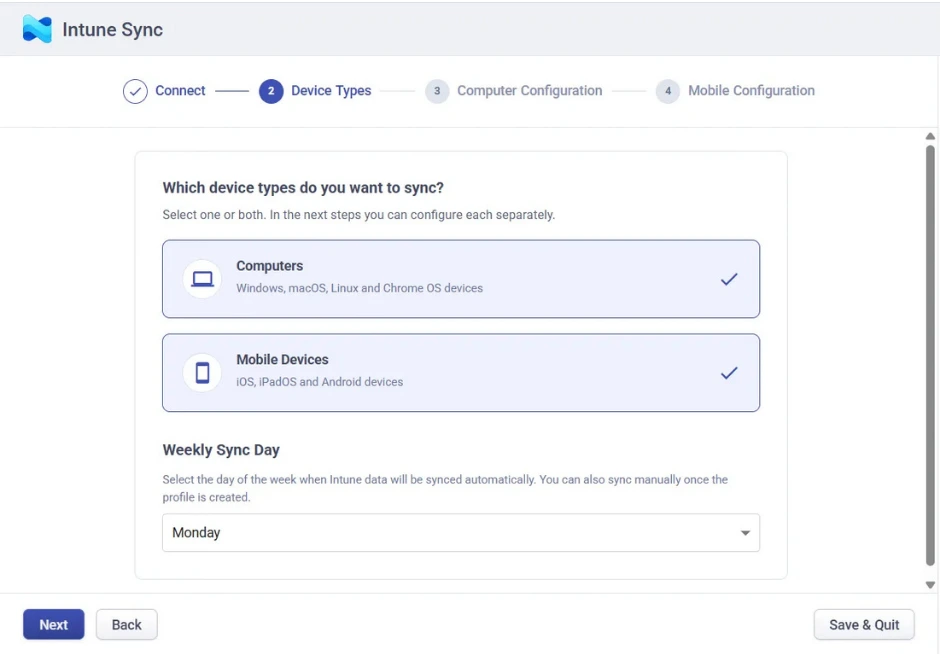
Next, choose the types of devices you’d like to import from Intune.
You can sync:
- Computers
- Mobile devices
You can select one or both, depending on what you’d like to manage in Desk365.
After that, choose how often the sync should run. Select the day of the week for the automatic weekly sync and click Next to continue.
Step 4: Configure the devices to sync
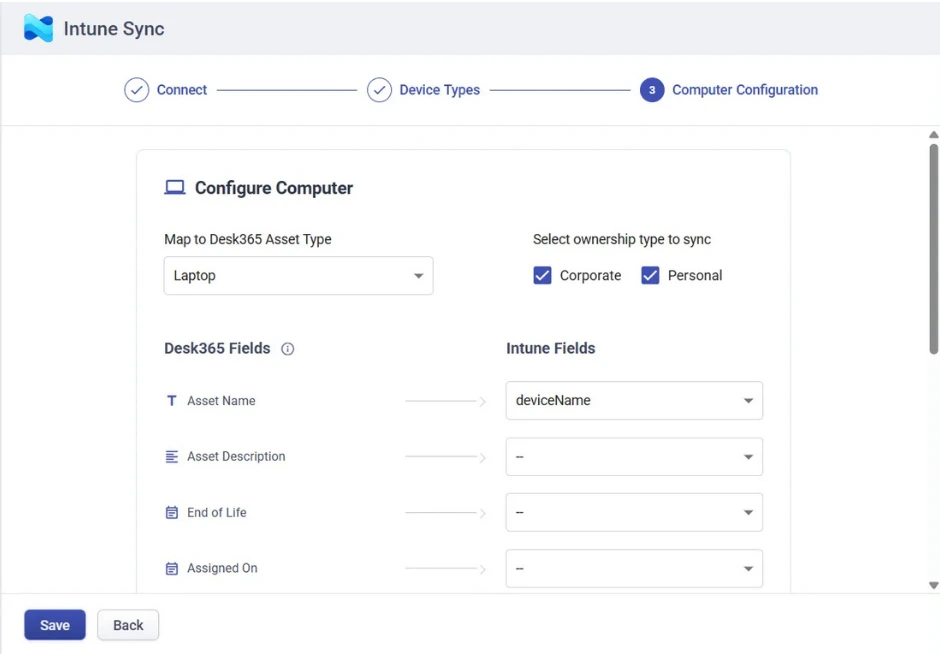
If you’ve chosen to sync computers, you’ll first need to select the ownership type.
You can choose from:
- Corporate or
- Personal
Step 5: Map Intune fields to Desk365 asset fields
Next, map the Intune devices to the existing Desk365 asset fields.
The asset type dropdown displays the asset types you’ve already created in Desk365. You can map the standard asset fields or the custom asset fields.
The table below lists the key Intune fields and explains how each one can help when mapping device information to Desk365 asset fields.
| Field | Why it is useful |
|---|---|
| id | Identifies the device uniquely in Intune and helps Desk365 match it to the correct asset. |
| serialNumber | Helps identify the physical device and is useful for tracking, audits and avoiding duplicate assets if already present in Desk365. |
| deviceName | Provide the device's default name. |
| managedDeviceName | Helps identify the device when your organization uses a different name for it in Intune (Management Name). |
| userPrincipalName | Helps identify and associate the device with the correct user in Desk365. |
| emailAddress | Helps identify and associate the device with the correct user in Desk365. If unavailable, the UPN can be used instead. |
| userDisplayName | Displays the name of the user assigned to the device, making the asset easier to identify. |
| manufacturer | Helps you identify and organize devices by manufacturer. |
| model | Useful for identifying device models. |
| operatingSystem | Helps you identify the operating system running on each device and filter devices accordingly. |
| osVersion | Helps track OS versions and identify devices that may need updates or troubleshooting. |
| complianceState | Shows whether the device meets your organization's compliance requirements. |
| lastSyncDateTime | Shows when the device last synced with Intune, helping you identify devices that may no longer be active. |
| enrolledDateTime | Shows when the device was enrolled in Intune, which can be useful for tracking its lifecycle. |
| managedDeviceOwnerType | Helps distinguish between corporate and personal devices. |
| deviceCategoryDisplayName | Helps you identify devices based on the categories you've created in Intune, such as virtual machines, network devices, etc. |
| azureADDeviceId | Helps you match the device with its corresponding Entra ID device record. |
| azureADRegistered | Shows whether the device is registered with Entra ID. |
| deviceRegistrationState | Helps you understand the device's registration status and identify potential registration issues. |
| managementAgent | Shows how the device is being managed, which can help when reviewing or troubleshooting device management. |
| isEncrypted | Shows whether the device is encrypted, making it easier to identify devices that may need attention from a security perspective. |
| jailBroken | Helps identify mobile devices that have been jailbroken and may require additional security attention. |
| partnerReportedThreatState | Shows the threat status reported by a connected security or Mobile Threat Defense service, when available. |
| managementCertificateExpirationDate | Helps you keep track of management certificate expiration dates and identify devices that may need attention. |
| complianceGracePeriodExpirationDateTime | Shows when a device's compliance grace period ends, helping you identify devices that may soon become non-compliant. |
| totalStorageSpaceInGB | Provides the device's total storage capacity for inventory and hardware tracking. |
| freeStorageSpaceInGB | Shows the available storage on the device and can help identify devices running low on space. |
| wiFiMacAddress | Provides the device's Wi-Fi MAC address, which can be useful for device identification and network troubleshooting. |
| userId | Helps associate the device with the corresponding userID in Intune. |
| phoneNumber | Useful for identifying the phone number associated with a mobile device. |
| imei | Shows the International Mobile Equipment Identity (IMEI) number assigned to the device and can be used to uniquely identify the cellular hardware. |
| meid | Shows the Mobile Equipment Identifier (MEID) assigned to the device and can be used to uniquely identify the cellular hardware. |
| subscriberCarrier | Shows the mobile carrier associated with the device, which can be useful for managing mobile assets. |
| androidSecurityPatchLevel | Shows the security patch level of Android devices and helps identify devices that may need security updates. |
| isSupervised | Shows whether a device is supervised, which can be useful when managing organization-owned devices. |
Only fields that are relevant to the selected asset type are available for mapping. If a value imported from Intune exceeds the maximum character limit supported by the corresponding Desk365 field, the value is automatically truncated – shortened to fit the maximum allowed length during synchronization.
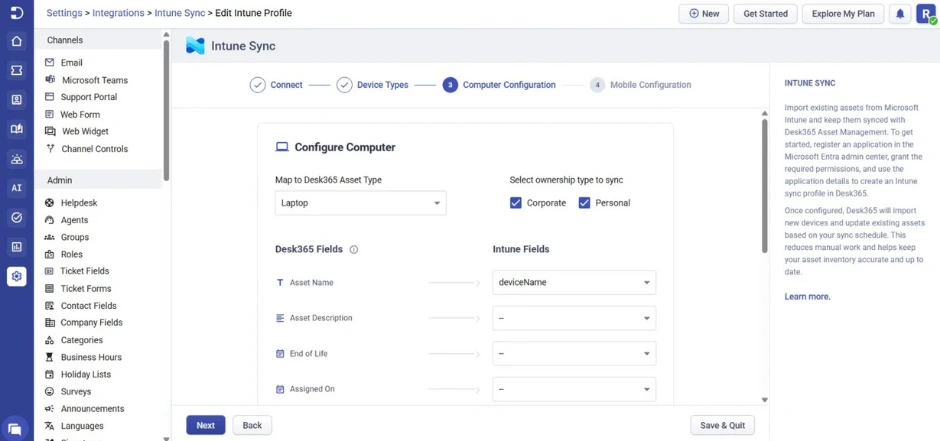
If you’ve chosen to sync mobile devices, repeat the same configuration process.
Step 6: Save your profile
Your Intune Sync Profile is now created. The profile will automatically synchronize devices according to the schedule you’ve configured. The time required to complete each synchronization depends on the number of devices being imported.
To start a synchronization without waiting for the next scheduled run, click Sync Now. The synchronization begins immediately, but the time taken to complete it depends on the volume of data being processed.
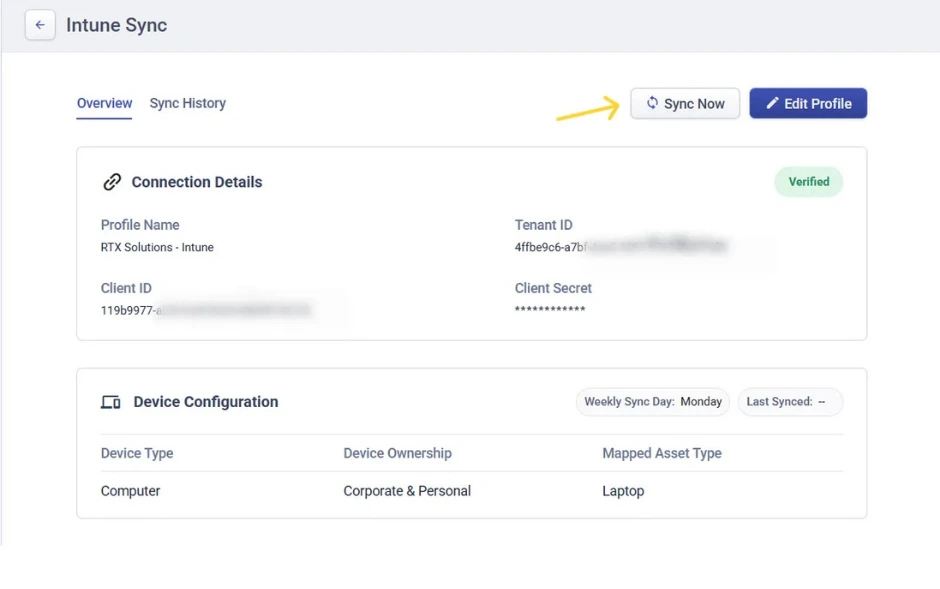
Use the Sync History tab to review previous synchronization jobs, their status, and download logs if a sync fails.
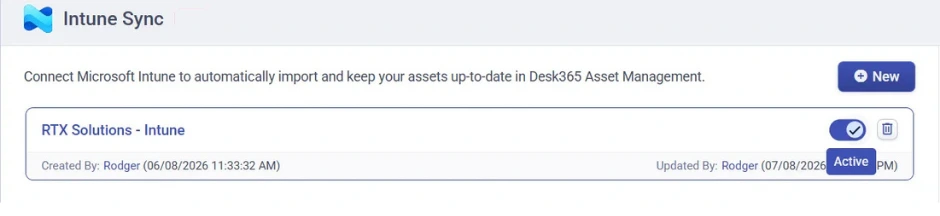
Note: Keep the Intune Sync profile Active for scheduled synchronizations to run automatically.
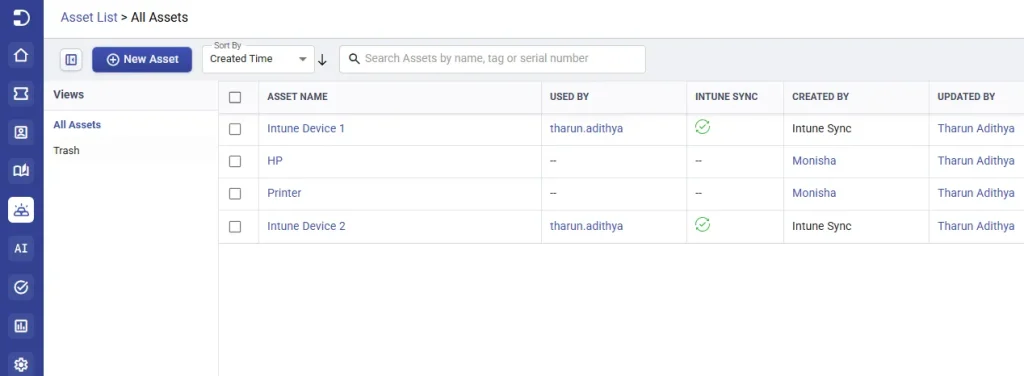
View synced devices
Open the assets module to view imported devices.
Run a manual sync
After the profile has been created, you can manually import devices at any time by opening the Intune profile, making sure it is active and clicking Sync Now on the Overview page. Manual sync can be triggered once every 12 hours.
Important note:
You can create multiple Intune Sync profiles. Only relevant and compatible fields are displayed during mapping, and both standard and custom asset fields can be mapped.