


Support teams handle a constant flow of questions, technical issues, and service requests. Resolving tickets is only part of the job. Managers also need to know why support ticket volume changes, which issues keep coming back, and where their teams need help.
Helpdesk ticket trend analysis helps teams identify patterns in ticket volume, unresolved requests, priorities, and workloads. These insights support better decisions about staffing, ticket routing, and customer support processes.
Desk365’s Ticket Trends report lets you group tickets by field, apply filters, and compare reporting periods. This guide covers which metrics to track, how to read the reports, and how to turn what you find into practical improvements.
What is helpdesk ticket trend analysis?
Helpdesk ticket trend analysis is the process of reviewing support ticket data over time to identify patterns, changes, and recurring customer issues.
You can analyze trends by agent, support group, helpdesk priority, category, channel, and other ticket fields, including custom ticket fields. For example, a rise in password reset requests may mean customers need clearer instructions or easier access to self-service resources.
By identifying these patterns, you can investigate underlying causes, improve workflows, and make better decisions about support operations.
Why is analyzing helpdesk ticket trends important?
Regular ticket analysis gives managers a clearer view of customer demand and team performance. It also helps them catch problems before they grow into larger backlogs or hurt the customer experience.
Identify changes in ticket volume
Tracking ticket volume over time helps teams recognize increases, decreases, and recurring peaks in support demand.
For example, a sudden jump in tickets after a product release may point to a bug or a change customers find confusing. Investigating early lets your team find the cause and respond before more customers run into the same problem.
Understand support team workloads
Ticket reports help managers see how work is distributed across agents and support groups. A sustained increase in assigned tickets or unresolved requests may indicate that a team needs additional support or a different ticket assignment process.
Ticket volume alone does not measure agent productivity. Before changing workloads, also consider ticket complexity, urgency, resolution time, and each agent’s responsibilities.
Find recurring customer support issues
Repeated questions often reveal opportunities to improve the customer experience. Customers may struggle with a product feature, find instructions unclear, or encounter the same technical issue.
Identifying these patterns helps teams address the underlying cause instead of resolving similar requests one at a time.
Improve support planning
Historical ticket data helps managers recognize busy periods and prepare for changes in demand. For example, ticket volume may increase during product launches, seasonal sales, or major business activities.
Reviewing these patterns can help managers plan team coverage, prepare for expected workloads, and decide where additional training or resources may be necessary.
Measure the impact of support improvements
Ticket reports help teams evaluate changes to documentation, ticket routing, and support processes. Compare relevant helpdesk metrics before and after an improvement to assess its impact, while considering other factors that may have influenced the results.
Key helpdesk metrics to track in ticket reports
The right helpdesk metrics depend on your team’s goals. Start with a few that show ticket demand, workload, and unresolved work, then add more detailed measures when you need to investigate a specific problem.
| Helpdesk metric | What it tells you | What to investigate |
|---|---|---|
| Ticket volume | How many tickets the team receives during a reporting period | Sudden increases, recurring peaks, or sustained changes |
| Open and unresolved tickets | How many tickets created in the period are still unresolved | Growing backlogs or groups struggling to keep up |
| Ticket priority distribution | How requests are distributed across priority levels | Increases in urgent or high-priority issues |
| Tickets by agent | How assigned work is distributed across team members | Uneven workloads, complex assignments, or capacity concerns |
| Tickets by support group | Which teams receive the most requests | Workload changes, routing issues, or resource gaps |
| Tickets by category | Which types of issues customers report most often | Recurring problems and documentation gaps |
| Tickets by channel | Where support requests originate | Changes in customer contact preferences or channel demand |
These metrics work best together. A rise in ticket volume is not necessarily a problem if your team resolves requests at a similar pace. If volume and unresolved tickets both rise, investigate capacity, routing, or recurring issues.
Ticket volume trends
Ticket volume measures the number of tickets created during a selected reporting period. Reviewing this metric across comparable periods helps teams identify changes in customer demand.
Consider this example (figures are illustrative):
| Reporting period | Tickets created | Change |
|---|---|---|
| Previous four weeks | 300 | Baseline |
| Current four weeks | 390 | +30% |
Ticket volume rose by 90 tickets, or 30%, compared with the previous four weeks.
This increase does not automatically mean you need more agents. Check which categories, priorities, products, or support groups drove the change. It may reflect a product issue, a larger customer base, or a temporary spike.
Open and unresolved ticket trends
Open and unresolved tickets show how many of the tickets created in the selected period are still waiting for a resolution. Compare this with incoming volume to spot a growing backlog. If the backlog keeps growing across several periods, investigate the cause before changing staffing or assignment rules.
Ticket priority distribution
Ticket priority reports show how requests are distributed across priority levels. A rise in high-priority tickets may signal a product issue, a service disruption, or growing urgent demand. Look at the affected categories and support groups, and check that agents are applying priorities consistently.
How to analyze ticket trends by agent
Reviewing tickets by agent shows how work is distributed and where assigned requests have changed.
Consider ticket complexity, urgency, and unresolved work before drawing conclusions. An agent with fewer tickets may be handling more complex cases. Use these findings to spot workload imbalances or training needs, not to rank agents by ticket count.
How to analyze ticket trends by support group
Grouping tickets by support group shows how demand is distributed across teams. Because groups may handle different types of requests, read ticket counts in context.
Look for workload increases that last across several periods, growing backlogs, or changes in ticket types.
How to analyze ticket trends by category and channel
Ticket categories show which issues customers report most often, while channels show where requests come from. Together they can reveal recurring product problems, documentation gaps, and shifts in how customers prefer to contact you.
For example, if one category grows steadily on the email channel but not on chat, check whether your help content or chat flow already answers that question better.
How to analyze ticket trends in Desk365
The Ticket Trends report helps you examine ticket data using groupings, filters, and reporting periods. Follow these steps to move from a broad overview to a more focused investigation.
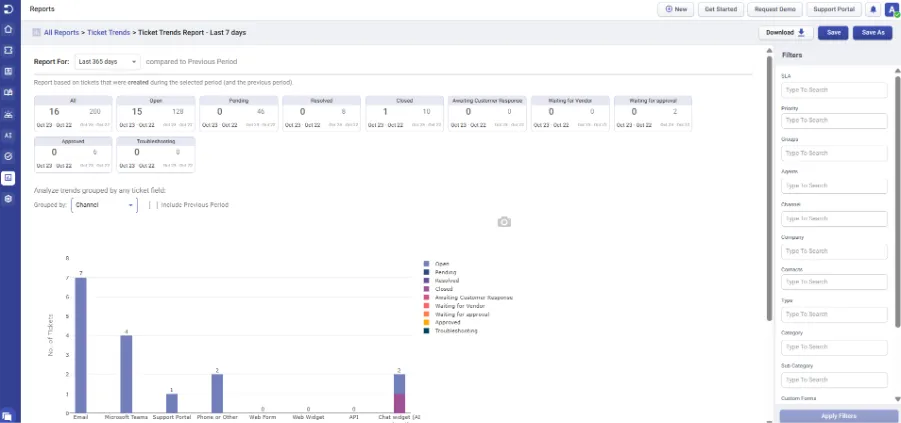
1. Choose a reporting period
Select a date range that fits your question. Short periods suit recent changes, and longer periods reveal recurring patterns.
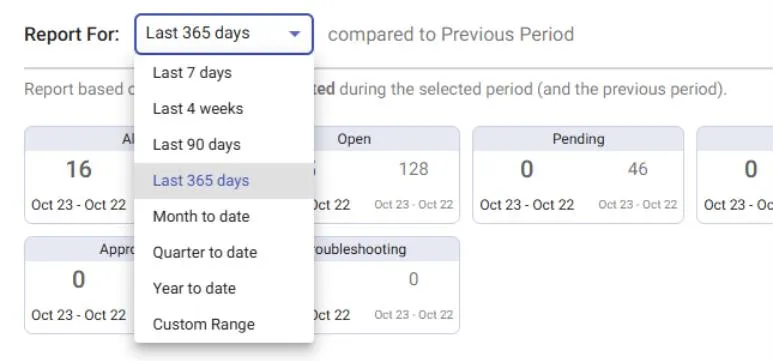
The Ticket Trends report supports the following date ranges:
| Date range | When to use it |
|---|---|
| Last 7 days | Review recent changes or investigate a short-term spike |
| Last 4 weeks | Examine recent workloads and compare monthly patterns |
| Last 90 days | Identify recurring issues and medium-term changes |
| Last 365 days | Review longer-term demand and possible seasonal patterns |
| Custom range | Investigate a specific incident, product launch, or business period |
When comparing periods, use equal lengths and account for holidays, product launches, and changes in customer numbers.
2. Group tickets by fields
You can group Ticket Trends reports by standard ticket fields and by supported custom fields.
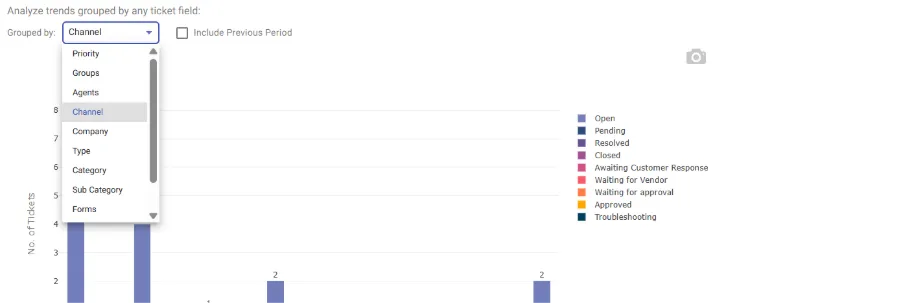
Choose a grouping that matches your goal:
- Agent: review workloads
- Support group: compare demand across teams
- Category: find recurring issues
- Custom field: analyze business-specific data, such as the product on a ticket
For setup details, see the Desk365 Ticket Trends report guide.
3. Apply filters to investigate specific patterns
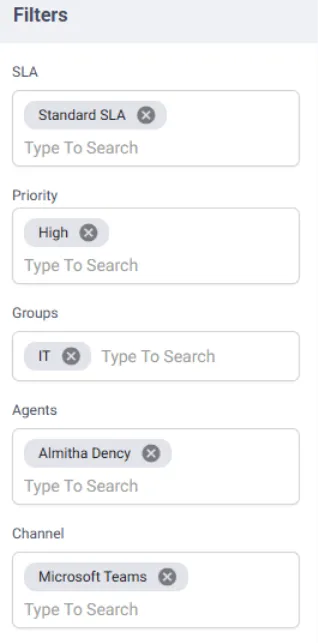
Filters help you focus on tickets that match a particular question. In Desk365, you can filter by available ticket fields, including supported custom fields.
For example, if urgent tickets increase, filter by priority and then narrow the results by support group or category to investigate the source. Use only filters relevant to your question.
4. Compare current and previous reporting periods
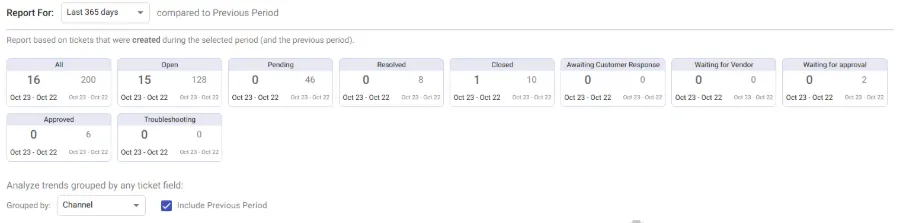
Select Include Previous Period next to the Grouped by dropdown to add the previous period to the chart. The summary cards at the top also show the previous period’s count beside the current one. Then check which categories, support groups, or priorities drove the change.
5. Investigate recurring ticket issues
Use ticket categories and filters to identify recurring issues. Review the related tickets to understand whether the cause involves a product problem, unclear instructions, or a process that needs improvement.
Use these findings to determine which team should investigate the issue and what corrective action may help.
6. Review SLA performance separately
A Service Level Agreement (SLA) sets the response and resolution targets for your tickets. Ticket trends can show when rising demand puts those targets at risk, but they do not show whether you are meeting them.
Review your SLA reports separately. If a group faces higher demand and slower responses, check workload, ticket complexity, routing, and escalation before deciding what to change.
7. Save report configurations for recurring analysis
If you review the same trends regularly, select Save at the top right of the report to keep your configuration, or Save As to store it under a new name. Use Download to export the report.
How to turn ticket trends into actionable insights
Finding a pattern is only the first step. Follow a consistent process: investigate the cause, choose an action, and check whether it worked.
1. Identify the signal
Look for meaningful changes in ticket volume, unresolved requests, priorities, or workload distribution. Focus on changes that last across several periods or stand out from your team’s usual pattern.
For example, a sudden increase in tickets about account access may be worth investigating, especially if the increase occurs across multiple support groups.
2. Investigate the cause
Use report groupings and filters to narrow the data, then review relevant tickets. Consider product releases, process changes, unclear instructions, shifts in customer demand, and temporary events before deciding what caused the trend.
3. Choose an action
Pick an action that targets the likely cause, such as updating a knowledge base article, adjusting ticket routing, rebalancing workloads, improving onboarding instructions, or escalating a recurring product issue. Assign an owner and a due date so the finding turns into a clear next step.
4. Review the results
After making a change, review the relevant metrics and compare them with the earlier reporting period. Consider other factors that may have influenced the results.
For example, monitor related ticket volume after updating a troubleshooting article. A decline may indicate progress, while continued high volume may suggest that customers still need help.
Best practices for analyzing ticket trends in Desk365
A consistent reporting process helps you spot meaningful changes and make better decisions.
- Start with a specific question – Decide what you need to understand before creating a report. A clear question helps you choose the right reporting period, grouping, and filters.
- Compare consistent reporting periods – Use equal-length periods. See “Choose a reporting period” for what else to account for.
- Review multiple metrics – Combine ticket volume with unresolved tickets, priorities, and workload distribution to understand support demand more accurately.
- Investigate unusual changes – Use report filters and relevant ticket details to identify where a change occurred. Investigate the likely cause before deciding what action to take.
- Review reports on a regular schedule – Match your review schedule to your team’s workload. The one below is a starting point, not a fixed rule.
| Review frequency | Recommended focus |
|---|---|
| Weekly | Recent ticket spikes, priority changes, and growing backlogs |
| Monthly | Recurring issues, workload distribution, and category trends |
| Quarterly | Longer-term demand patterns, resource planning, and the impact of major improvements |
| As needed | Sudden increases, service disruptions, or other significant changes |
How to use ticket report findings to improve helpdesk performance
Use your findings to make targeted improvements. The right action depends on the pattern you see.
- Balance workloads and plan staffing – If a support group consistently receives more tickets or builds a growing backlog, review its responsibilities, ticket complexity, and assignment rules. Redistribute suitable tickets or adjust coverage if the data supports it.
- Resolve recurring issues and improve self-service – Repeated tickets may indicate product problems, unclear instructions, or gaps in customer guidance. Work with the relevant teams to address the cause, update knowledge base articles, or improve self-service resources.
- Improve ticket routing and prioritization – If tickets frequently reach the wrong team or urgent requests are concentrated in one group, review routing and escalation processes. Directing requests to the right people helps teams focus on the issues that need attention first.
- Provide targeted agent training – If ticket trends reveal recurring knowledge gaps, provide focused training or clearer procedures. Review subsequent ticket trends to assess whether the training helps reduce the issue.
- Measure the results of support improvements – Pick the metric you expect to change before you make the change, then compare it with the earlier period.
Common helpdesk reporting mistakes to avoid
Even accurate ticket reports can lead to poor decisions when you read them without enough context.
- Relying on ticket volume alone – A high ticket count does not mean poor performance, and a low count does not mean good performance. Complexity, urgency, and resolution time all affect workload, so review several measures before drawing conclusions.
- Comparing inconsistent reporting periods – Comparing periods of different lengths distorts results. Use equal periods and account for holidays, seasonal demand, and major events.
- Ignoring the context behind ticket trends – A rise in tickets may simply reflect a growing customer base. A spike in urgent requests may come from a single incident rather than a long-term change. Find the cause before deciding what a trend means.
- Treating every change as a performance problem – Not every increase calls for a staffing or process change. Some fluctuations are temporary or tied to business activity. Look for patterns that last, and investigate significant changes before acting.
- Collecting reports without following up – Generating reports without assigning actions limits their value. Use the findings to identify a next step, assign responsibility, and review the results after making a change.
Related articles
Frequently Asked Questions
Start with ticket volume, unresolved tickets, ticket priorities, and workload by agent or support group. Use category and channel trends to investigate recurring issues and changes in customer behavior.
A weekly review can help you identify recent changes, while a monthly review can reveal recurring issues and workload patterns. Quarterly reviews help teams assess longer-term trends and resource needs. Investigate sudden or significant changes as soon as possible.
Review ticket categories and relevant fields over time, then filter and inspect related tickets. Repeated questions may point to product problems, unclear documentation, or processes that need improvement.
Yes. You can group Ticket Trends reports by supported custom fields, such as product or customer type, to analyze data specific to your business.
Yes. Supported custom fields are available as filters, so you can narrow the report to tickets tied to a specific product, customer type, or other business detail.
Ticket Trends supports Last 7 days, Last 4 weeks, Last 90 days, Last 365 days, Month to date, Quarter to date, Year to date, and a custom range.
Yes. Ticket Trends supports previous-period comparisons, so you can see how ticket volume, priorities, and workloads changed.