


When several support tickets arrive at once, support agents need clear helpdesk priorities to decide which issues to handle first. A service outage affecting multiple users requires a different response from a routine account question. Without clear prioritization criteria, critical issues can remain unresolved while support agents work on less urgent requests.
Desk365 helps teams manage ticket priorities, automate routine decisions, filter tickets by priority, and track response and resolution targets through Service Level Agreements (SLAs).
Learn how to assess ticket impact and urgency, set consistent priority criteria, automate priority assignments, and manage critical requests in Desk365.
What are helpdesk priorities and how do they work?
Helpdesk ticket prioritization ranks support requests by their business impact and urgency. It gives support agents a consistent way to decide which issues need immediate attention and which can follow the team’s normal workflow.
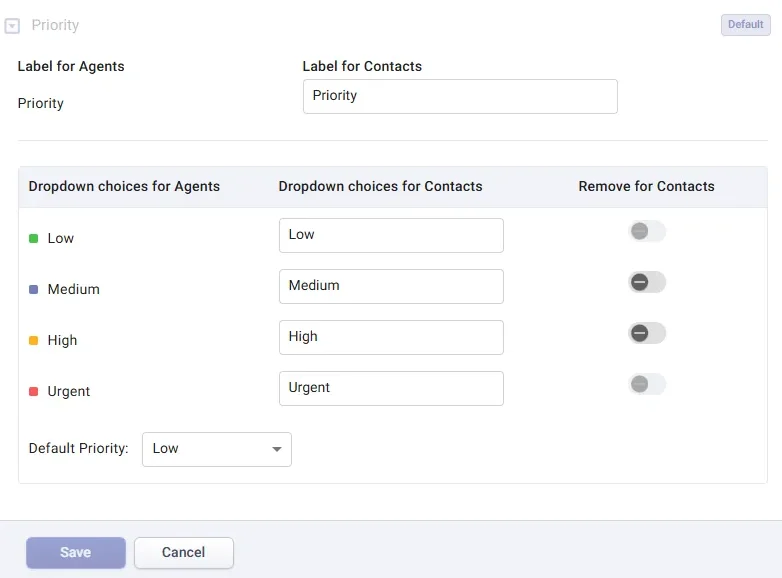
Desk365 provides four default priority levels: Low, Medium, High, and Urgent. Each level represents a different degree of importance.
| Priority | Description |
|---|---|
| Urgent | A critical issue requires immediate action because it severely disrupts essential operations. |
| High | A significant issue disrupts work and requires prompt attention, but it does not meet the team's criteria for Urgent. |
| Medium | An issue affects a user’s workflow, but work can continue with limited disruption. |
| Low | A routine request or question has minimal business impact and no deadline. |
Define each priority according to your support commitments, business processes, and the impact of common issues. Clear definitions help agents apply helpdesk priorities consistently across tickets.
How to determine the right priority for a ticket
A customer’s requested priority may not reflect the issue’s actual impact. Before assigning a priority, determine what the problem prevents the customer from doing, how many users it affects, and whether a workaround is available.
Assess the business impact
Determine whether the issue interrupts an essential business process, prevents a team from working, or causes only minor inconvenience.
For example, a problem that prevents a warehouse team from processing orders may have a greater business impact than a report formatting issue. Consider the consequences of delaying action when deciding priority.
Check how many contacts are affected
Determine whether the issue affects one contact, a team, or multiple departments. A problem affecting many contacts can have a wider impact, but the number of affected contacts should not determine priority on its own.
An issue affecting one person may still require immediate attention if it blocks a critical business process.
Assess how quickly the issue needs attention
Some issues can wait for normal queue handling. Others need action before a deadline or business process is disrupted further. Ask whether the customer can continue working while the team investigates the problem. If the issue is time-sensitive, determine what could happen if the team delays its response.
Check for an available workaround
Determine whether the customer can complete the task another way. For example, if a user cannot access one feature but can complete the same task through another supported method, the ticket may not require the same priority as a complete service outage.
A workaround does not mean the issue is unimportant. It helps the agent understand how much the problem affects the customer while the team works toward a permanent fix.
Best practices for setting helpdesk priorities
A consistent prioritization policy helps agents make faster decisions, reduce unnecessary escalations, and focus on the issues that need attention first.
1. Define clear criteria for each priority level
Document what Low, Medium, High, and Urgent mean for your support team. Use examples from common support scenarios to help agents apply the same criteria consistently. Make sure agents know when to request more information before assigning a priority.
2. Prioritize based on impact and urgency
Impact and urgency are related, but they are not the same.
- Impact is how seriously an issue affects users or business operations.
- Urgency is how quickly the team needs to act to prevent further consequences.
Use both factors when assessing a ticket. A ticket with high impact but no deadline may not need the same response as one that is about to cause further disruption.
| Business impact | Urgency | Suggested priority and action |
|---|---|---|
| Critical disruption affecting essential operations | Immediate | Urgent: Begin investigating immediately. |
| Significant disruption affecting work | Prompt | High: Address the issue within the applicable SLA. |
| Limited disruption with a reasonable workaround | Routine | Medium: Handle in queue order within the applicable SLA. |
| Minimal impact | No deadline | Low: Handle after higher-priority tickets. |
Use this table as a starting point and adapt it to your team’s support plans. If a ticket doesn’t fit neatly, for example a critical issue with no deadline or a minor issue with a hard deadline, use your judgment and choose the priority that matches the real consequences of delay. Document these exceptions so agents know when an issue needs a different priority.
3. Avoid marking every issue as Urgent
When too many tickets receive Urgent priority, agents lose a clear way to distinguish critical issues from routine requests. Reserve Urgent for tickets that meet your team’s criteria for immediate action.
4. Automate repeatable prioritization decisions
Desk365 automation rules can assign ticket priority when defined conditions are met. Use them for recurring scenarios that your team can classify consistently.
Define conditions that reflect your support policy and test the rule against different ticket scenarios before enabling it. Avoid relying on keywords such as “urgent” or “critical” alone because the wording may not reflect the issue’s actual impact.
For setup instructions, see Configuring automation rules to run on ticket creation.
5. Align priorities with SLA targets
Configure response and resolution targets that reflect the urgency of each priority. Make sure agents know which SLA applies to each ticket and review tickets approaching their deadlines.
Priority and SLA status are different. A High-priority ticket may still be within its target, while a lower-priority ticket may be approaching a deadline
For setup instructions, see Configure SLAs and apply them to tickets.
6. Reassess priority when the situation changes
A ticket’s priority may change as the team learns more about the issue. A Medium-priority problem may become High if more users report the same failure. A High-priority issue may become less urgent if the team identifies a reliable workaround.
Ask agents to reassess priority when the issue’s impact, scope, or urgency changes.
This keeps the priority level useful throughout the ticket lifecycle. If you want to automate actions when an existing ticket changes, see Configuring automation rules to run on ticket updates.
7. Establish an escalation process
Define when agents should involve a senior team member, notify a manager, or transfer an issue to another support group. Specify who owns the escalation and what action they should take.
How to automate ticket prioritization in Desk365
Use a ticket creation automation rule to assign priority when an incoming ticket meets specific conditions.
To configure a ticket creation automation rule:
- Sign in to Desk365 as an admin or an agent with permission to manage automation rules.
- Go to Settings > Productivity > Automation.
- Open the Ticket Creation tab.
- Select Create New Rule.
- Add the conditions that determine when the rule should run.
- Add the Set Priority action and select the priority to apply.
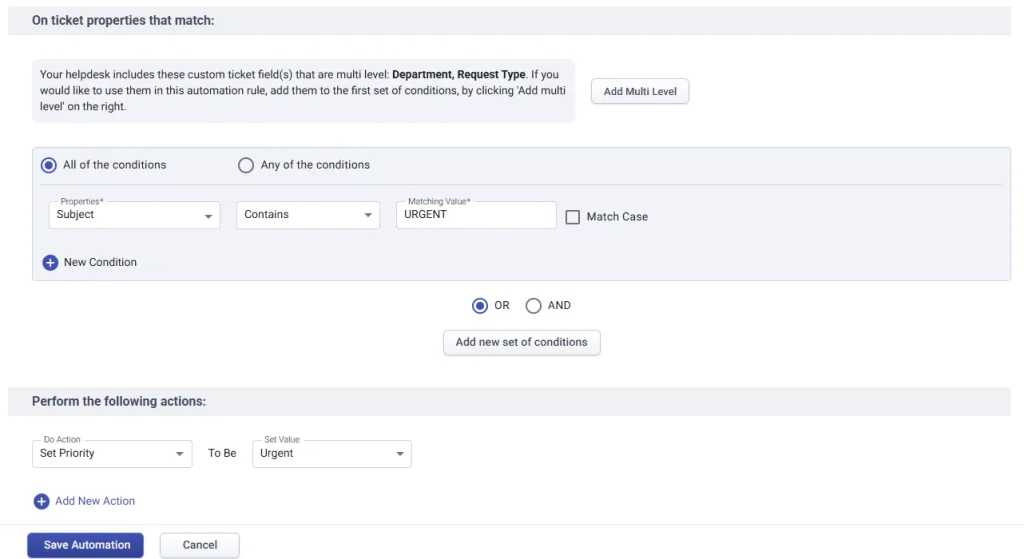
Save the rule and test it against representative ticket scenarios. Confirm that it assigns the expected priority and does not conflict with other automation rules before enabling it for incoming tickets.
For more examples and configuration details, see Configuring automation rules to run on ticket creation.
How to manage high-priority tickets in Desk365
After assigning priorities, agents need a quick way to find tickets that require attention. Filtering the ticket list by priority helps them focus on those requests.
To find tickets by priority:
- Open the Agent Portal.
- Go to the Tickets List.
- Select Filters.
- Choose Priority and select the required level.
- Apply the filter to view matching tickets.
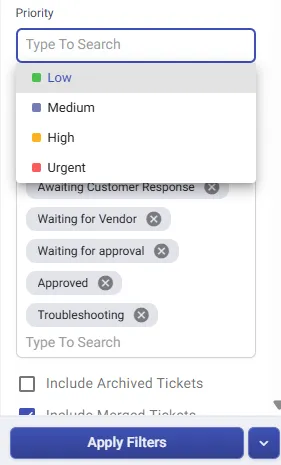
Use the Priority filter to review Urgent and High-priority tickets. Combine it with filters for ticket status, assigned group, or SLA status to identify requests that need attention.
For detailed instructions, see Filter your tickets with Desk365.
Create a custom view for priority-based ticket management
If your team reviews tickets using the same criteria, make a custom view to save time. For example, a view for open High and Urgent tickets can give agents a consistent starting point for daily reviews.
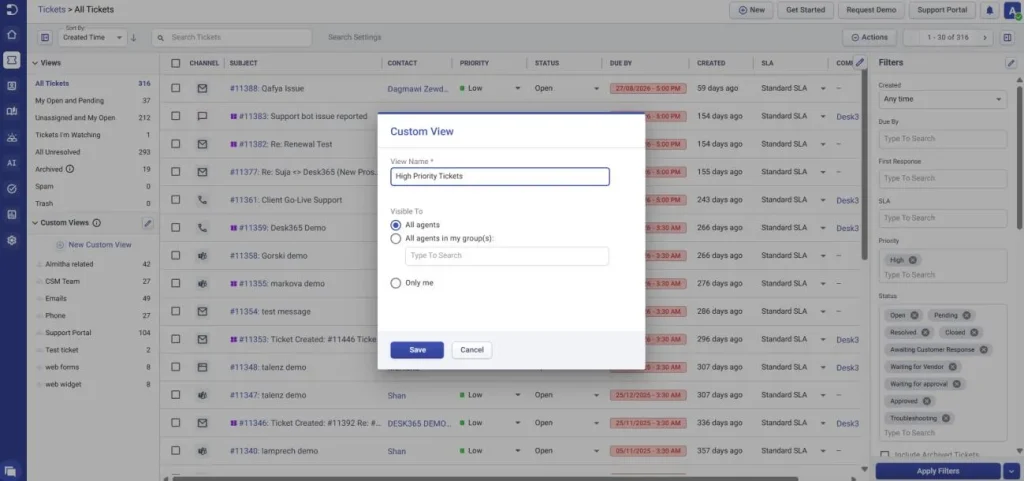
To learn how to create and manage these views, see Create custom views for tickets in Desk365.
How SLAs support ticket prioritization
Ticket priorities help agents decide which issues need attention first. SLAs define the response and resolution targets that apply to those tickets.
For example, an Urgent ticket may have a shorter response target than a Low-priority ticket. If an issue becomes more serious, review its priority and confirm that the applicable SLA still reflects the situation.
Assigning Urgent priority does not guarantee immediate resolution. Agents still need to investigate the issue and follow the applicable support process.
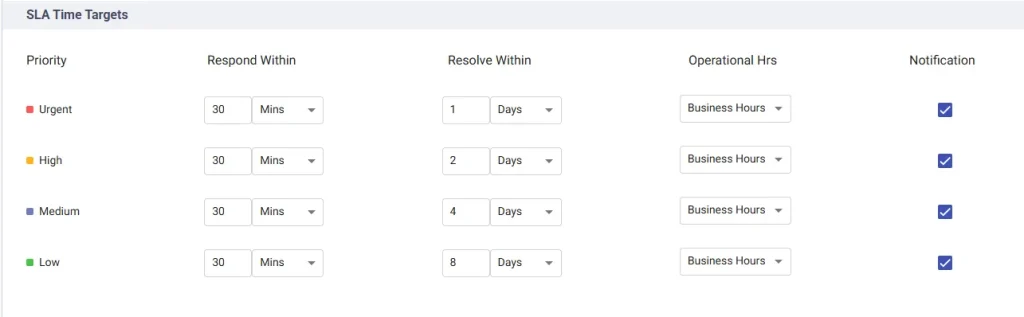
For configuration instructions, see Configure SLAs and apply them to tickets.
Common ticket prioritization mistakes to avoid
Even a clear prioritization policy can fail when agents apply it inconsistently or overlook changes in ticket impact.
| Mistake | How to avoid it |
|---|---|
| Treating every customer escalation as Urgent | Assess the actual impact and urgency before assigning a helpdesk priority. |
| Assigning priority based only on the customer's wording | Review the issue details, affected users, and available workarounds. |
| Using different criteria across agents | Document priority definitions and review examples with the team. |
| Setting up automation without testing it | Test rules against different scenarios and check for conflicting conditions. |
| Leaving outdated priorities unchanged | Reassess priority when the issue's impact or circumstances change. |
| Reviewing priority without checking SLA deadlines | Consider both the ticket's importance and the time remaining before its applicable target. |
| Escalating tickets without clear ownership | Define who receives escalations and what action they should take. |
Review these practices regularly, especially when your team introduces new services, changes its support commitments, or sees an increase in ticket volume.
Related articles
Frequently Asked Questions
Set helpdesk priorities by assessing each ticket’s business impact, urgency, number of affected users, and available workarounds. Use consistent criteria to assign Low, Medium, High, or Urgent priority, and review the priority when the issue’s impact or urgency changes.
Impact measures how seriously an issue affects users or business operations. Urgency measures how quickly the support team needs to act. Consider both factors when assigning a ticket priority.
High priority applies to significant issues that need prompt attention. Urgent priority applies to critical issues that require immediate action because of their severity or business impact. Define clear criteria for both levels so agents can apply them consistently.
Yes. Desk365 automation rules support the Set Priority action when a ticket meets the conditions defined in the rule. See Configuring automation rules to run on ticket creation.
Your SLA configuration can define different response and resolution targets for different priority levels. Review the applicable targets when assigning or changing a ticket’s priority. See Configure SLAs and apply them to tickets.
Yes. Agents should reassess priority when new information changes an issue’s impact or urgency. For example, an issue may require a higher priority if it begins blocking a critical business process.
Agents can filter the Tickets List in the Agent Portal by Priority and select Urgent. For detailed instructions, see Filter your tickets with Desk365.