The Contracts module in Desk365 helps teams manage customer service agreements and track billable support usage more effectively. With support for Block Hours and Block Tickets contracts, organizations can monitor contract consumption directly from tickets, automate contract assignment workflows, and improve visibility into service delivery and billing.
Note: The Contracts module is currently available only for select customers as part of a limited availability rollout. Interested in enabling it for your account? Drop us a note on help@desk365.io to get started.
Configuring Contracts:
Contracts can be created and managed from the Settings > Contracts tab.
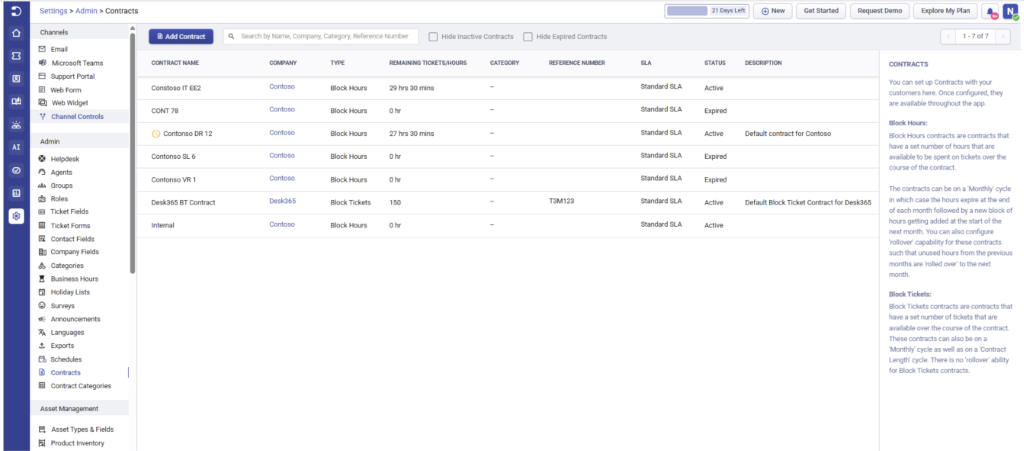
Two types of Contracts are available at this time:
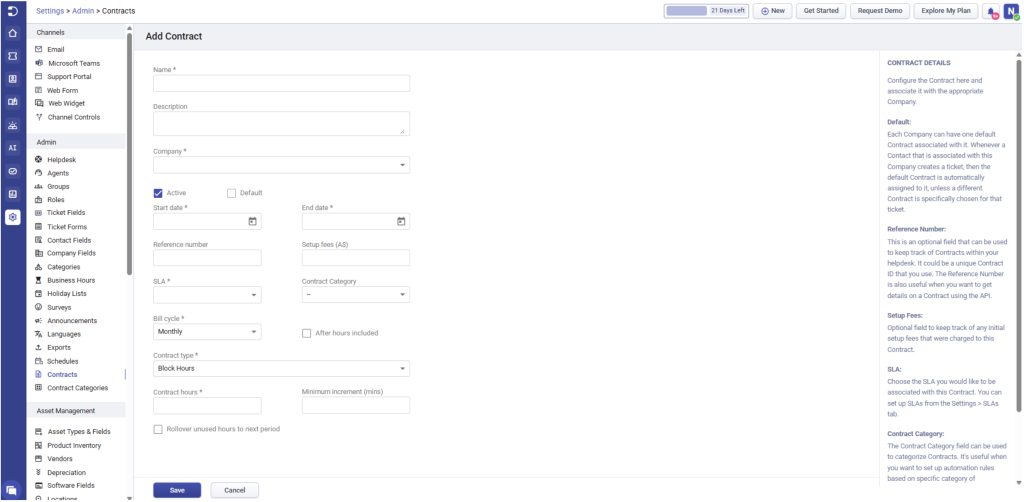
Block Hours Contracts: Block Hours contracts are contracts that have a set number of hours that are available to be spent on tickets over the course of the contract.
The contracts can be on a ‘Monthly’ cycle in which case the hours expire at the end of each month followed by a new block of hours getting added at the start of the next month. You can also configure ‘rollover’ capability for these contracts such that unused hours from the previous months are ‘rolled over’ to the next month.
Block Tickets Contracts: Block Tickets contracts are contracts that have a set number of tickets that are available over the course of the contract. These contracts can also be on a ‘Monthly’ cycle as well as on a ‘Contract Length’ cycle. There is no ‘rollover’ ability for Block Tickets contracts.
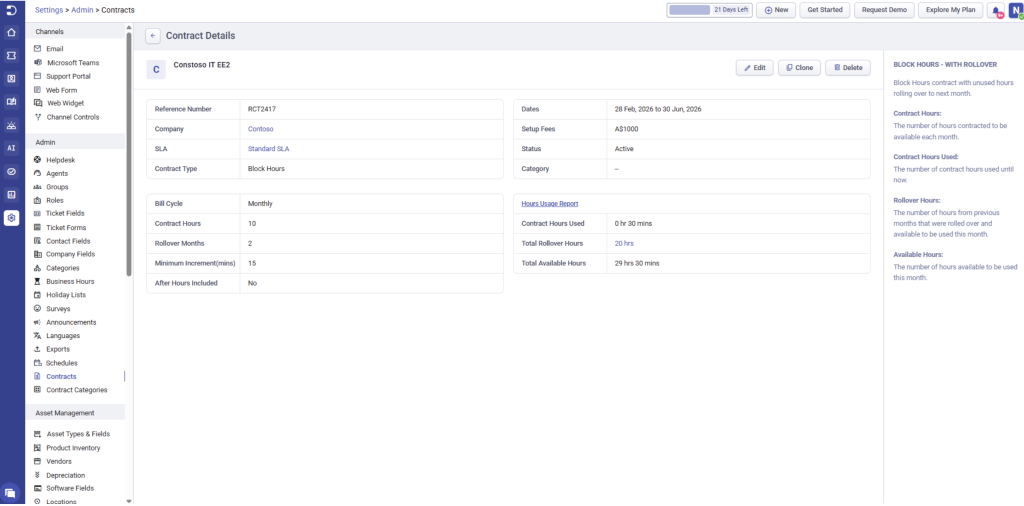
The Contract Details page provides all the details related to a Contract. Below, you can see an example of Block Hours Contract that also has the rollover option enabled.
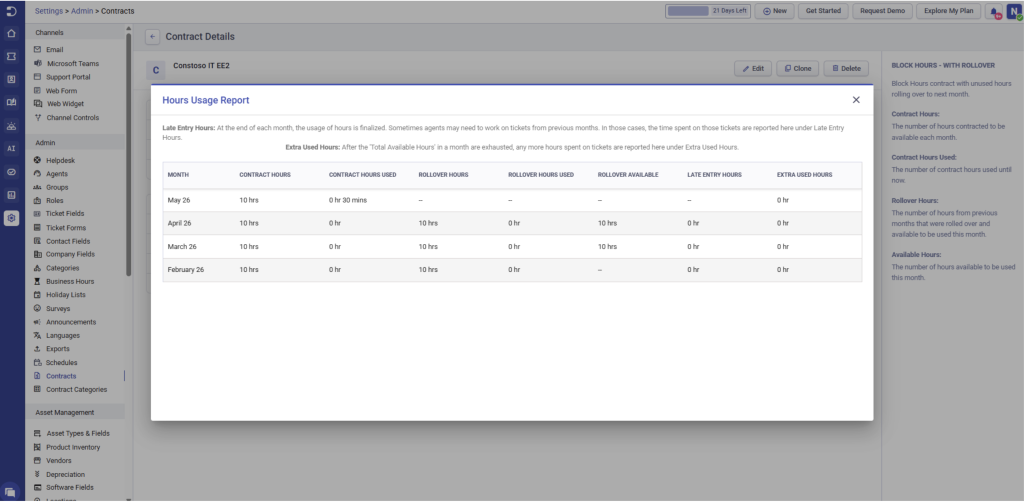
Hours Usage Report: This is a report that tabulates all the entries related to how the Contract’s hours have been utilized. Since this particular contract also has the rollover option enabled, it also includes details about rollover hours. It includes a column for Late Entry Hours and Extra Used Hours.
Late Entry Hours: At the end of each month, the usage of hours is finalized. Sometimes agents may need to work on tickets from previous months. In those cases, the time spent on those tickets are reported under Late Entry Hours. These are not part of the contract (either regular or rollover hours) and hence have to be accounted for outside of it. One option is to add a dummy entry (with consent from the customer) in the current month to account for it.
Extra Used Hours: After the ‘Total Available Hours’ in a month are exhausted, any more hours spent on tickets are reported under
Extra Used Hours: These again are not accounted for in the contract and are extra hours spent on a customer. These too can be accounted using an offline or other mechanism.
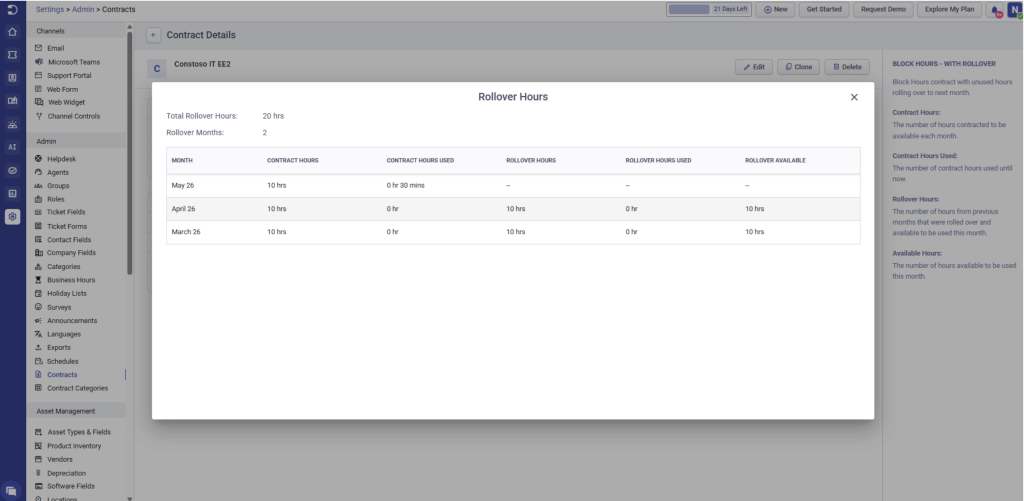
Rollover Hours Report:
Any Contract Hours that are not utilized in a month get added to a Rollover Bank. Hours from the bank are utilized in the following manner:
- First, hours are used from the current month’s Contract Hours.
- When the Contract Hours are exhausted, hours begin to be usedby the Rollover Bank.
- Within the Rollover Bank, the hours from the earliest month are exhausted first. Then, the month after that and sountil the previous month’s rollover hours are used the last.
For example, consider a Contract that has a 3-month rollover, and the current month is June. The Rollover Bank contains hours that were unused from March, April, and May. Hours that were unused from February and earlier are not usable anymore.
First, all the Contract Hours from June are exhausted. Once they’re exhausted, then hours from March are used up first, then April and lastly hours from May are used.
The Rollover Hours Report displays all this data and consumption of hours can be monitored at any time from the Settings >Contracts > Contract Details page.
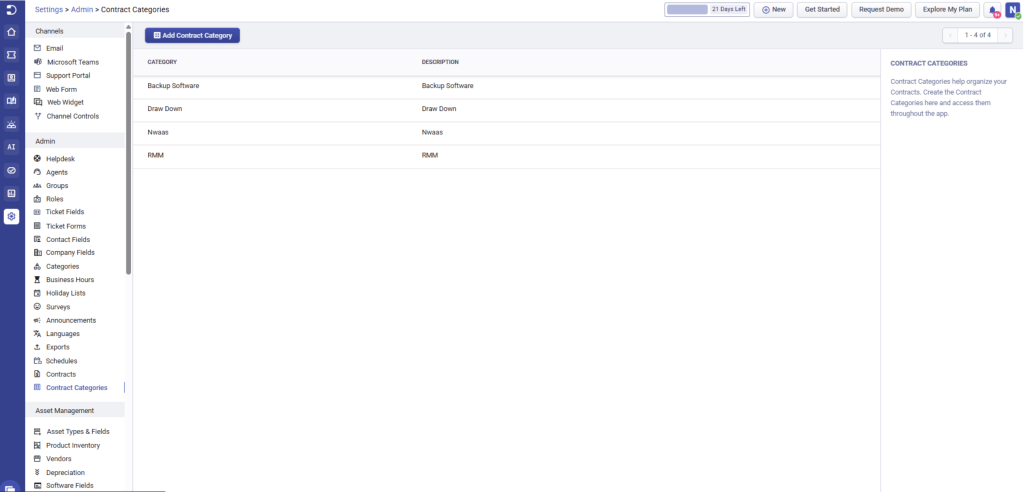
Contract Categories:
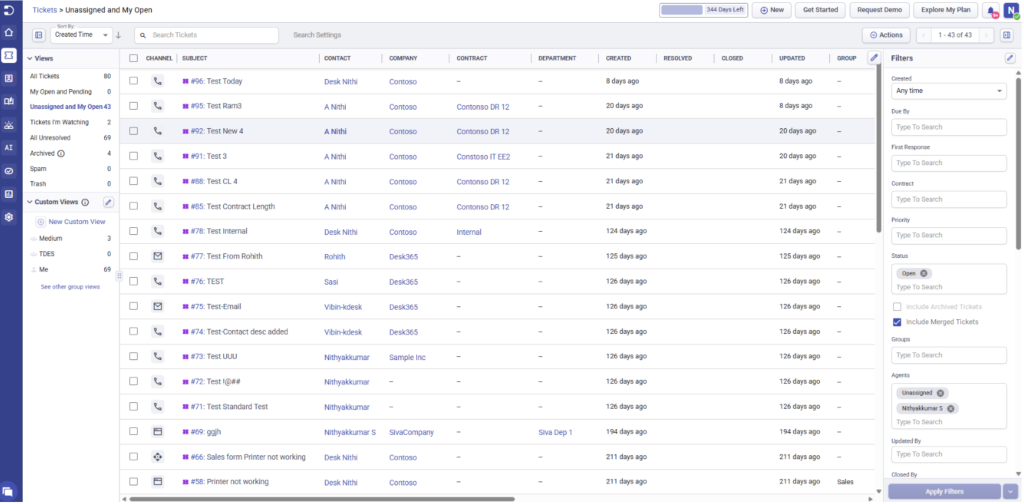
Contracts in Tickets List:
Contracts can be added as a column in the Tickets List page so agents can easily view the Contract associated with a ticket. It’s also available as a filter within the Filters panel.
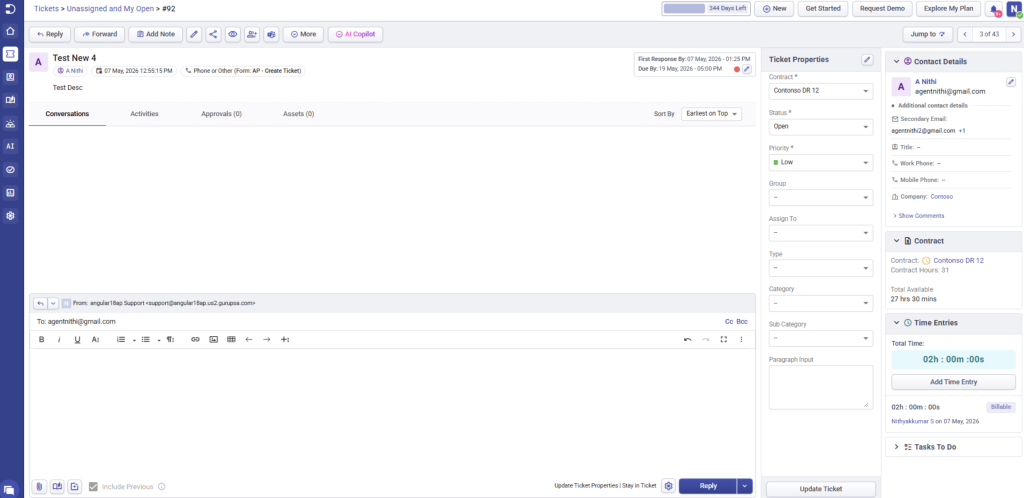
Contracts in Ticket Details:
The Ticket Details page contains a separate panel for Contracts that lets an agent know how many hours are available from the contract associated with the ticket as well as how many hours have been used until now. As the agent adds Time Entries for the ticket, these hours are automatically adjusted, and the new hours will be displayed in the Contracts panel.
Agents can also change a ticket’s contract from the drop-down in the Ticket Properties panel.
Note: Only billable time entries will be used for the contract. If the time-entry is non-billable, it won’t count toward contract hours.
Create & Add Time Entry While Creating a Ticket
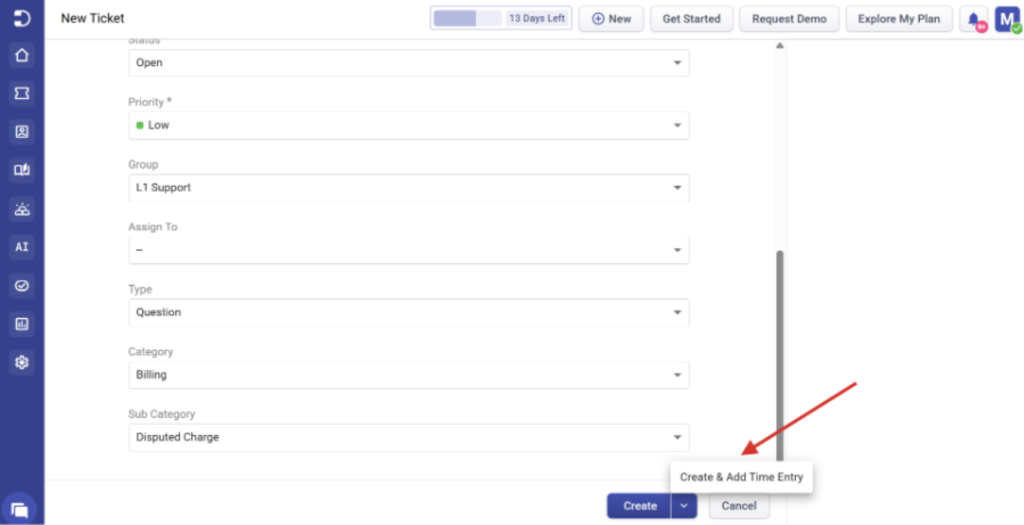
Agents on contract-enabled helpdesks can create a ticket and log a time entry in one step, without opening ticket details. While creating a ticket, agents can select Create & Add Time Entry to create the ticket and log a time entry for it in the same workflow.
Default Contracts:
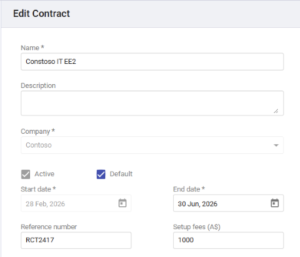
A company can have a default contract. Once a contract has been designated as the default, then all tickets created by contacts from that company are automatically assigned that contract. The default contract can be configured from a Contract’s details page or from the Company’s details page:
Contracts in Create Tickets form:
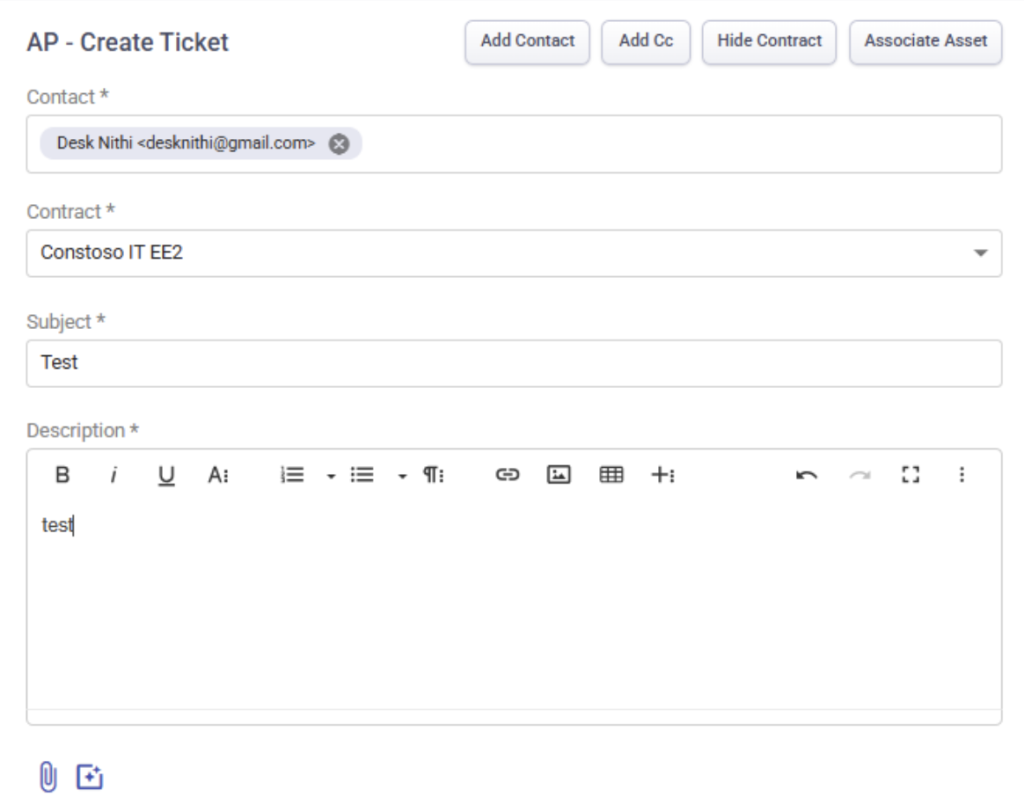
While the default contract is automatically assigned while creating a ticket, an agent can choose to use a different contract while creating a ticket from the Agent Portal’s Create Ticket form.
Contracts in Automations:
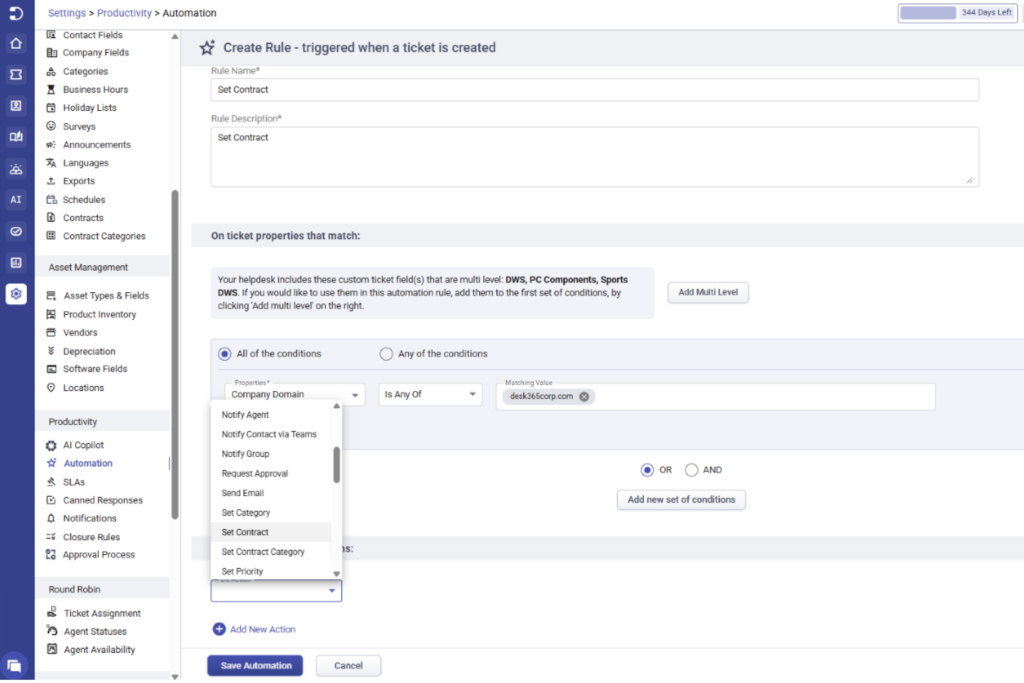
There are two possible actions related to Contracts that are available under automations: Set Contract.
You can choose the Contract that should be set for tickets that match the properties set as part of the Set Contract Category. You can choose the Contract Category for tickets that match the properties set as part of the automation rule. In this case, the Contract that belongs to the Contract Category will be set for the ticket. If the ticket is created by a Contact whose Company has no Contracts in that Contract Category, no Contract will be set.
In case there are multiple Contracts, if one of them is the Default Contract for that Company, it will be chosen as the Contract for the ticket. If not, one of the multiple Contracts will be chosen as the Contract for the ticket.
Setup Fees in Your Helpdesk Currency
Setup fees on contracts now use the currency configured in Helpdesk Settings, so amounts are shown consistently across your helpdesk.
- Open Settings > Admin > Helpdesk Settings to choose your helpdesk currency
- When Contracts is enabled, this currency is used for contract setup fees
- Setup fee values are easier to understand and align with your billing configuration
What’s more: We’ve introduced several enhancements to the Contracts module to make contract management faster and more efficient. You can now clone existing contracts to quickly create new ones, use the new Description field to capture and display additional contract details across the Agent Portal and API, and view contract descriptions alongside remaining ticket or hour usage directly from the Contracts list page. Contract dropdowns in automation rules now support search, making it easier to find and select the right contract or contract category, even in large environments. Additionally, setup fees now support decimal values (up to two decimal places), providing greater flexibility and accuracy when configuring contracts.
The Contracts module brings together ticketing, time tracking, automations, and customer contract management into a single workflow helping support and IT teams manage service delivery with greater operational visibility.
As this feature is currently in limited availability, some functionality may continue to evolve over time. If you’re interested in enabling the Contracts module for your Desk365 account, please contact the Desk365 support team via help@desk365.io.