


Efficiently managing incoming tickets is crucial for any helpdesk system to ensure timely resolution of customer inquiries and issues. Desk365 offers a comprehensive ticket management system that allows agents to search for specific tickets based on various conditions. In this guide, we’ll walk you through the different search conditions available in Desk365, empowering you to streamline your ticket management process effectively.
To begin searching for tickets, navigate to the agent portal, locate and click on the “Tickets” option.
Upon accessing the ticket list, you’ll find the “Search Tickets” option prominently displayed.
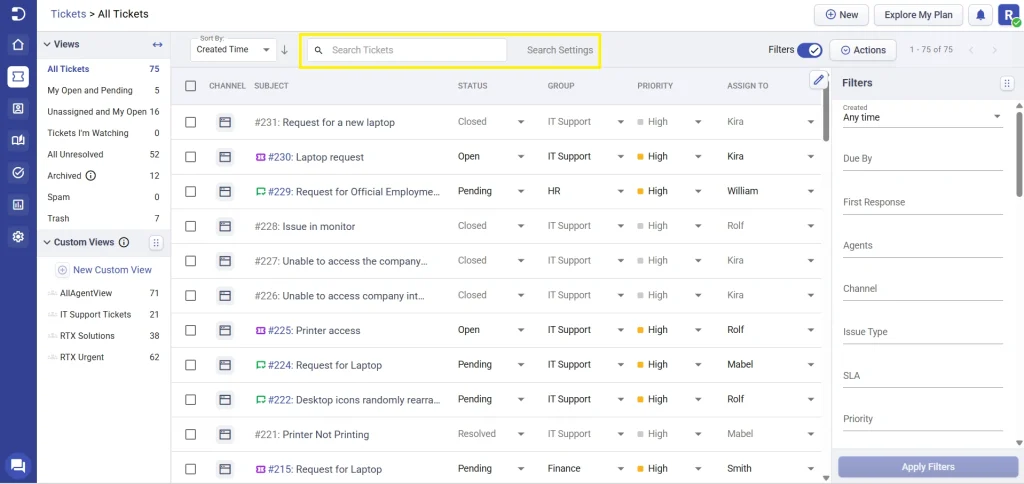
Customizing your search
Desk365 offers a range of filters to refine your search. These filters include:
- Keyword search: Search for tickets containing specific keywords in the subject, description, replies, or notes.
- Attachment search: Search for tickets based on attachment file names.
- Custom ticket fields: Search for tickets based on text or paragraph entries in custom ticket fields.
- Contact and company names: Search for tickets associated with specific contact, company names and email address.
- Filtering archived tickets: Exclude archived tickets from your search results by opting out of the ‘Include Archived Tickets’ option, further narrowing your results.
Choose the desired filters based on your search criteria. You can opt to apply all filters by selecting the “Select All” option.
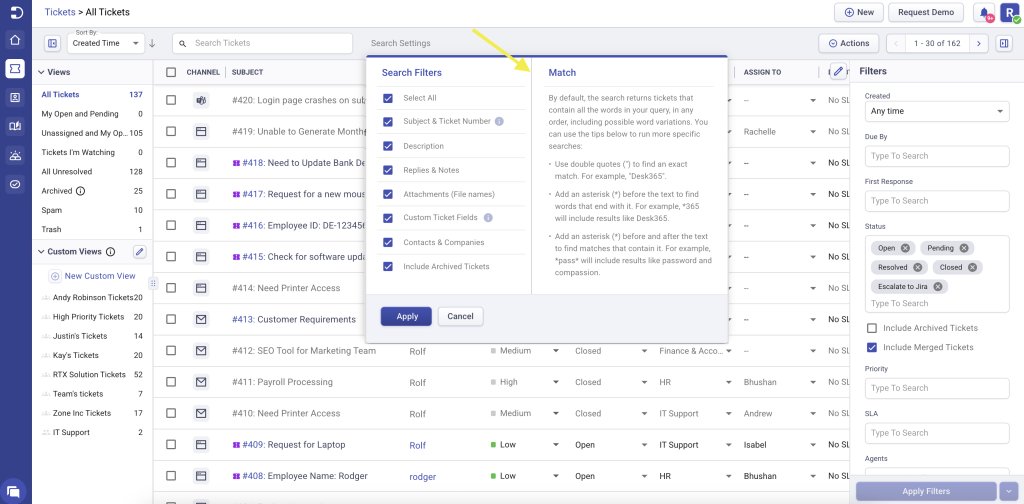
Note: The “Select All” option is turned on by default.
Understanding your search results
Desk365’s search feature ensures users swiftly find relevant tickets by considering various criteria. By default, Desk365 search returns tickets that contain all the words in your query in any order, including possible word variations.
You can use the following search operators to run more specific searches:
- Exact match – Use double quotes (” “) to search for an exact phrase.
For example, searching for “printer not working” returns tickets containing the exact phrase “printer not working” in the same word order. Search is not case-sensitive.
- Suffix match – Add an asterisk (*) before the text to find words that end with it.
For example: *365
This includes results such as “Desk365.”
- Partial word match – Add an asterisk (*) before and after the text to find matches containing the specified text.
For example: *pass*
This includes results such as “password” and “compassion”.
Sorting tickets
In addition to filtering, Desk365 offers multiple ways to sort tickets, making it easier to organize and locate the tickets you need. Depending on your workflow, you can either sort out the results of a ticket search or apply a default sort to the entire ticket list.
Search Results Sorting
After searching for tickets using the Search Tickets box, you can sort the search results based on different ticket attributes. This helps you quickly organize the filtered results and locate the most relevant tickets.
The available range of sort options include:
- Relevance: Sort tickets based on relevance to your search criteria, providing you with a curated list of tickets most pertinent to your query.
- Updated Time: Sort tickets based on the time they were last updated, helping you prioritize recently modified tickets.
- Created Time: Sort tickets based on the time they were initially created, useful for tracking the chronological order of ticket creation
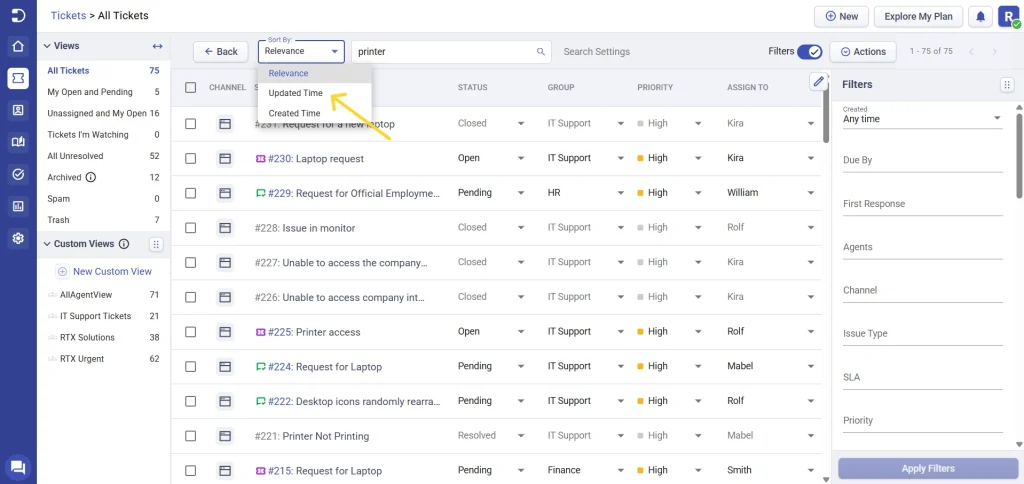
Note: The “Relevance” option is turned on by default.
Default Ticket Sorting
The Sort By dropdown, available at the top-left of the ticket list, lets you organize all tickets without entering a search term. This default sorting option helps you quickly arrange tickets based on different ticket properties.
The available sorting options are grouped into three sections.
Ticket Attribute Sorting
The first section contains ticket attributes that are sorted based on their underlying values rather than alphabetically.
The available options are:
- Created Time
- Updated Time
- Due By Time
- Priority
- Status
- Type
- Ticket State
For example, sorting by Created Time arranges tickets chronologically, while sorting by ‘Priority’ tickets will be sorted based on their priority level.
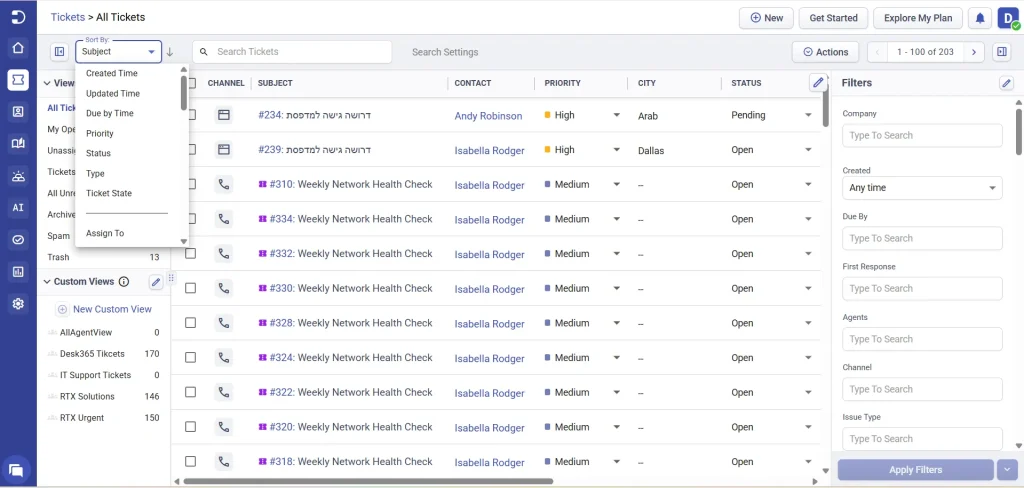
Note: These fields are sorted according to their respective values and use case basis, not in alphabetical order.
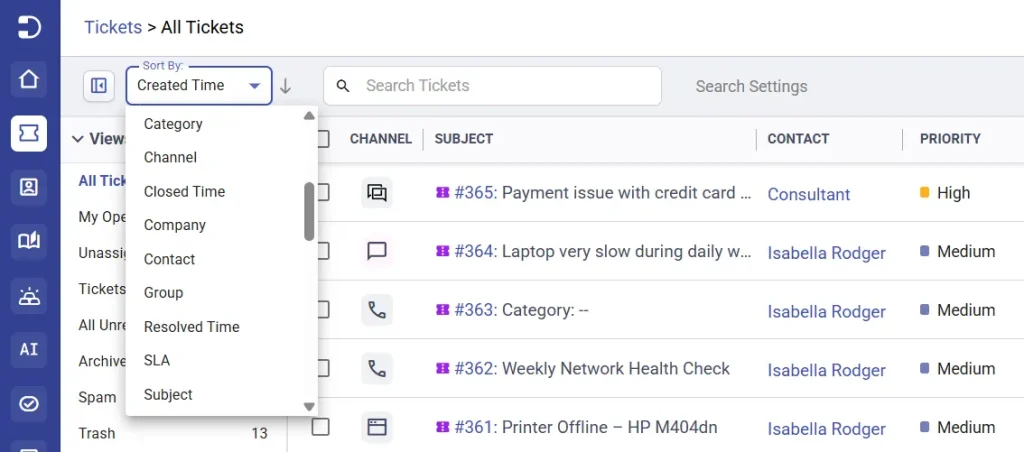
Alphabetical Sorting
The second section contains fields that sort tickets alphabetically based on the selected value.
The available options are:
- Assign To
- Category
- Channel
- Closed Time
- Company
- Contact
- Group
- Resolved Time
- SLA
- Subject
For example, selecting ‘Category’ sorts tickets alphabetically by category name while selecting ‘Company’ arranges tickets alphabetically by company name.
Custom Field Sorting
The third section displays eligible custom ticket fields that can also be used for sorting.
Default sorting supports custom fields created using the following field types:
- Text
- Number
- Decimal
- Date
Select any supported custom field to organize tickets based on the values stored in that field.
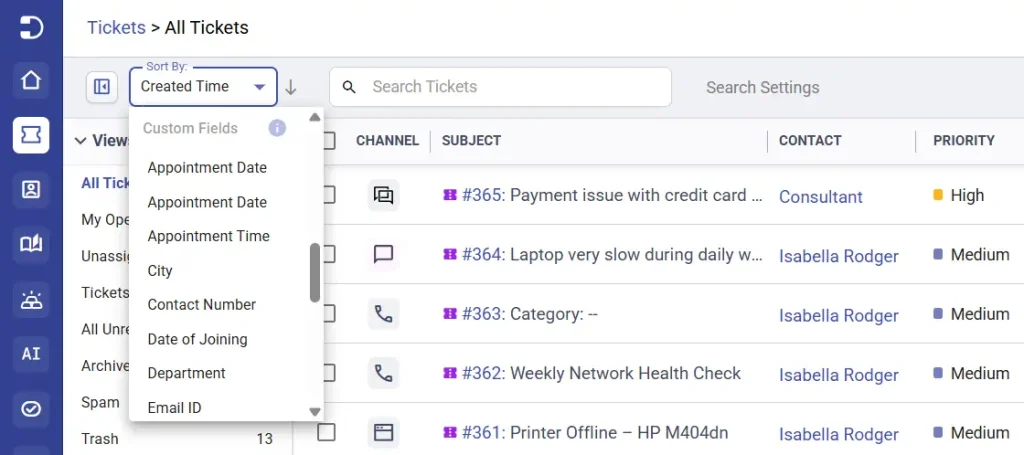
Note: Only custom fields of the Text, Number, Decimal, and Date field types are available for sorting. Other custom field types are not supported. Unlike other sorting options, custom field sorting is not saved.
By following these steps and customizing your search criteria accordingly, you can efficiently locate the desired ticket within Desk365, facilitating prompt resolution of customer inquiries and issues.
In addition to the existing search capabilities, Desk365 is continuously enhancing its features to provide users with a more comprehensive and universal search experience inclusive of Contacts & Companies, and Knowledge Base. Soon, users can also expect a search functionality in the Support Portal. This upcoming enhancement will further empower agents to efficiently navigate and access information across various aspects of the Desk365 platform.