The custom departments feature in Desk365 helps you organize support within a company by grouping contacts into departments such as HR, Finance, Sales, or IT. Departments always belong inside a company and are used to keep support requests, content, and communication well organized.
Desk365 is flexible about how contacts are set up. A contact can belong to a department within a company, be linked directly to a company without a department, or exist on its own without being part of any company. This makes it easy to match Desk365 to how your organization or customers are structured.
Departments also play a key role in controlling what contacts can see and access. In the support portal, departments can determine which ticket forms, knowledge base articles, and announcements are visible to users. In the agent portal, departments make it easier for agents to view, filter, and manage tickets, ensuring requests are routed and handled by the right teams.
This guide explains how departments work and how to use them step by step, so you can confidently set up and manage departments in Desk365.
What are departments?
Departments help you segment users within a company. For example, a company may have Finance, HR, and IT.
With Desk365, you can:
- Add custom departments to a company
- Associate contacts with one or more departments
- Choose a primary department for each contact
- Control visibility of ticket forms, announcements and knowledge base articles based on departments
Adding and managing departments in a company
You can add departments when creating a company or by editing an existing one.
To add or remove departments:
- Go to Accounts > Companies
- Add a new company or open an existing company
- Add new departments or delete unwanted ones
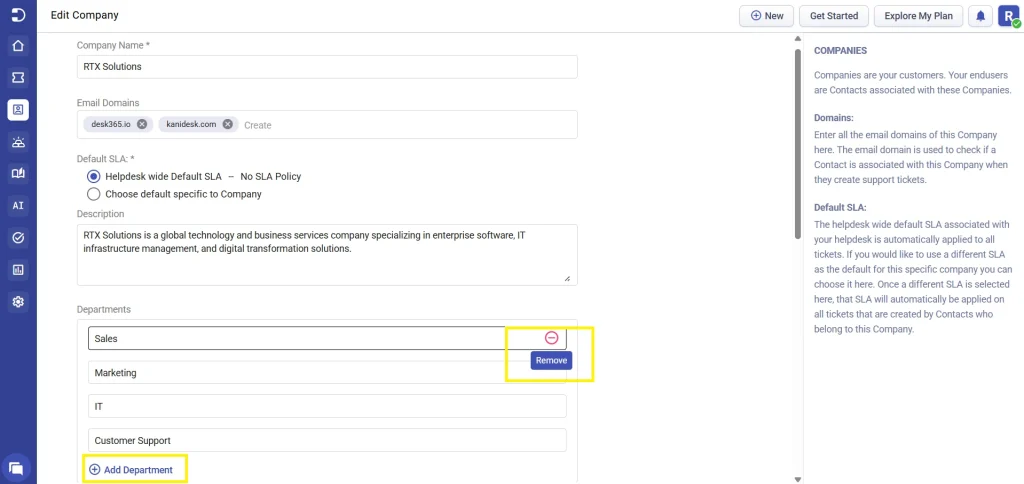
When a department is removed from a contact, any tickets associated with that contact are also removed from that department.
If an entire company is deleted, all associated contacts will have their department set to null, and any related tickets will also have their department cleared.
Note: If a company or its department has an automation rule or visibility configured (ticket form, KB, announcement), the company cannot be deleted. You must first remove or update the associated automation rules, ticket forms, and any other company-based configurations before deleting the company.
Associating contacts with departments
Contacts can belong to one or custom departments.
You can set this while:
- Creating a contact or
- Editing an existing contact
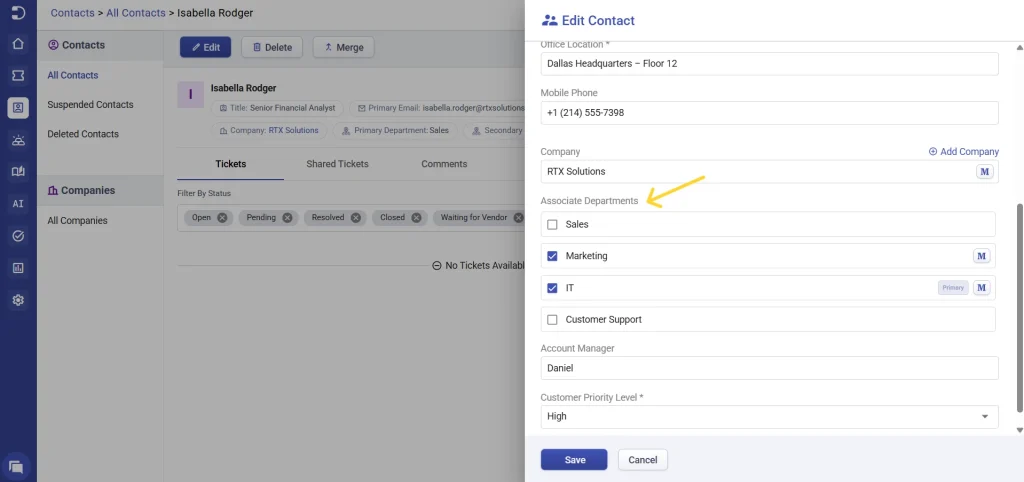
Primary department: The first selected department becomes the primary by default. You can manually change the primary department anytime while editing the contact on the contact details page.
Departments in the support portal
1. How contacts use departments in the support portal
You can control what contacts see when they log in to the support portal.
Configuring department visibility in ticket forms:
- Go to Settings > Admin > Ticket Forms > Support Portal
- Enable Support Portal signed-in users from specified companies
- Choose the company
- Select the departments that should have visibility
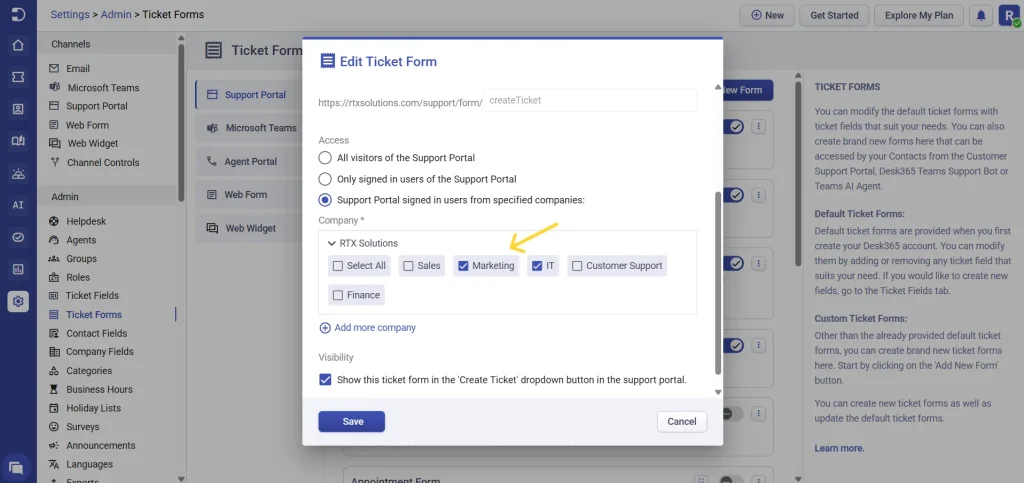
When a contact logs into the portal:
- Their primary department will be auto-selected in the ticket form. However, they can switch to another department using the dropdown
- If they are logged out, the department field will not display, and the primary department is used by default
- If a form is visible to two departments, Desk365 will apply the intersection of:
- Departments selected in the form
- Departments the contact belongs to
This ensures contacts only see forms meant for them.
The same department-based visibility controls can also be configured for knowledge base articles and announcements.
2. Viewing and managing departments in the support portal
In the support portal, you can display the department field directly in the ticket list and ticket details view. This helps contacts quickly identify which department a ticket was submitted under and keeps communication clear across teams.
From Settings > Channels > Support Portal, you can:
- Add department as a column in the ticket list view
- Control which ticket properties (including department) appear in the ticket details page
- Include department as a selectable field when contacts export tickets from the support portal
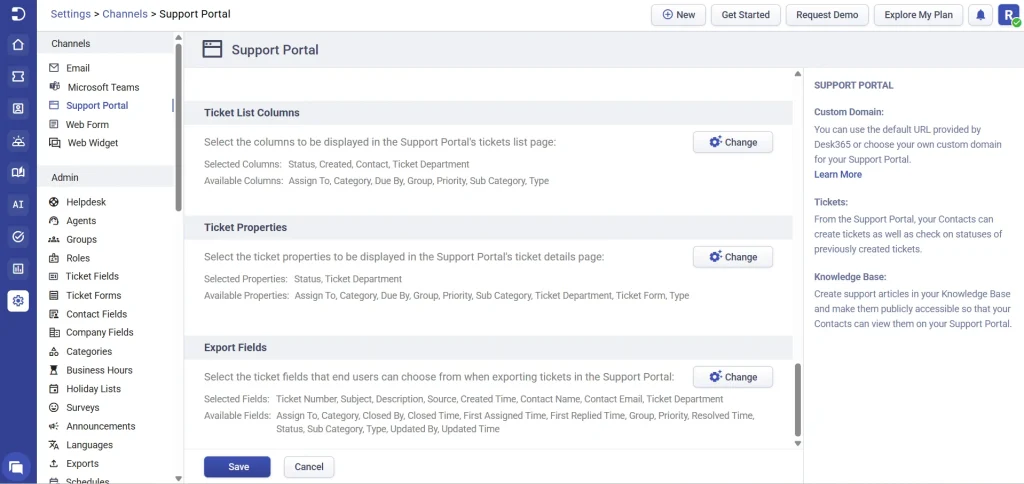
Once added, the department selected during ticket creation is clearly visible throughout the support portal experience.
Departments in the agent portal
Ticket list view
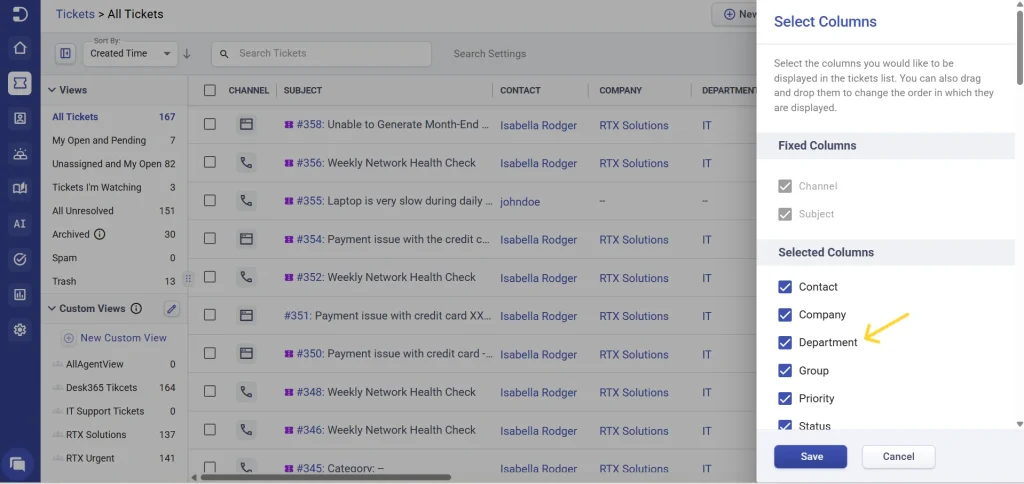
You can add department as a column to see which department was chosen by the contact.
To customize:
- Click edit columns
- Add department
- Rearrange columns as needed
Filters & custom views
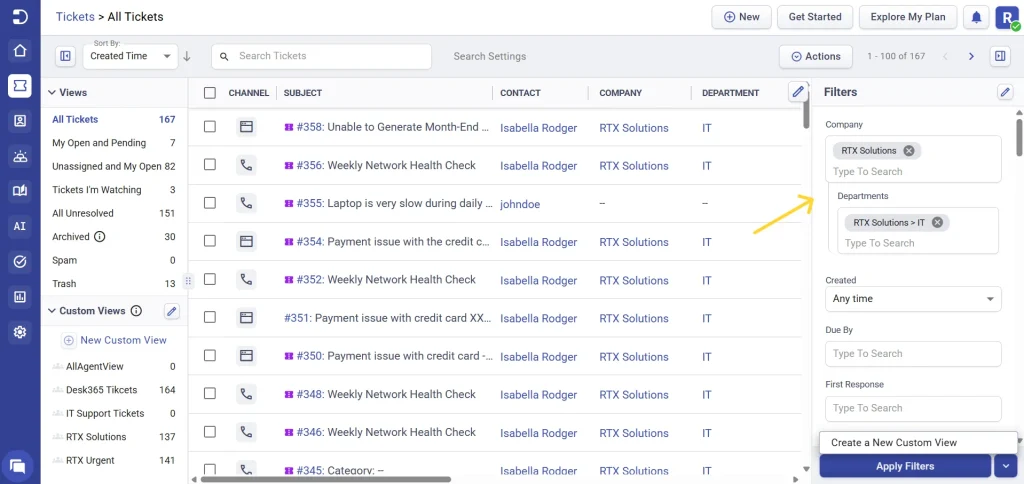
You can filter tickets by department and save the result as a custom view for quick access in the future.
Using departments in automations
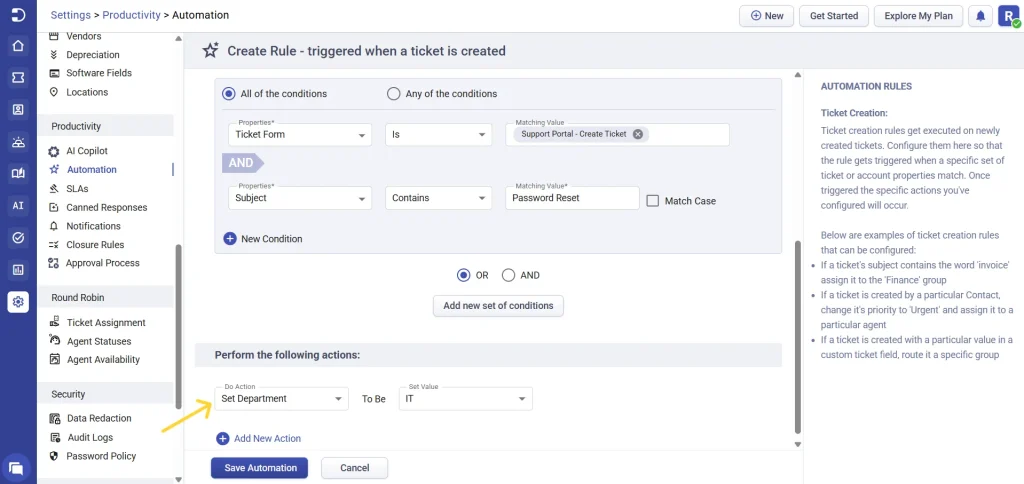
Departments can be used in automation conditions. This lets you route, categorize, or tag tickets automatically.
Departments in exports
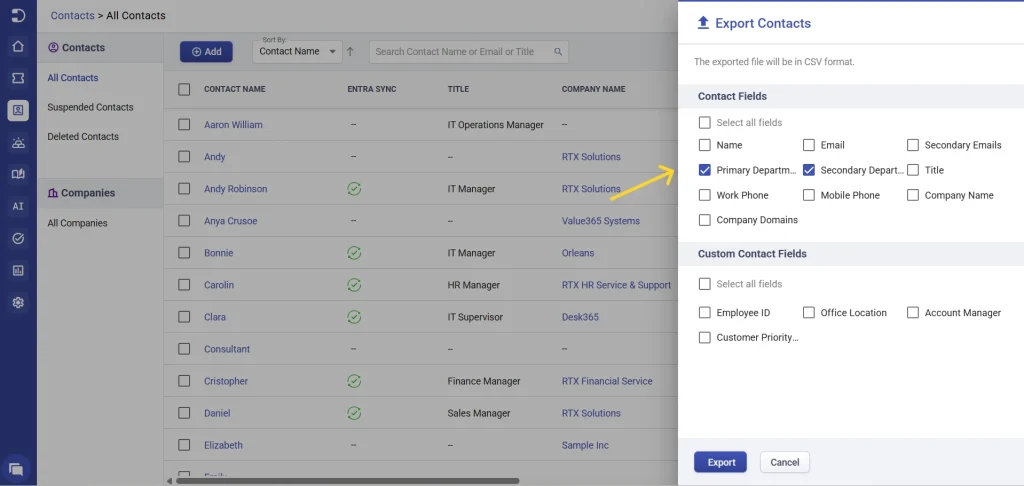
When you export data from Desk365, you can also include information related to departments so you can analyze how different departments within a company are using your helpdesk.
In ticket exports, the department selected by the contact at the time of ticket creation is included as part of the contact-related fields. This makes it easy to understand which department raised each ticket when you’re reviewing the exported data in a spreadsheet.
In contact exports, Desk365 includes both the primary department and any secondary departments the contact belongs to. This gives you a complete view of each contact’s association with various departments inside their company, which is useful for segmentation or reporting.
In company exports, you will see a list of all the departments that have been created for each company. This helps you quickly verify how many departments exist under each company and how they are structured.
These fields help with reporting and offline analysis.
Departments in announcements, knowledge base & placeholders
Departments help you control what content each user sees.
- Announcements: You can show an announcement only to users in “Finance.”
- Knowledge Base: A KB article like “How to Request Reimbursement” can be restricted to Finance and HR Support
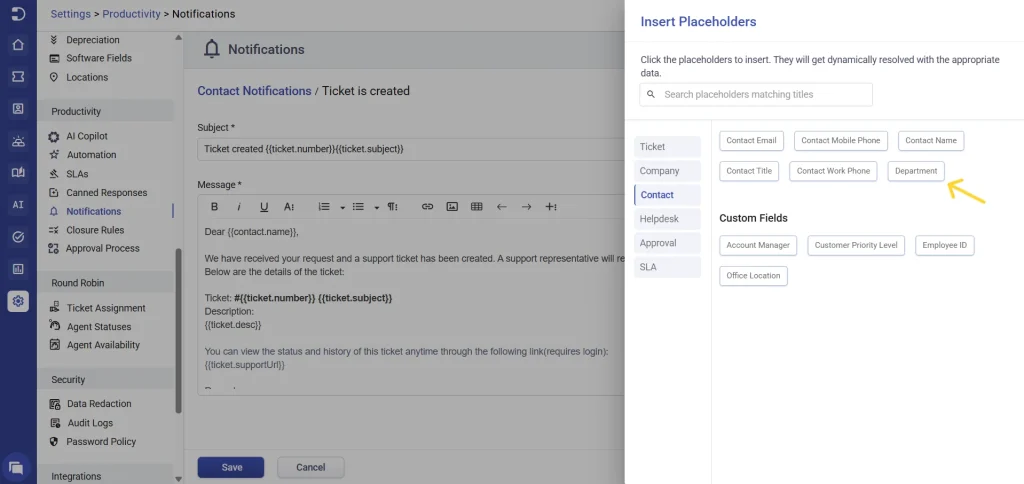
- Placeholders: Email templates and automations can include department details dynamically.
Departments in web forms, widgets, and email
When a contact submits a ticket through the web form, widget, or email, Desk365 uses their Primary Department.
Departments and the Support Bot
When using the Support Bot, the departments the contact is associated with is listed during ticket creation.
Departments in reporting & API
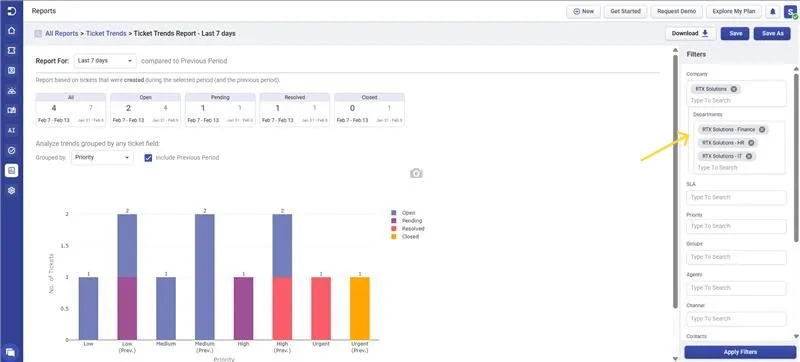
You can filter reports by department to understand:
- Ticket volume by department
- Performance of a specific department
- Workload distribution
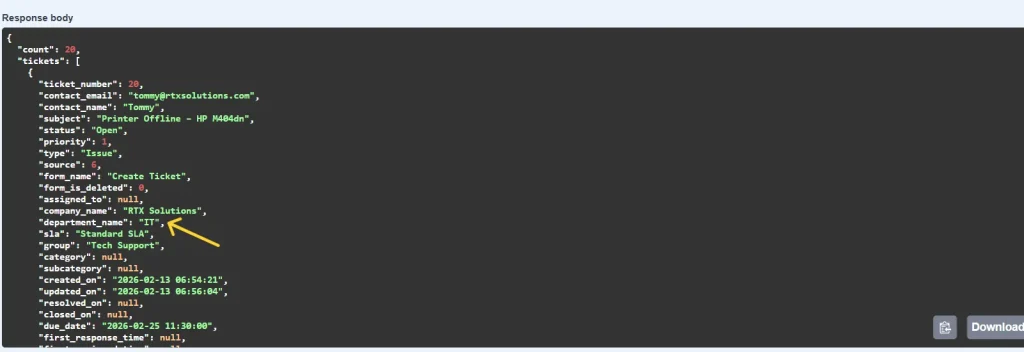
Using the API, you can retrieve department data for custom dashboards.
Even within a single company, departments help bring structure to your support operations by organizing contacts, tickets, and content by team. This ensures requests are routed correctly, visibility is controlled, and each department receives a more relevant and personalized support experience.
Frequently Asked Questions
The department associated with the contact’s support tickets will be unassigned from the contact, but the department itself will continue to exist within the company.
When a contact is moved to a new company, all their existing support tickets move to the new company and the department value becomes unassigned.
If the new contact belongs to multiple departments, the agent can choose the appropriate department that the ticket should be assigned to.
If the department is associated with:
- Any contacts
- Ticket form visibility
- Knowledge base articles
- Announcements
- Assets
- Automations
Desk365 will not allow the department to be deleted until those associations are removed.