Desk365 lets you assign special roles to contacts so they can oversee and manage support tickets created by others in their organization. This is done by marking a contact as a Company Manager or a Department Manager.
These roles are commonly used when a customer wants a single point of contact, such as an IT lead, department head, or operations manager to track, respond to, and manage tickets raised by multiple users.
This article explains how manager roles work in Desk365, how to assign them, and what level of access each role provides within the support portal
Who is a manager in Desk365?
A manager is a contact who is granted visibility and control over tickets beyond just the ones they personally create.
Depending on how the manager is configured, they can:
- Access tickets across an entire company, or
- Access tickets limited to specific departments within a company
The scope of access is determined at the time the contact is marked as a manager.
Assigning a manager role to a contact
You can assign a manager role while creating a new contact or by editing an existing one.
- Go to Accounts > Contacts > All Contacts
- Create a new contact or open an existing contact
- In the contact form, locate the company field
- Enable the company manager option next to the company name by simply clicking on it
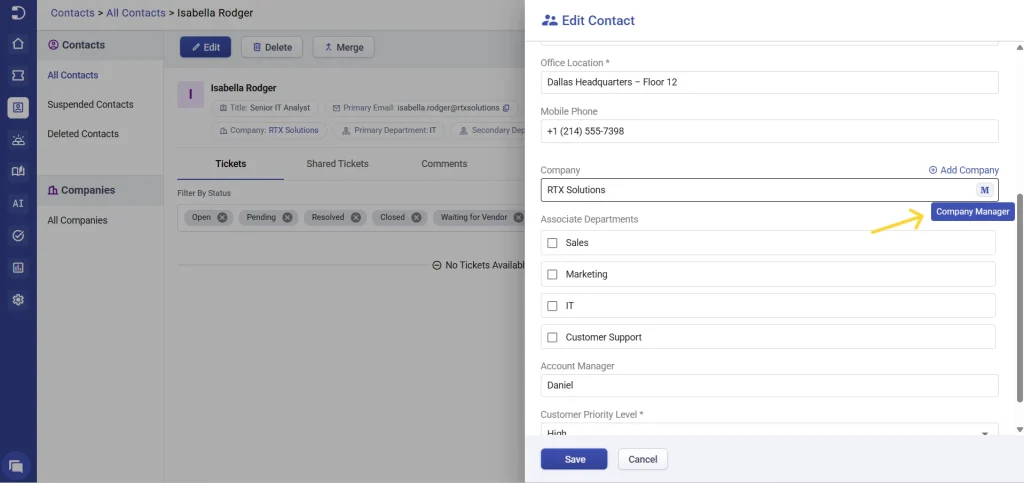
When enabled, the background turns blue, indicating that the contact has been marked as a manager.
At this stage, the contact can be configured either as a company-level manager or a department-level manager.
Company-level managers
A contact becomes a company-level manager when the company manager option is enabled. This capability is available in the Plus and Premium plans.
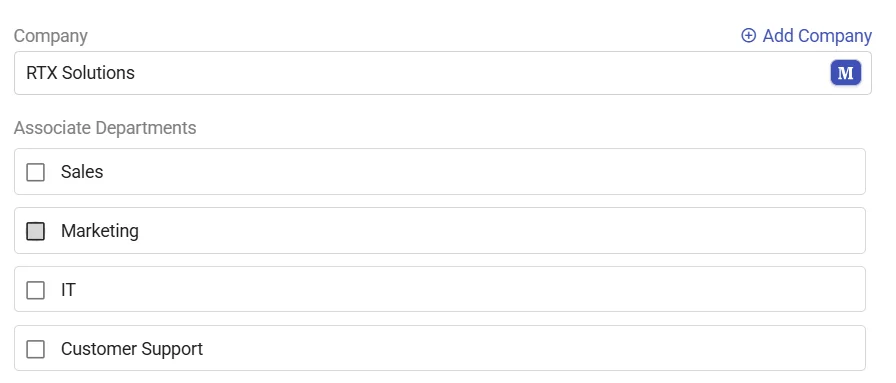
Company-level managers:
- Can view all tickets created by any contact under the company
- Can see tickets from all departments
- Can access past tickets, including tickets created before they were marked as a manager
This role is intended for users who need complete visibility into their organization’s support requests.
Department-level managers
A contact becomes a department-level manager when one or more departments are selected and granted department-level manager access. Department-level manager access is available in the Premium plan.
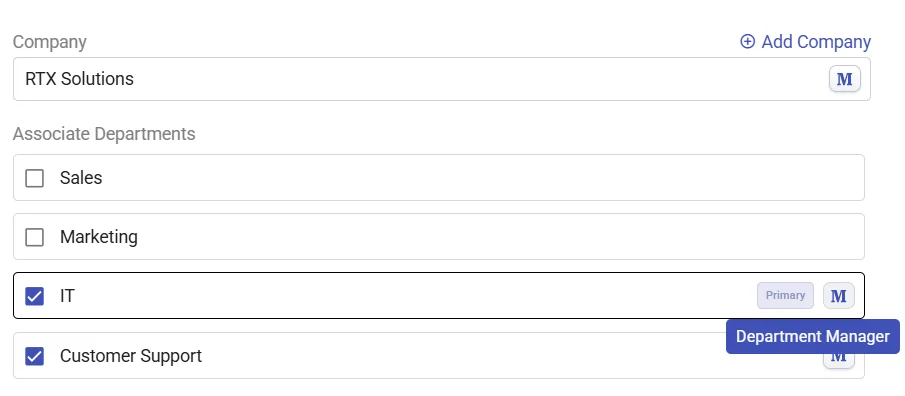
Department-level managers:
- Can view tickets only from their manager access granted department(s)
- Cannot see tickets from other departments in the same company
- Can access past tickets within their department scope
- Are visually identified by an “M” icon next to the department name
Manager experience in the support portal
Once a contact is marked as a manager, they gain additional filtering options in the support portal that allow them to view tickets beyond their own.
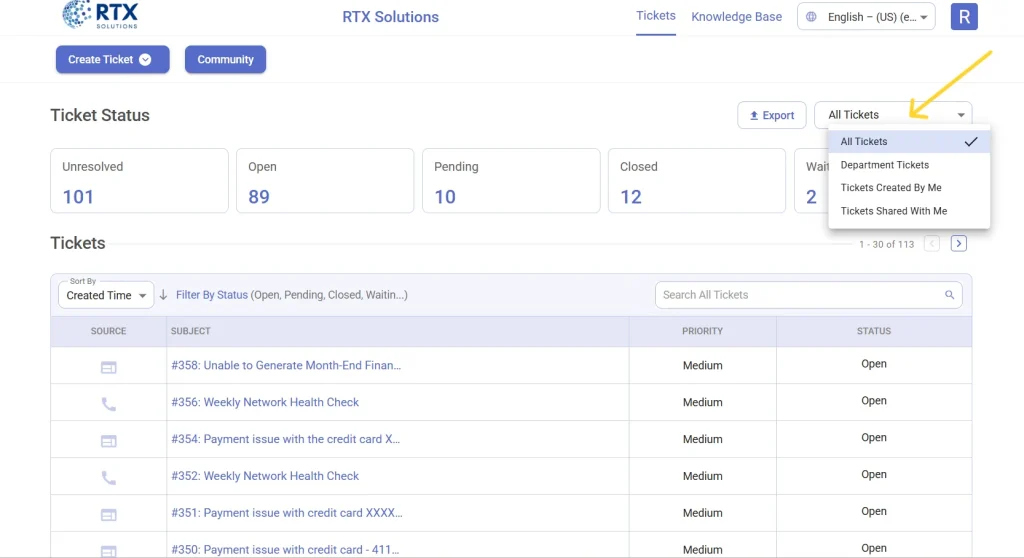
Managers can filter tickets by using the following views:
Managers can filter tickets in the support portal using the following views. The tickets shown depend on whether the manager is assigned at the company level or the department level.
- All tickets– Shows a combined view of:
– Tickets created by the logged-in contact
– Tickets shared with the contact
– Tickets created by other contacts within the company
For department-level managers, this view includes:
– Tickets they created
– Tickets shared with them
– Tickets created within their managed department(s) only
- Company tickets- Shows all tickets associated with the company, regardless of who created them.
- Department tickets-Shows tickets associated only with the managed department(s).
- Tickets created by me-Shows only the tickets created by the logged-in contact.
- Tickets shared with me – Shows tickets that have been explicitly shared with the logged -in contact using the ‘Share To’ feature.
What managers can do with tickets
Within their scope of access, managers can:
- View tickets
- Reply to tickets
- Export tickets
Department-level managers can perform the same actions, but only on tickets from their managed department(s).
How notifications work for managers
Manager notifications are designed to avoid unnecessary noise while still keeping managers informed once they actively participate in a ticket.
Managers do not receive notifications immediately when a ticket is created by another contact in the company or department
Once a manager replies to a ticket and becomes part of the conversation, notifications will start being sent to the manager
Notifications can be delivered via email or Microsoft Teams, depending on configuration
Currently, notifications are sent when:
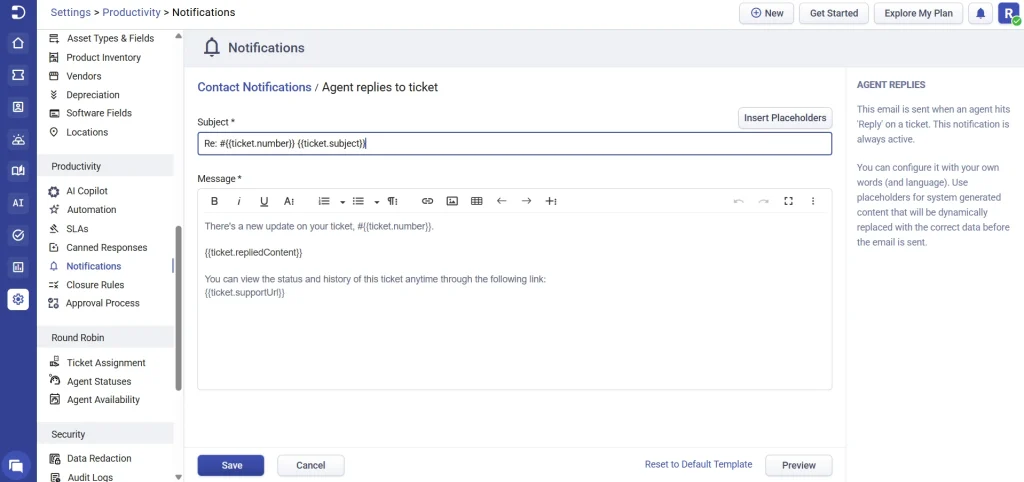
- An agent replies to a ticket
- A public note is added
Notification settings for managers follow the same template as notifications for other contacts in Desk365.
Use company-level managers when full visibility across the organization is required and department-level managers when access should be restricted to specific teams or departments
By combining company and department managers, Desk365 gives you precise control over ticket visibility while keeping collaboration simple and secure.