Desk365 lets you choose the language used in both your agent portal, support portal and Support Bot, so your team and contacts can work in a language they’re comfortable with.
This article walks you through:
- Where to find the languages settings
- How to set a default language
- How to enable multiple languages
- How agents can choose their own preferred language
Where to find the languages settings
To configure languages in Desk365, log in to the agent portal and go to Settings > Admin > Languages
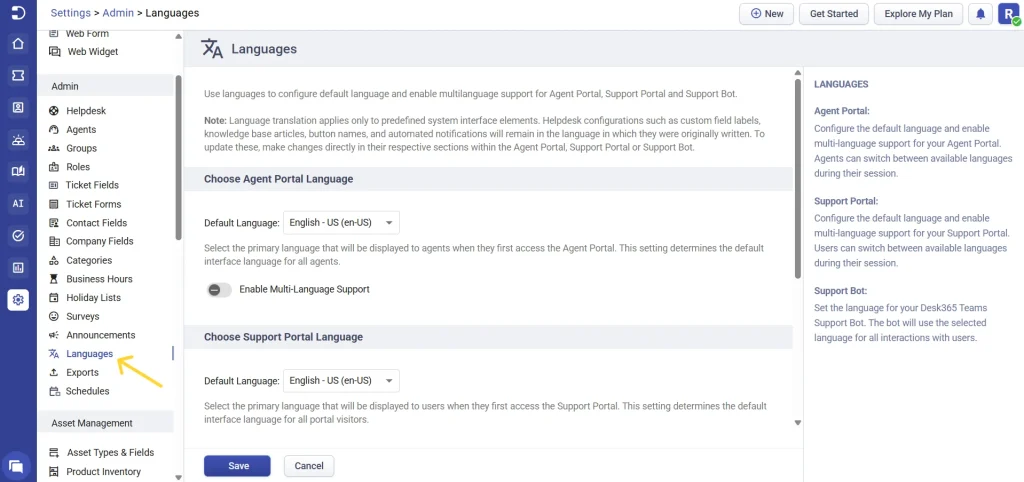
This is where you manage language options for the agent portal, support portal and the Support Bot.
Choosing the agent portal language
At the top of the page, you’ll see the ‘Choose Agent Portal Language’ section. Use the default language dropdown to select the main language for the agent portal.
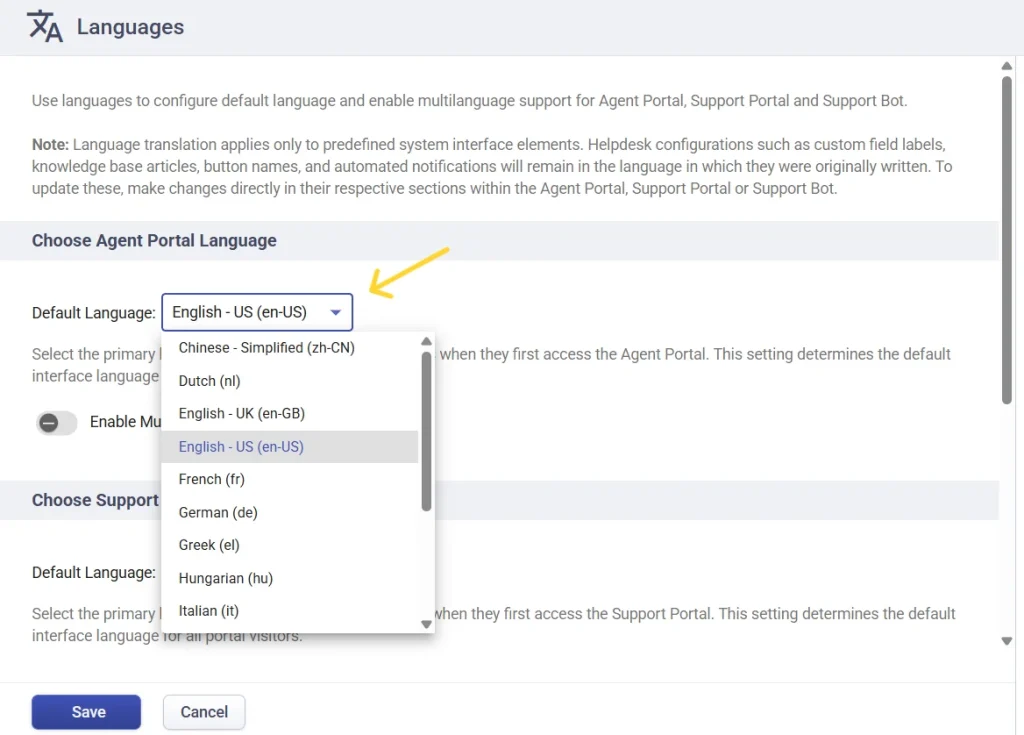
The language you select here becomes the primary language agents see when they first log in to the agent portal. This sets the default interface language for all agents.
Note: By default, you can choose any one language included in the Standard plan. Enabling and using multiple languages is available in the Plus and Premium plan.
Enabling multi-language support for agents
Below the default language setting, you’ll find the option to enable multi-language support.
- Turn on to enable multi-language support
- Add one or more languages from the 20 language options available under ‘Available Languages’
- Once languages are configured, each agent can choose their preferred language by clicking Profile > My Profile & Settings. Find the language dropdown, select the language you prefer
- The agent portal will immediately update the selected language for that agent.
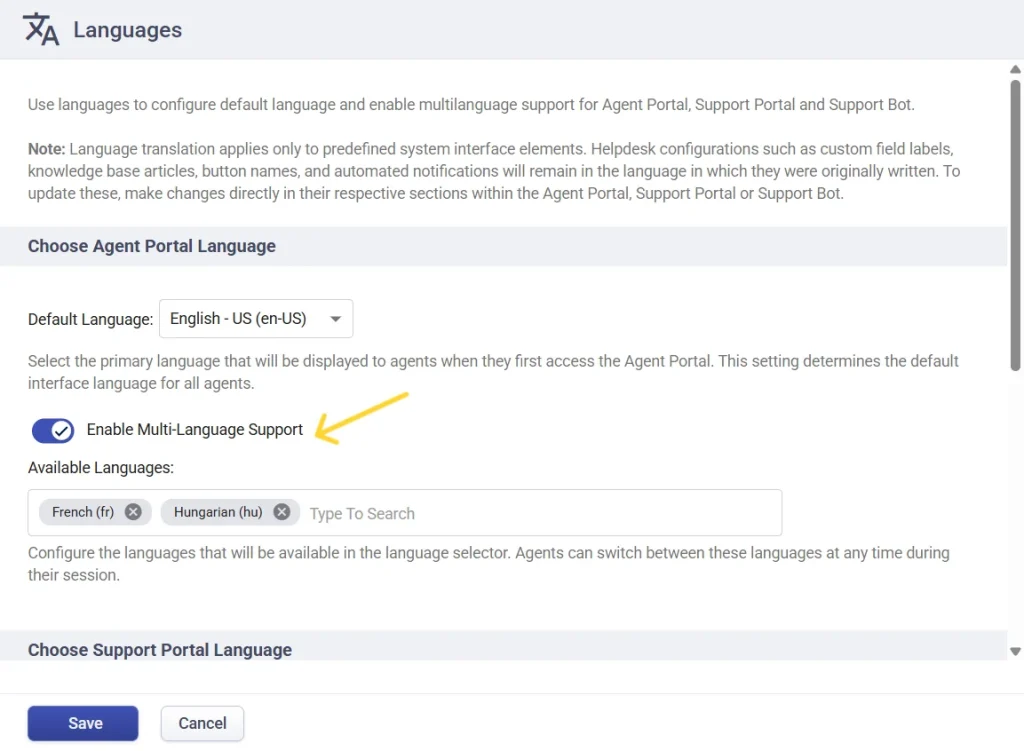
Once enabled, each agent can choose their own preferred language.
Agents can change their language anytime from the profile menu.
Select the preferred language and the agent portal will update immediately.
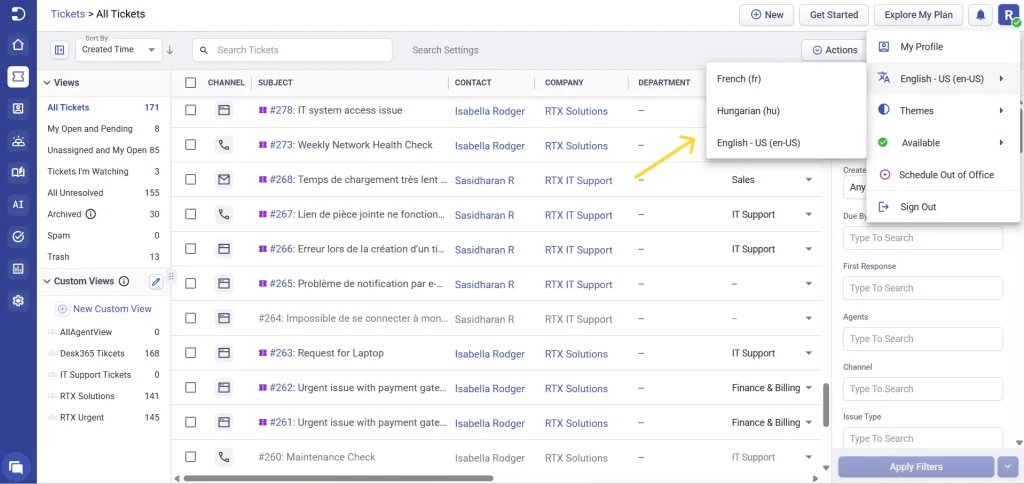
This is especially helpful for teams working across multiple regions or language preferences
Support portal language settings
The support portal language controls the language seen by end users (customers or employees) when they access your support portal.
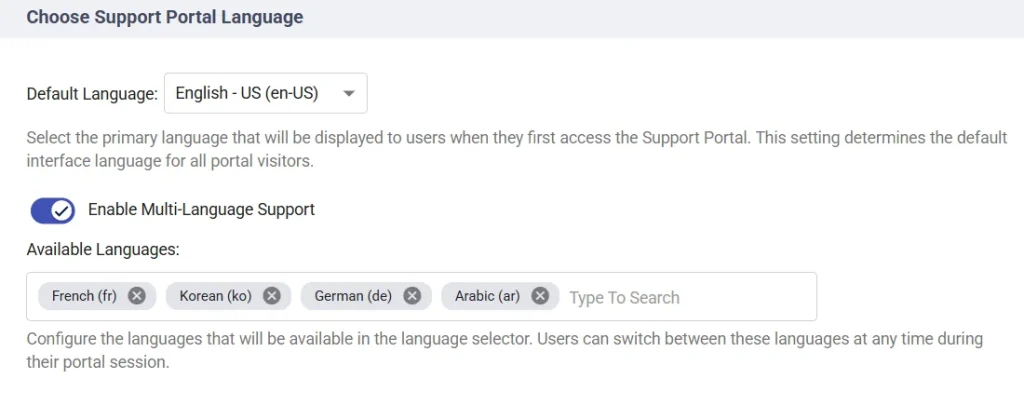
You can choose a language from the ‘Default Language’ dropdown, this is the language users will see when they first visit the support portal.
You can also enable multiple languages for the support portal. Add the required languages under available languages from the 34 language options Desk365 provides (Arabic, Chinese – Simplified, Czech, Danish, Dutch, English – US, English – UK, Finnish, French, German, Greek, Hebrew, Hungarian, Italian, Japanese, Khmer, Korean, Lithuanian, Malay, Norwegian Bokmal, Persian, Polish, Portuguese – Brazilian, Portuguese – Portugal, Romanian, Slovenian, Spanish – LATAM, Spanish – Spain, Swedish, Thai, Turkish, Ukrainian, Urdu, and Vietnamese).
Users will be able to switch between these languages during their session.
Contacts can change the portal language directly from the language dropdown next to the profile icon in the support portal header. The interface updates instantly after selection.
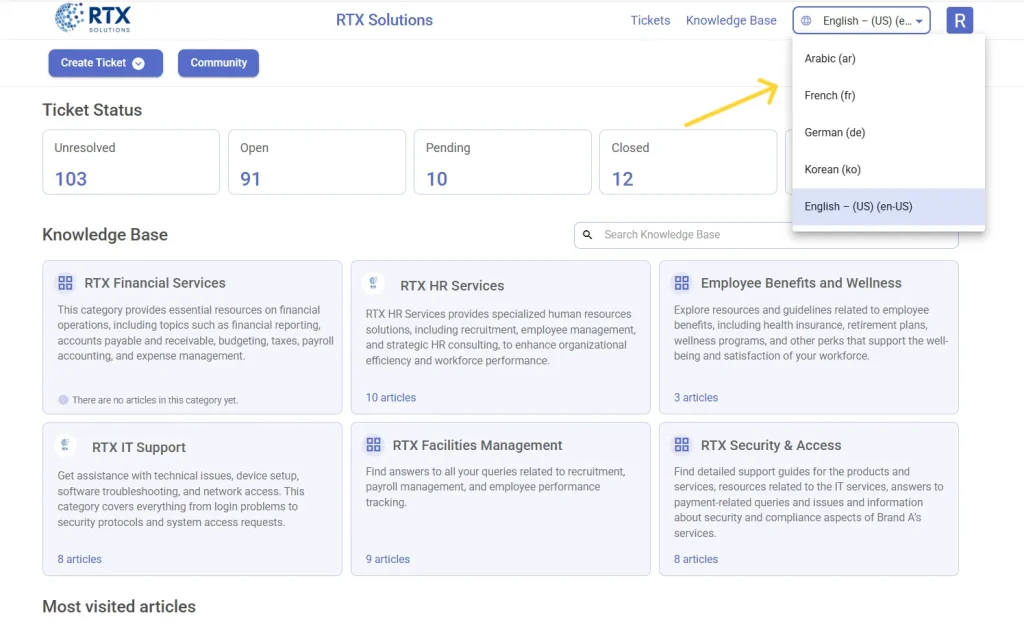
This flexibility is useful when your support portal serves users from different regions.
Support Bot language settings
The Support Bot language setting controls the language used by the Desk365 Teams Support Bot.
Like the agent portal and support portal, you can select the language you want the Support Bot to use. Desk365 supports 34 languages, helping you deliver localized, consistent support experiences to a global audience.
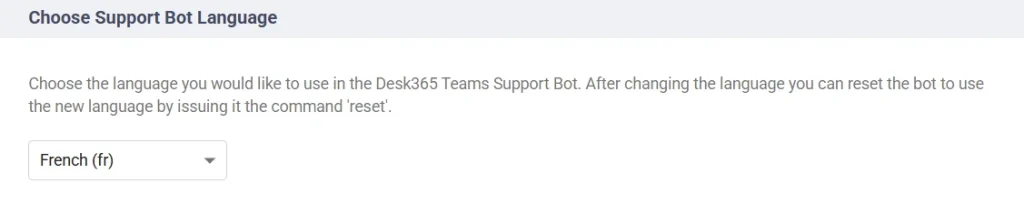
The Bot will use this language for all interactions with users
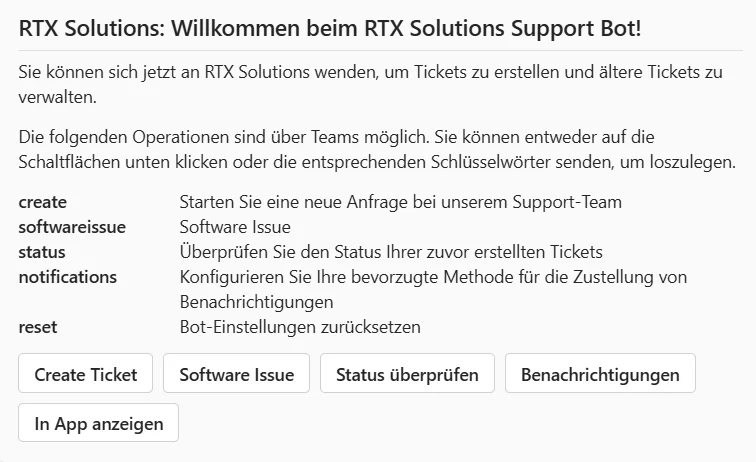
Note: After changing the Support Bot language, you need to reset the Bot for the change to take effect. You can do this by issuing the ‘reset’ command in Microsoft Teams.
Important note about translations
- Language translation in Desk365 applies only to predefined system interface elements.
- The following items will not be translated automatically:
– Custom field labels
– Knowledge base articles
– Automated notifications
These remain in the language in which they were originally created. If needed, you can update them manually in their respective sections.
With the Languages feature in Desk365, you can:
- Set default languages for the agent portal and support portal
- Enable multiple languages and allow contacts to switch between them
- Let support agents choose their own preferred language
- Control the language used by the Desk365 Support Bot
This makes Desk365 easier to use for global teams and multilingual users.