Desk365 Premium includes advanced features designed for teams that need more structure, security, and automation as they scale.
You can upgrade to the Premium plan in two ways:
- From the Desk365 website by visiting the Pricing page and selecting the Premium plan
- From within the Agent Portal by navigating to Account > Plan & Billing
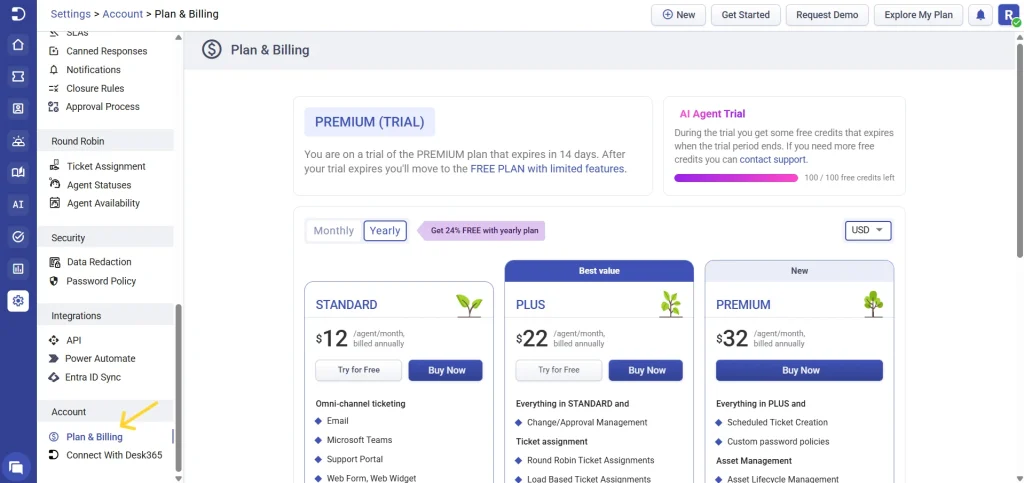
Once your plan is upgraded, all Premium features are enabled automatically. You can then configure each feature from the Settings section of the Agent Portal, based on your team’s requirements.
This article walks you through:
- What’s included in Desk365 Premium
- Where to find each Premium feature
- How to set them up with links to detailed help articles for deeper configuration
Use this guide as a starting point to enable and configure Premium features at your own pace.
Before you begin, Desk365 Premium includes everything available in the Standard and Plus plans, along with the advanced features covered in this article.
To configure most Premium features, you’ll need:
- Admin access, or
- A role with permission to access Settings
Let’s get into the detailed breakdown of every feature included in Desk365 Premium, how it helps, and where and how to set it up.
1. Asset management
Asset management allows you to track and manage the devices, software, or hardware your team supports, and link them directly to tickets.
Instead of working on tickets in isolation, agents can see which asset a ticket relates to, along with its history. This is especially useful for IT and internal support teams managing hardware or software inventories.
Key benefits
- Better ticket context for agents
- Faster issue resolution
- Visibility into recurring asset-related problems
How to configure asset management
- Log in to the agent portal
- Go to settings
- Navigate to asset management
- Create asset types and fields (for example: laptops, servers, software)
- Add and maintain a product inventory
- Link assets to tickets during ticket creation or while updating an existing ticket
- Create vendors
- Configure depreciation types for your assets
- Create asset locations to capture relevant information
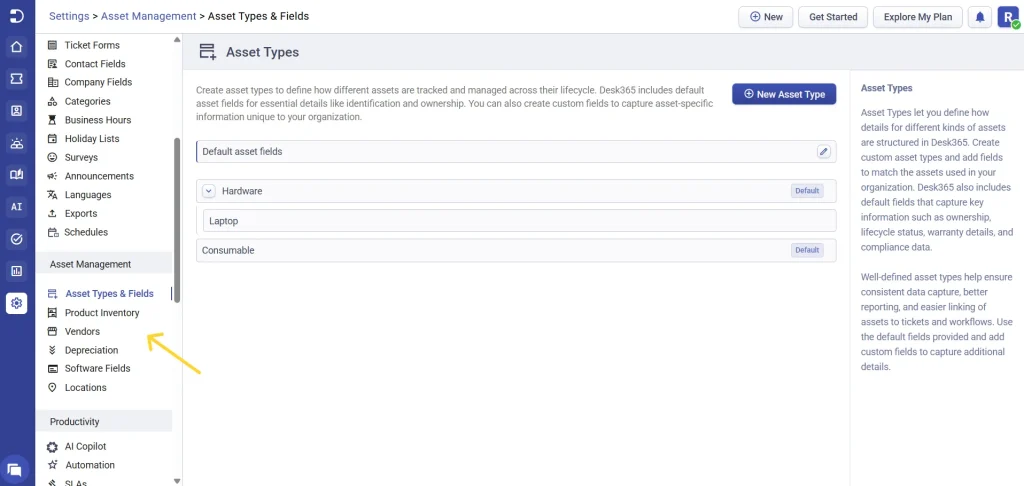
Once configured, agents can associate assets with tickets directly from the ticket details view.
Learn more: Asset management in Desk365
2. Multilingual helpdesk
When your support agents work across regions, language can quickly become a barrier. Available from the Plus plan (included in Premium), Desk365 removes that friction by allowing you to enable multiple languages across the helpdesk.
Support agents can work in the language they are most comfortable with. This applies to the agent portal, and even the support bot.
With multilingual support, you can:
- Enable multiple languages for the agent portal
- Configure language support for the Support Bot
- Let agents switch languages from their profile settings
This makes support more accessible and reduces misunderstandings caused by language limitations.
How to configure a multilingual helpdesk
You can configure languages by following the below steps:
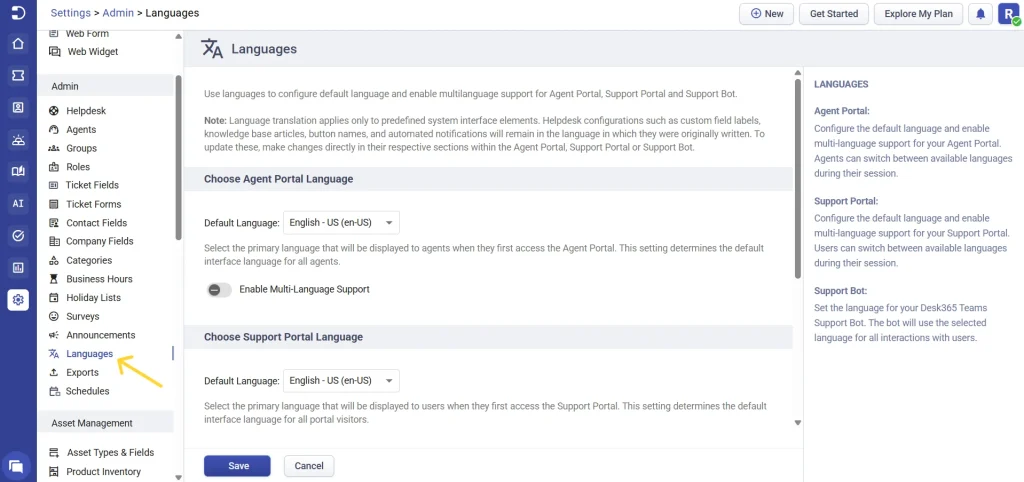
- Go to Agent Portal > Settings > Admin > Languages > Agent Portal
- Set a default language
- Enable multi-language support
- Select the additional languages you want to support
- Save your changes
3. Data redaction and encrypted field logs
Support teams often handle sensitive information such as personal data, account details, or confidential requests. Desk365 Premium includes built-in tools to help protect this data automatically.
Data redaction ensures sensitive information is masked across ticket content, including subjects, descriptions, replies, forwards, and internal notes. This reduces the risk of accidental exposure and supports compliance requirements.
With Premium security controls, you get:
- Automatic masking of sensitive data (PII)
- Consistent protection across all ticket activity
- Reduced manual effort to clean up data
- Better readiness for audits and compliance checks
These protections work silently in the background, so agents can focus on resolving issues without worrying about data exposure.
To configure data redaction
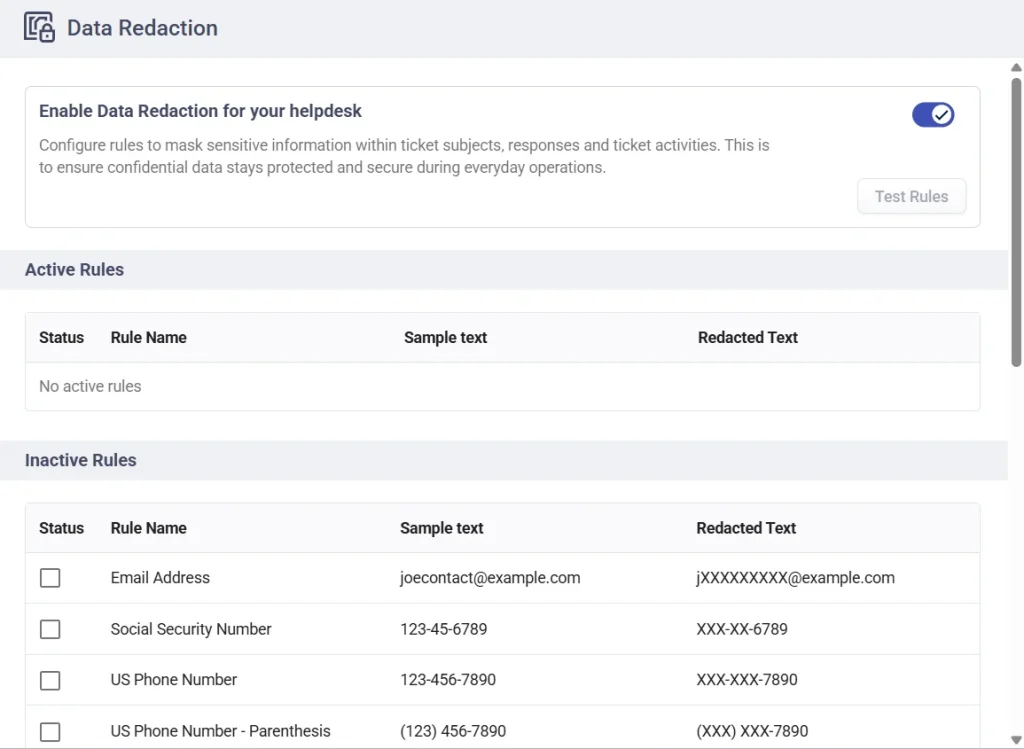
- Go to Agent Portal > Settings > Security > Data Redaction
- Enable Data Redaction
- Review the available redaction rules
- Activate the rules you want to apply
- Test the rules to verify how data will be masked
Encrypted field logs help track changes and access, supporting internal reviews and compliance audits.
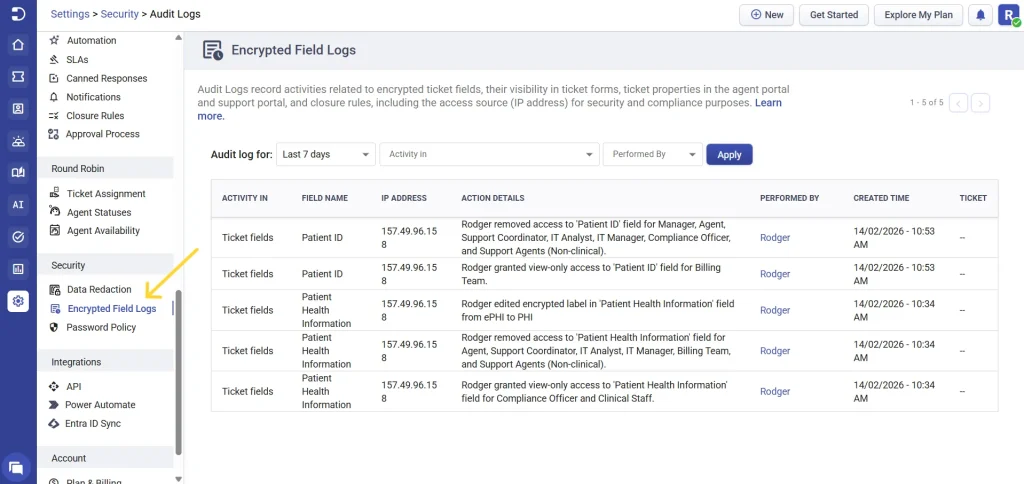
Learn more about: Data redaction and encrypted field logs in Desk365
4. AI Agent
The AI Agent helps users get answers instantly without waiting for a support agent. It sits directly on your support portal or website and uses your existing content to provide accurate, controlled responses.
Instead of relying on generic AI answers, Desk365 AI Agent only responds based on the knowledge you train it on such as your knowledge base, website pages, or uploaded documents.
The AI Agent can:
- Answer common questions automatically
- Reduce unnecessary ticket creation
- Work 24/7, even when agents are offline
- Escalate to a human agent when it cannot confidently help
How to configure the AI Agent
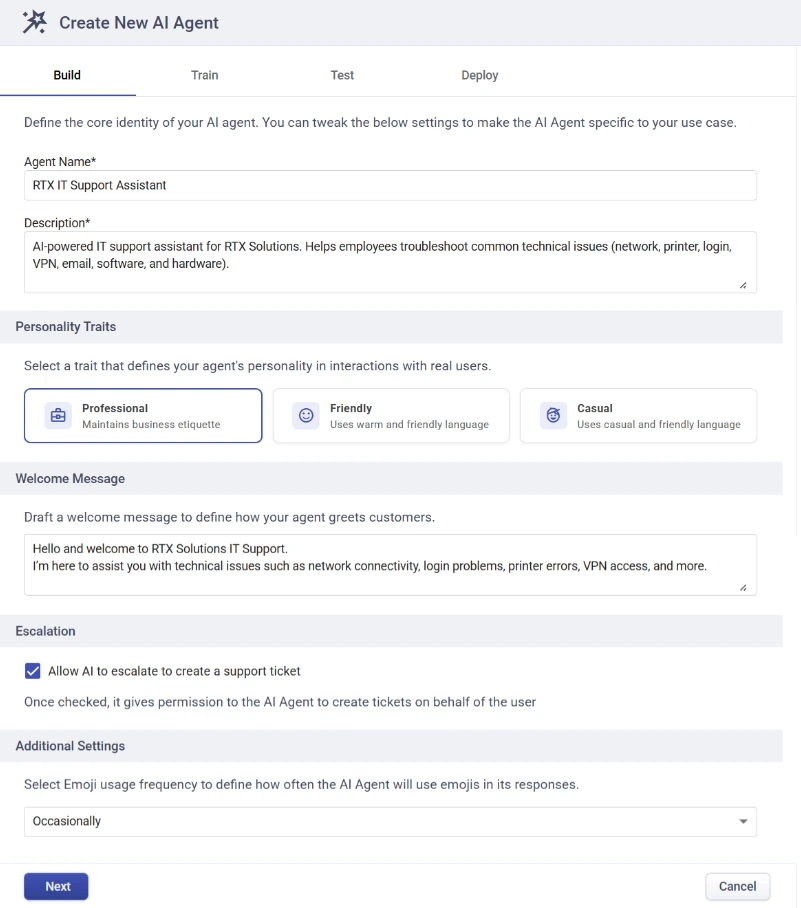
- Go to Agent Portal > AI Agents > Create New AI Agent
- Configure the AI Agent by:
– giving it a name and description
– selecting the personality trait
– customizing the welcome message
– configuring the escalation rule
– tuning the emoji usage preferences
- Select which connected training repositories the AI Agent can use to answer questions, including web content, uploaded files, your knowledge base, and Q&A content.
- Test the AI Agent. Run test questions to validate responses and behavior.
- Deploy the AI Agent to the support portal or website widget
If the AI Agent cannot confidently answer a question, it automatically guides the user to create a ticket or reach a human agent.
Learn more: Configuring the AI Agent in Desk365
5. Custom contact & company fields
Support teams often need more than just a name and email address to provide effective help. Custom contact and company fields allow you to capture and use additional context throughout Desk365.
These fields can be used across tickets, automations, notifications, and reports, ensuring your team always has the right information at hand.
With custom fields, you can:
- Store additional details about contacts and companies
- Display relevant context directly within tickets
- Use field data in automations and workflows
- Include custom fields in exports and notifications
This helps reduce repetitive questions and enables smarter, more personalized support workflows.
How to configure
- Go to Agent Portal > Settings > Admin
- Select Contact Fields or Company Fields
- Add a field, choose the field type, and configure labels, visibility, and required status
- Save the field, active fields appear automatically across contacts, companies, and tickets
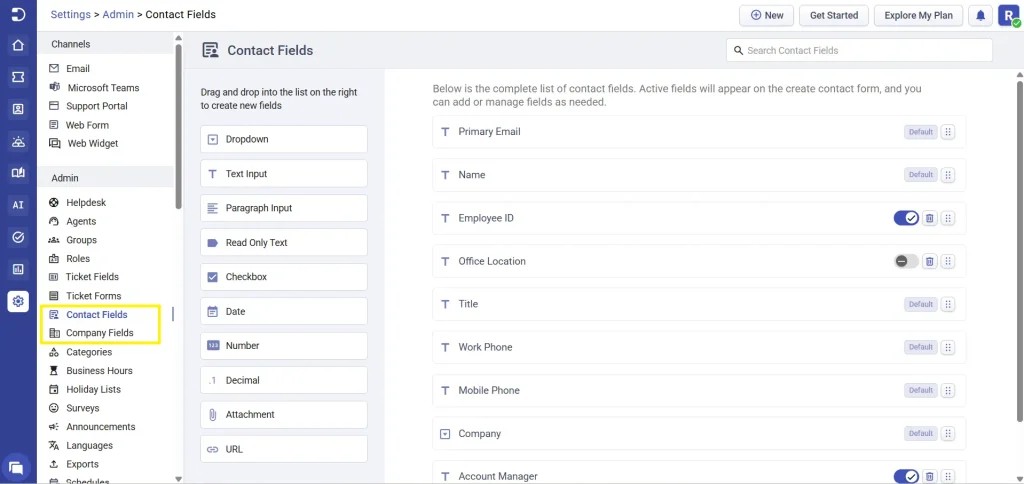
You can also customize which contact and company fields appear in the ticket details view for faster access.
Learn more: Managing contacts and companies
6. Advanced security & password policies
As your organization grows, controlling access and session behavior becomes more important. Desk365 Premium gives you advanced security controls for both the agent portal and support portal.
You can define password rules and session timeouts to align with your internal security standards or compliance requirements.
Premium security controls allow you to:
- Enforce password complexity rules
- Set session expiration and timeout limits
- Control password reuse and expiration
- Automatically log users out when policies are updated
If Microsoft sign-in is enabled, Desk365 respects that configuration and disables local password rules for the affected portal.
Key benefits
- Stronger access control
- Reduced security risk
- Better compliance alignment
How to configure password policies
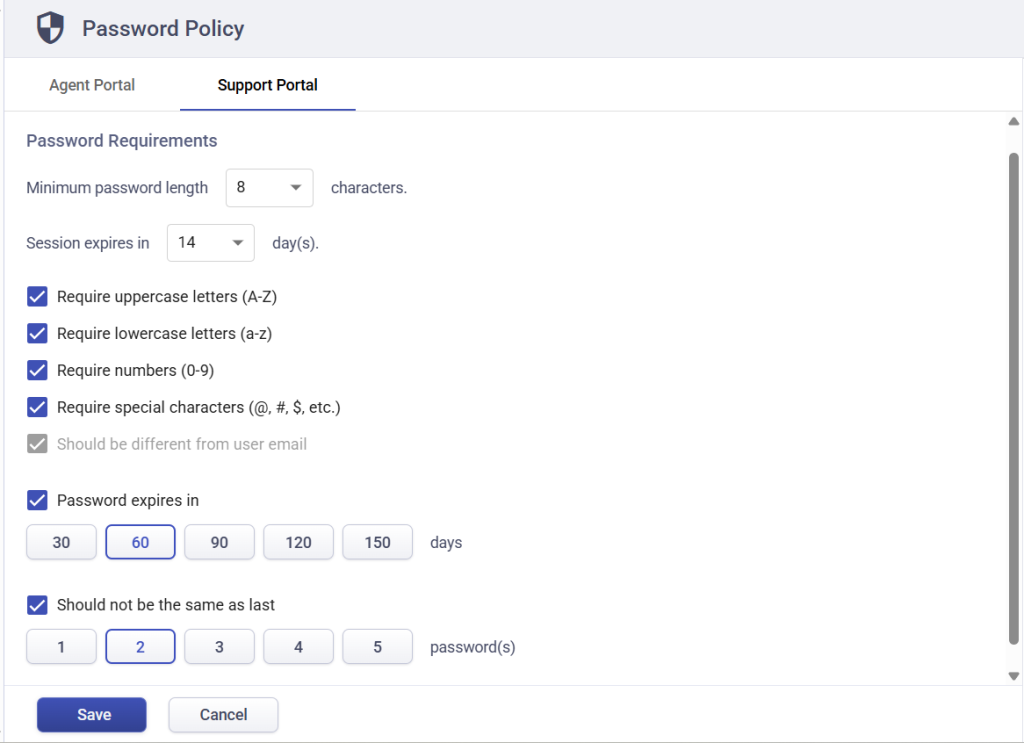
- Go to Agent Portal > Settings > Security > Password Policy
- Select the portal (Agent or Support)
- Configure:
– Session timeout duration
– Password length and complexity
– Password expiration
– Password reuse limits - Save your changes
Learn more: Password policy in Desk365
7. Scheduled ticket creation
Not all work happens on demand. Many teams handle recurring tasks such as audits, maintenance checks, or routine follow-ups. Scheduled ticket creation automates these workflows.
Instead of relying on reminders or manual ticket creation, Desk365 can automatically generate tickets based on a defined schedule.
With scheduled tickets, you can:
- Automatically create tickets at set intervals
- Ensure recurring tasks are never missed
- Maintain consistent execution across teams
- Eliminate manual effort for routine work
This is ideal for IT operations, compliance checks, and recurring internal processes.
How to configure scheduled tickets
- Go to Agent Portal > Settings > Admin > Schedules
- Click Create Schedule
- Define:
– Schedule name
– Frequency (daily, weekly, monthly, etc.)
– Ticket form and details
– Assignee or team - Save the schedule
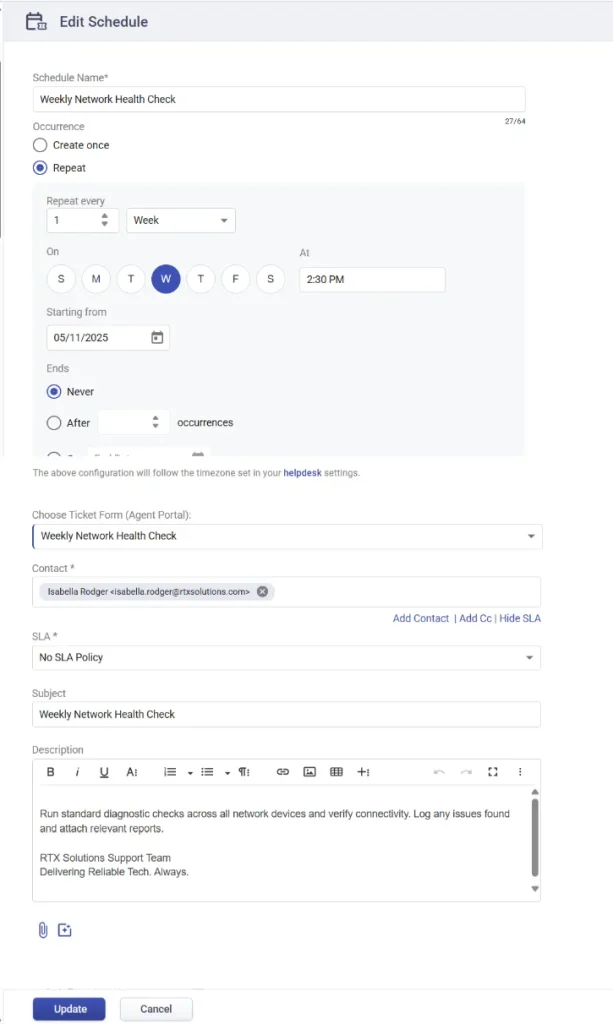
Desk365 automatically creates tickets based on the defined schedule.
Learn more: Scheduled ticket creation
8. Custom departments & company managers
Desk365 Premium allows you to organize contacts and tickets within a company using departments such as HR, IT, Finance, or Operations. Departments help control how tickets are categorized, what users see in the support portal, and how workflows are automated and reported.
Departments can be used to:
- Segment contacts within a company
- Control visibility of ticket forms, announcements, and knowledge base articles
- Route and categorize tickets more accurately
- Filter tickets, reports, and exports by department
- Use department data in automations and notifications
Company and department managers (available from the Plus plan included in Premium) add an extra layer of ownership by overseeing tickets and contacts for specific companies and departments.
This setup is especially useful when supporting multiple teams under the same organization.
How to configure departments
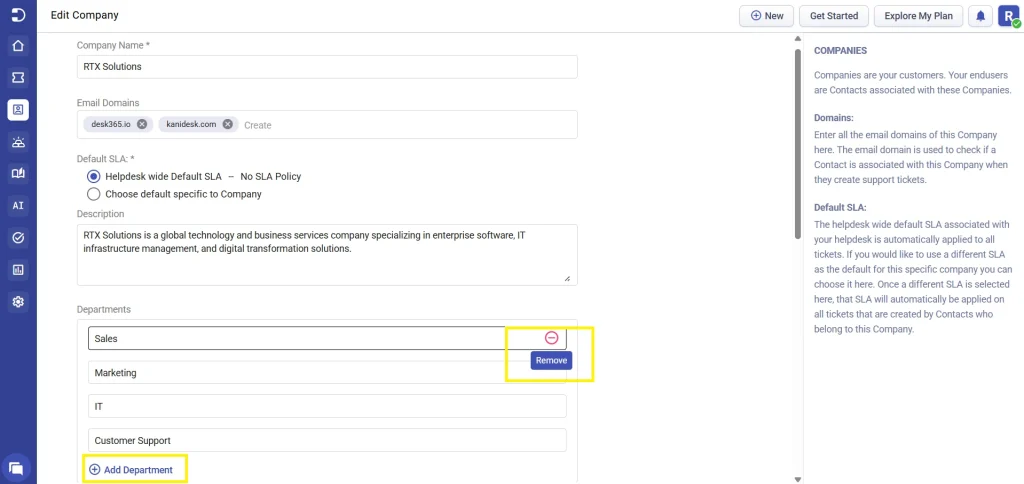
- Go to Agent Portal > Accounts > Companies
- Create a new company or edit an existing one
- Add one or more departments
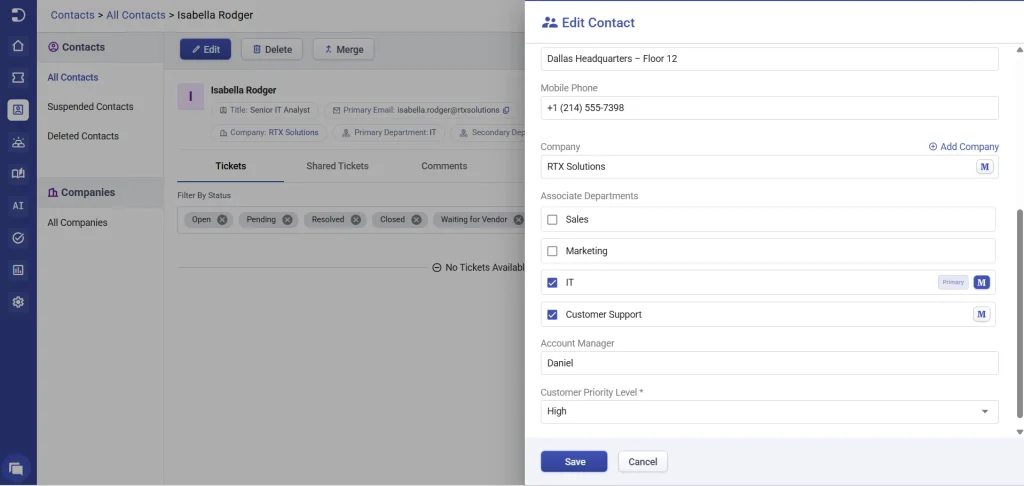
- Assign contacts to one or multiple departments and set a primary department
- Configure department-based visibility for:
– Ticket forms
– Knowledge base articles
– Announcements
– Placeholders
– Automation rules
– Exports
– Reporting and
– API - Departments are automatically applied when contacts submit tickets via the support portal, web forms, widgets, or email.
Learn more: Using custom departments in Desk365
Desk365 Premium provides the advanced controls and capabilities required by growing teams to manage support operations at scale.
Each feature in Premium can be enabled and configured independently, allowing you to adopt them at your own pace based on your team’s workflows. Whether you’re strengthening security, organizing support across departments, automating recurring tasks, or adding self-service with AI, Premium gives you the tools to do it in a controlled and scalable way.
For detailed setup and advanced configurations, refer to the linked help articles for each feature. If you have questions or need assistance, our support team is always here to help you get the most out of Desk365 Premium.