Managing your Desk365 subscription is simple. Whether you want to upgrade to access more features, add more agents, switch to a monthly plan, or downgrade your subscription, everything can be done from the Plan & Billing section in your Desk365 Agent Portal.
To get started, log in to the Desk365 Agent Portal and go to:
- Settings > Account > Plan & Billing
- Then click the Manage Plan button.
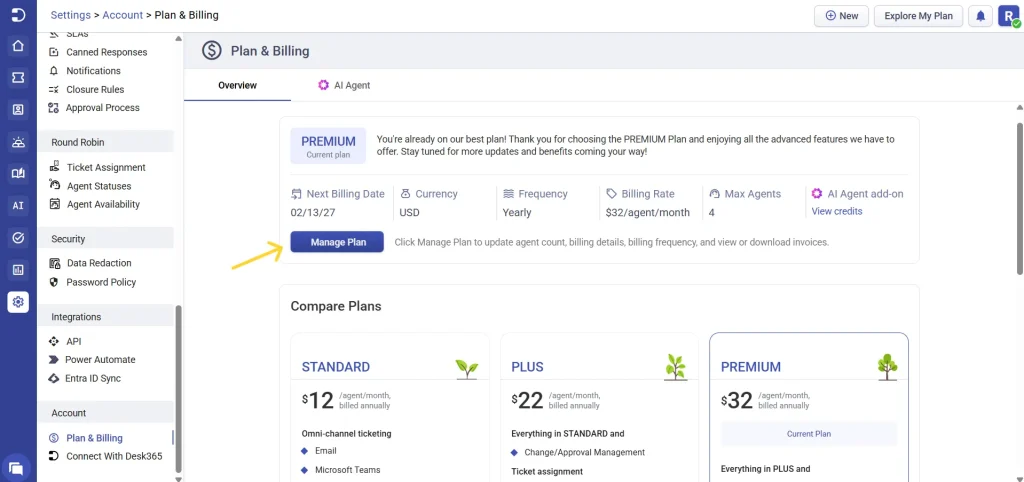
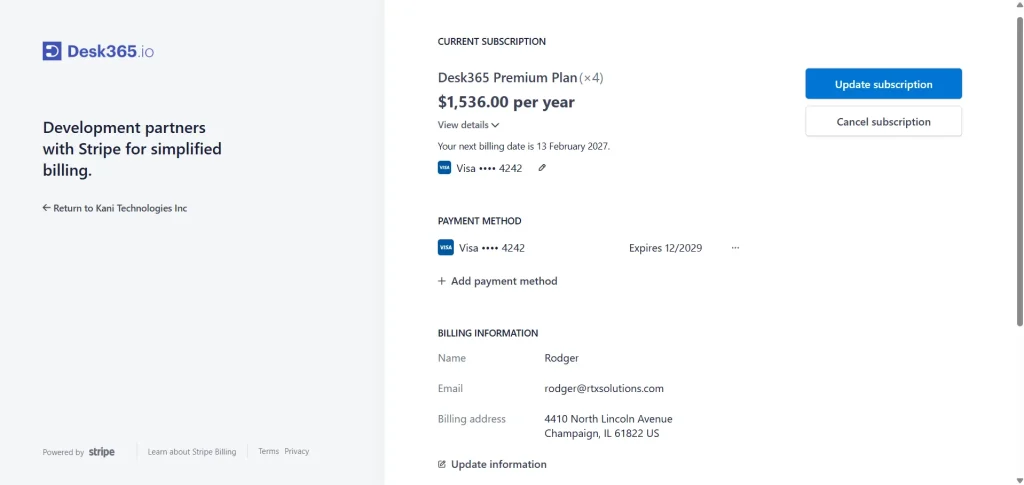
- Here, you’ll see all the details about your current subscription, including:
– Your current plan
– Renewal date
– Payment method
– Billing information and,
– Invoice history
Available Desk365 plans
Desk365 offers three plans designed to support teams of different sizes and requirements:
- Standard – Includes omni-channel ticketing, automation, knowledge base, reports, and customization options.
- Plus – Includes everything in Standard, along with advanced ticketing, dashboards, Microsoft Entra ID sync, time tracking, and global collaboration features.
- Premium – Includes everything in Plus, along with asset management, advanced encryption, encrypted field logs, data redaction, compliance, and contact management enhancements.
To move to a different Desk365 plan, click Buy Now on the desired plan. Use Manage Plan only if you want to change billing cycle or update the number of agents in your current plan.
Note: Both Plus and Premium include buildable AI Agents available as an add-on. AI Credits pricing details mentioned below.
Upgrading your plan
If you need access to more features or want to add more agents, you can upgrade your plan anytime. Changes like these take effect immediately.
- To upgrade, click Update Subscription.
- Let’s say you are currently on the Premium plan and need to add more agents, you can update your subscription at any time. Changes take effect immediately.
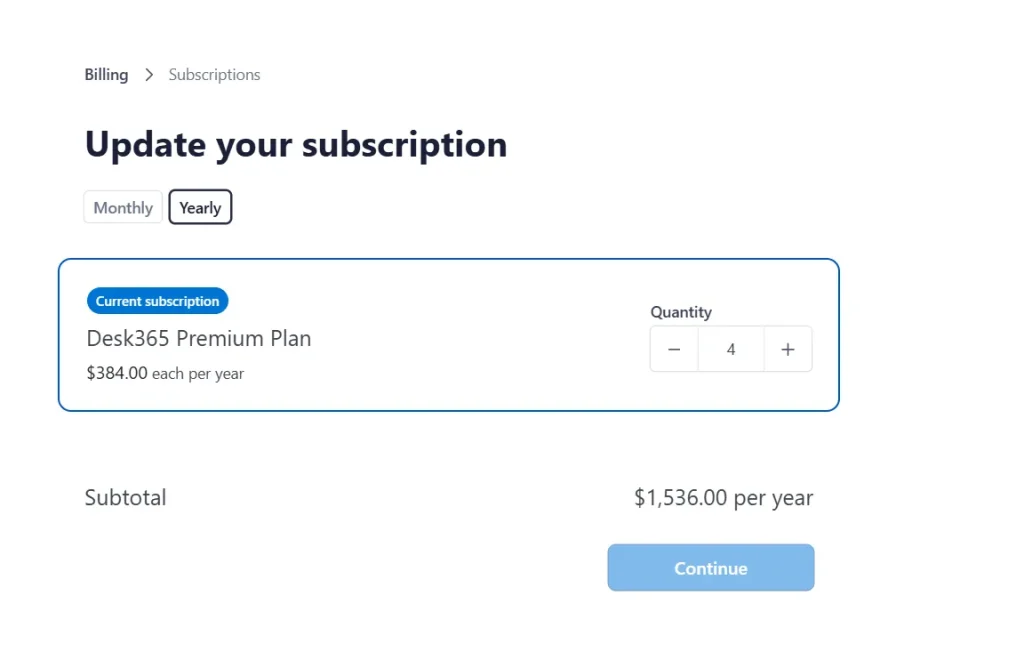
- In your current subscription, adjust the number of agents to the required count.
- Click Continue to confirm your changes.
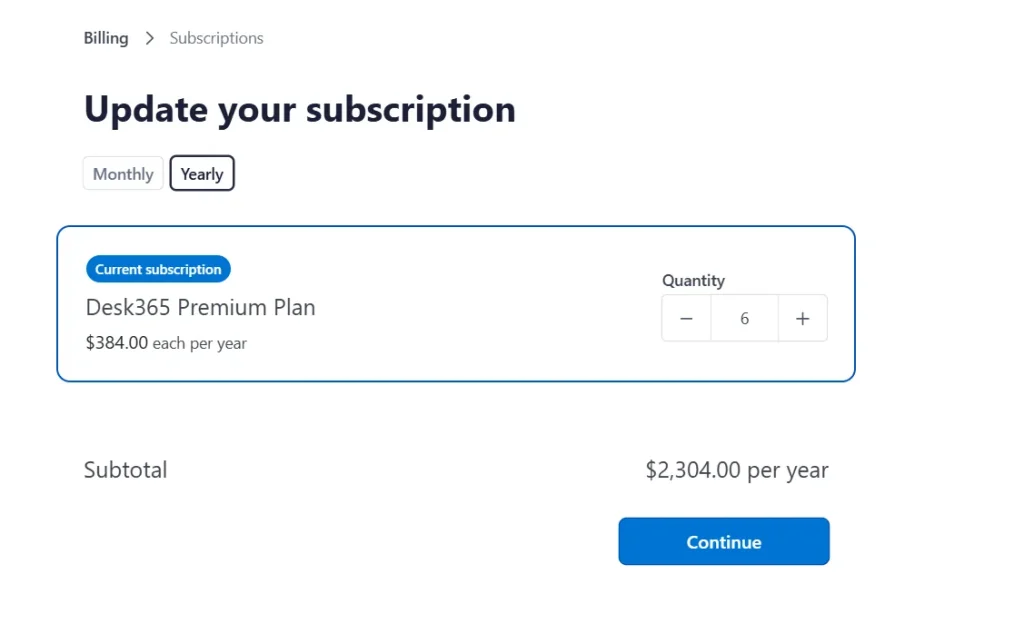
Your additional agents will be activated right away once the update is completed.
Downgrading your plan
If you want to reduce your agent count or switch from yearly to monthly billing, you can downgrade your subscription. However, any downgrade will only take effect after your current billing cycle ends.
For example, let’s say you’ want to reduce the number of agent seats and switch to monthly billing, go to the plan & billing section, click Manage Plan, and decrease the agent quantity as needed and switch to monthly.
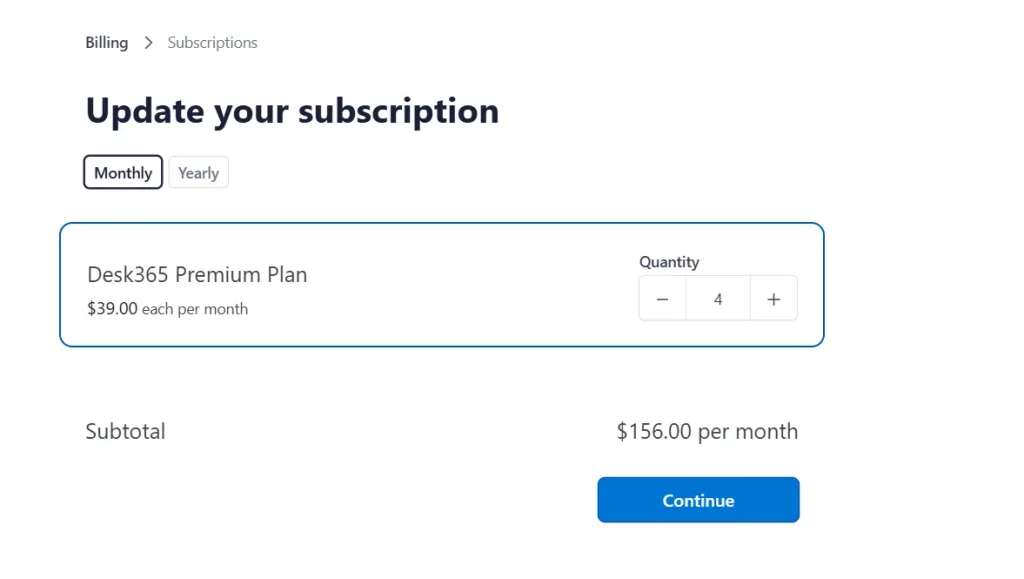
Once confirmed, you’ll see a scheduled change in the plan & billing page along with the date when the new agent count will take effect.
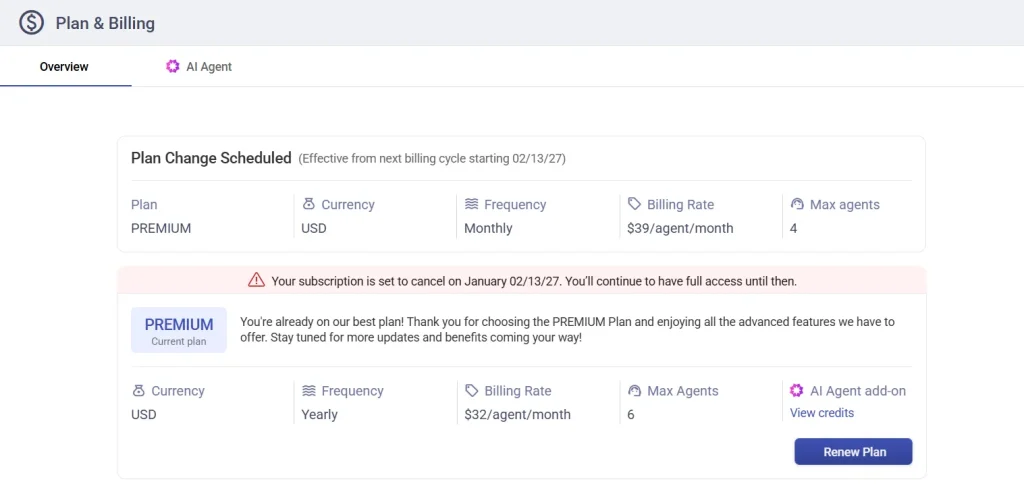
If you want to cancel the scheduled downgrade, you can do so before the change takes effect from the plan & billing section.
Cancelling or renewing your subscription
If you decide to stop using Desk365, you can cancel your subscription anytime. When you cancel, your subscription continues until the end of the current billing cycle — you won’t lose access right away.
This gives you time to close tickets, export any needed data, and inform your team. Your subscription will automatically end when your billing period finishes.
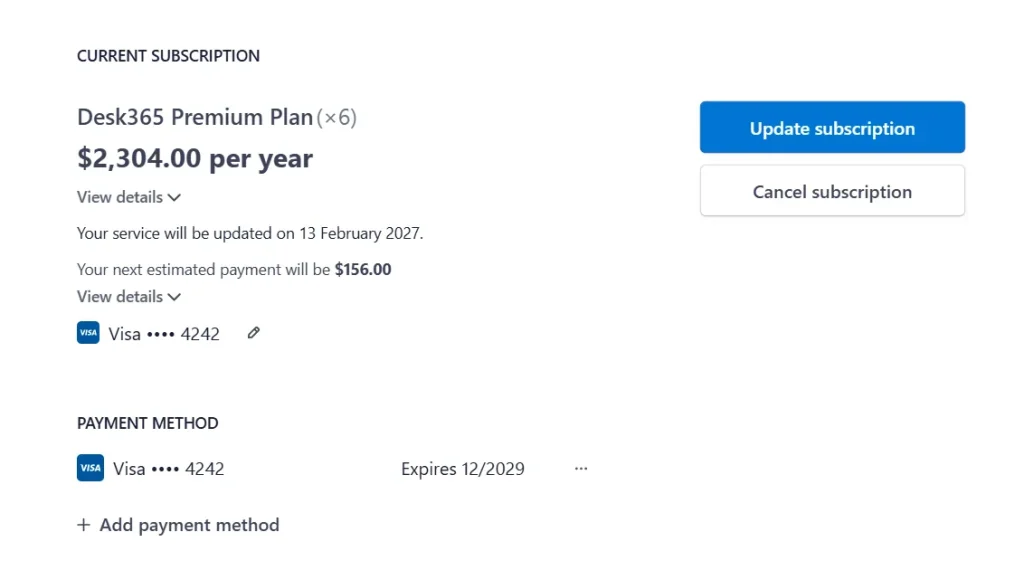
If you change your mind later and want to return, you can simply click Renew Plan from the plan & billing section and click the don’t cancel subscription option to reactivate your account.
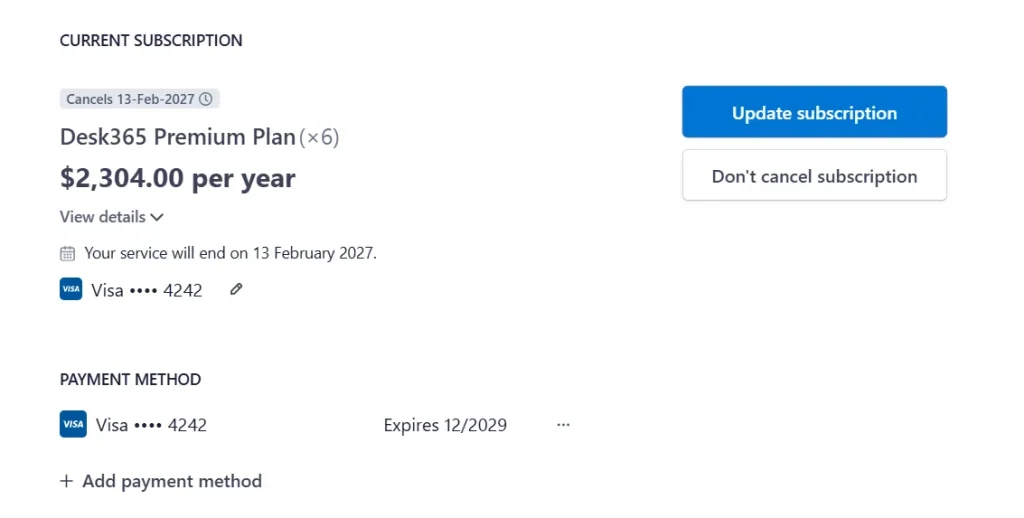
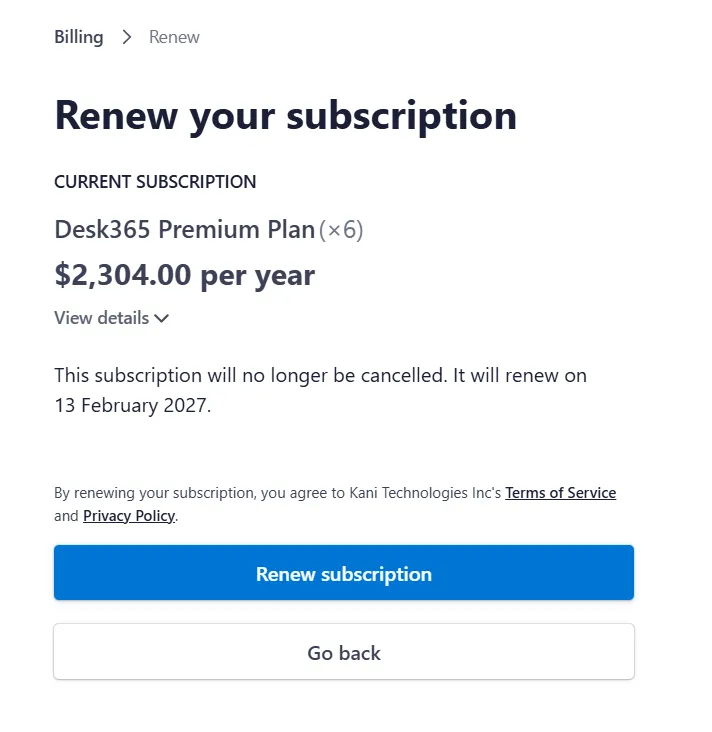
Once you click Don’t Cancel Subscription, the Renew Subscription window will open, where you can review your plan details and confirm the renewal to restore full access.
Managing AI Credits
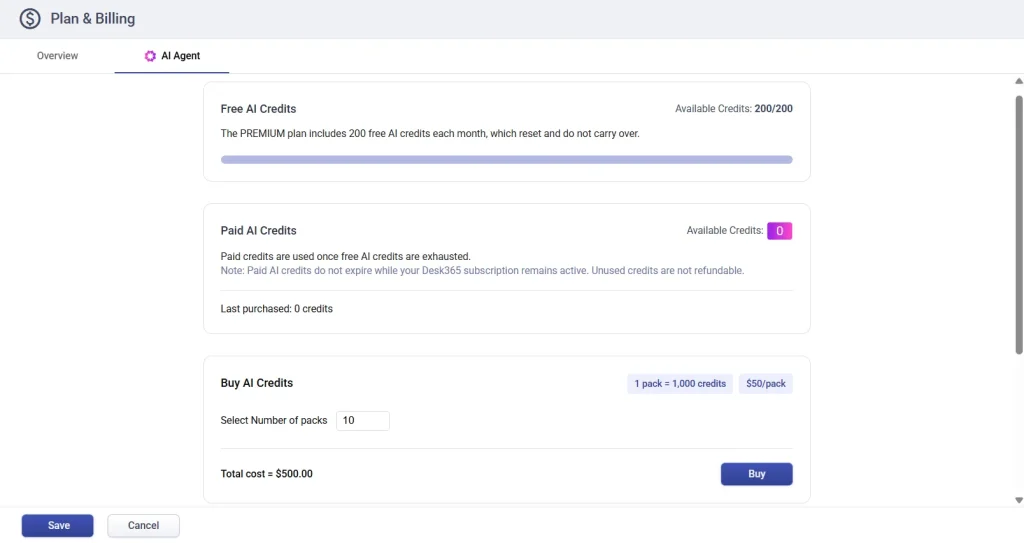
If you are on the Premium plan, you also get access to the AI Agent, which includes monthly free AI credits to help automate responses, assist agents, and power AI-driven features in Desk365. The Premium plan includes 200 free AI credits each month, which automatically reset and do not carry over. Once the free credits are used, paid AI credits are consumed if available. Paid credits do not expire as long as your Desk365 subscription remains active, and you can purchase additional credit packs anytime from the Plan & Billing → AI Agent tab. Purchased credits are added to your account immediately and are used automatically when needed.
If you have questions about billing or need help managing your subscription, feel free to contact the Desk365 support team. We’re here to help!