


G2 is a software marketplace and review platform where users can share their experiences about business software and help other buyers evaluate different products. Reviews on G2 provide insights into how products are used in real-world situations and can help teams make more informed decisions when choosing a solution.
If you use Desk365, we encourage you to share your experience by submitting a review on the Desk365 G2 profile.
The review process takes approximately 10–15 minutes, depending on the format you choose.
Your review will help other prospective customers discover Desk365 and understand how it works for teams like theirs.
Follow the steps below to submit your review.
Step 1: Visit the Desk365 G2 profile
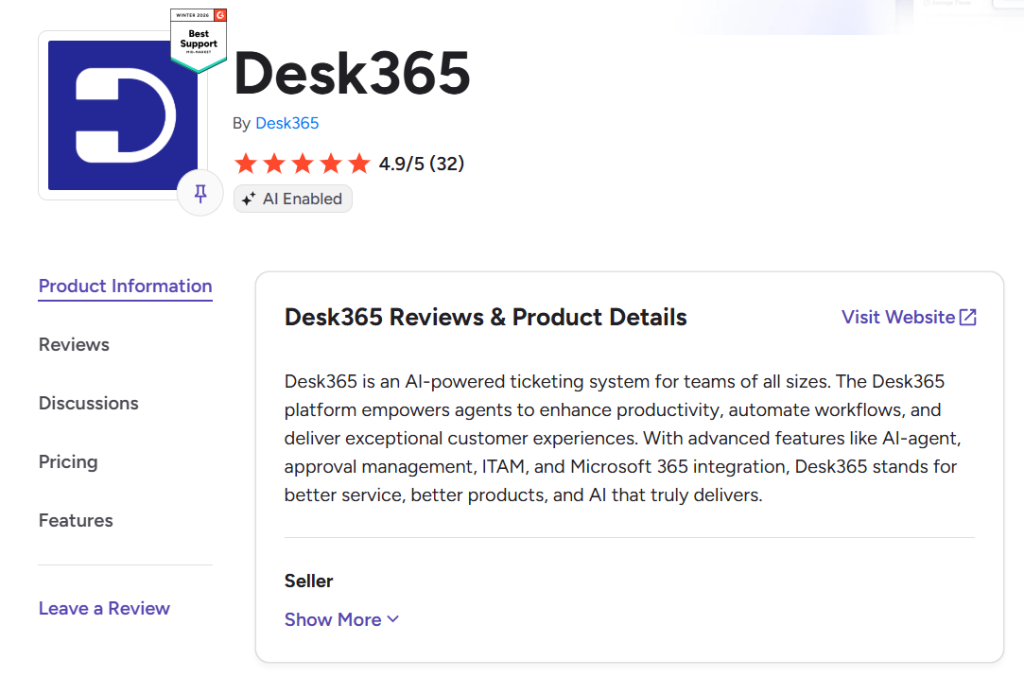
Open the Desk365 profile page on G2. From the profile page, navigate to the review section to get started.
Step 2: Click "Leave a Review"
On the Desk365 G2 profile page, click “Leave a Review” on the left side of the page.
This will take you to the review process.
Step 3: Create your G2 account
If you are new to G2, create an account to continue.
You can sign up using either of the following options:
- Sign up with LinkedIn
- Sign up with your business email
After creating your account, verify your email address to continue.
If you already have a G2 account, sign in using your existing credentials.

Step 4: Choose how you want to share your review
G2 provides three options for submitting your review. Choose the format that is most convenient for you.
- Voice – Speak naturally about your experience and let G2’s AI structure it into a review in approximately 3–5 minutes.
- Chat – Share your experience conversationally by responding to questions in approximately 8–10 minutes.
- Form – Answer the review questions using a traditional form, which takes approximately 5–10 minutes to complete.
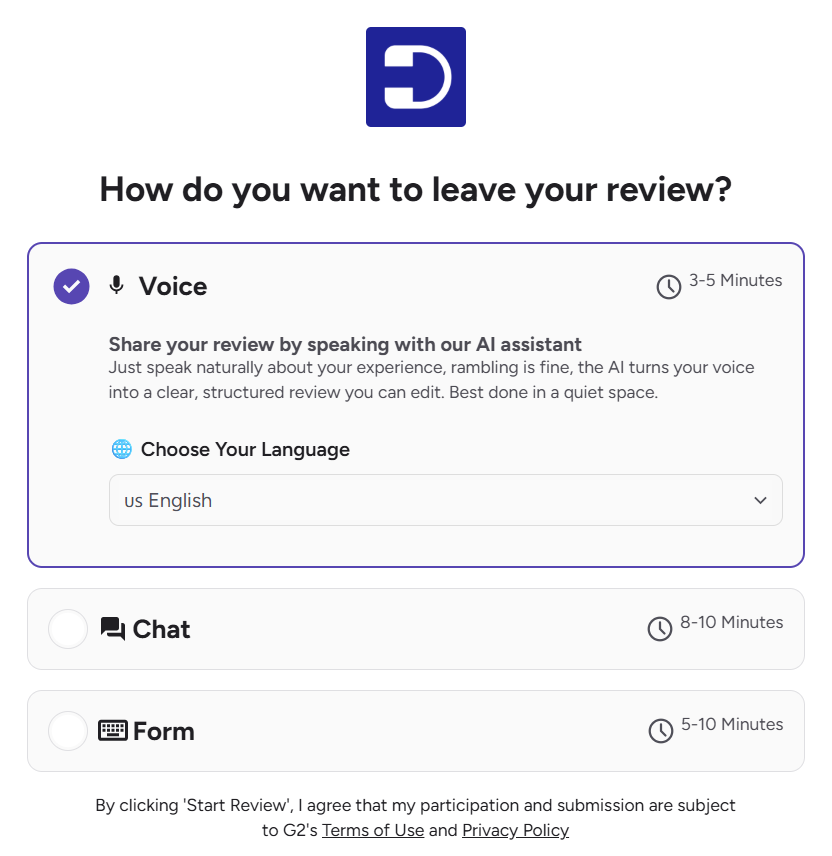
Select your preferred option and click “Start Review” to continue.
Step 5: Complete the review
Complete the questions in the three sections of the G2 review:
- About the Product
- About You
- About Your Organization
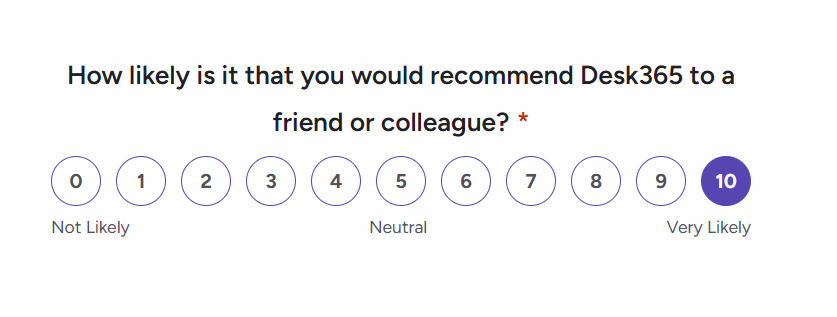
Answer as many questions as you can based on your experience with Desk365. Optional questions can provide additional information to help other buyers compare Desk365 with other tools.
If G2 asks you to confirm that you are a current Desk365 user, you can upload a screenshot of the Home tab or another screenshot of Desk365.
Note: These screenshots are only visible to the G2 moderation team.
Step 6: Click "Submit"
Once all three sections show 100% complete, review your answers to make sure the information is correct.
Click “Submit” to finish and submit your review.
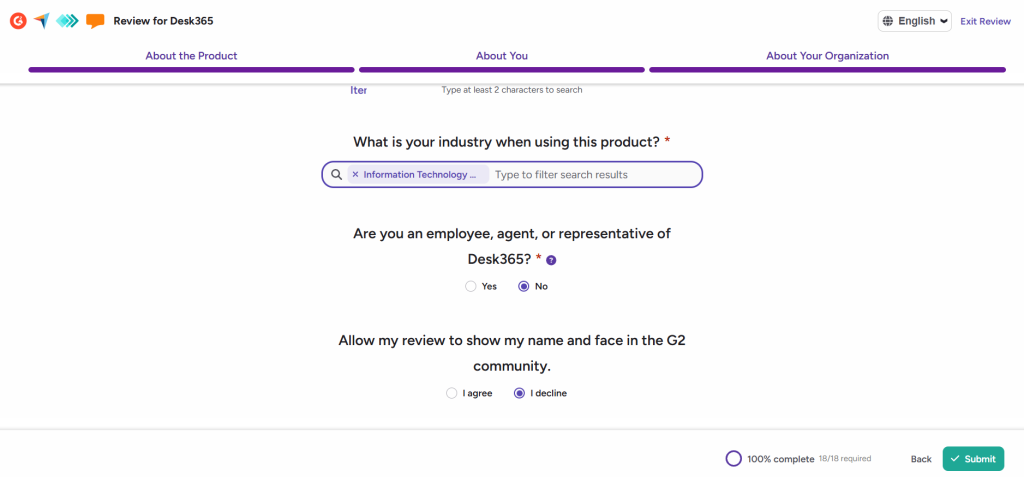
Your G2 review should now be submitted.