


Gartner Peer Insights is a platform where technology users can share their experiences with software and services through reviews. These reviews help other organizations evaluate solutions based on real-world user experiences.
If you use Desk365, you can share your experience by submitting a review on the Desk365 Gartner Peer Insights profile. The process takes approximately 3-5 minutes.
Your review will help other prospective customers discover Desk365 and understand how it works for teams like theirs.
Follow the steps below to submit your review.
Step 1: Visit the Desk365 Gartner profile
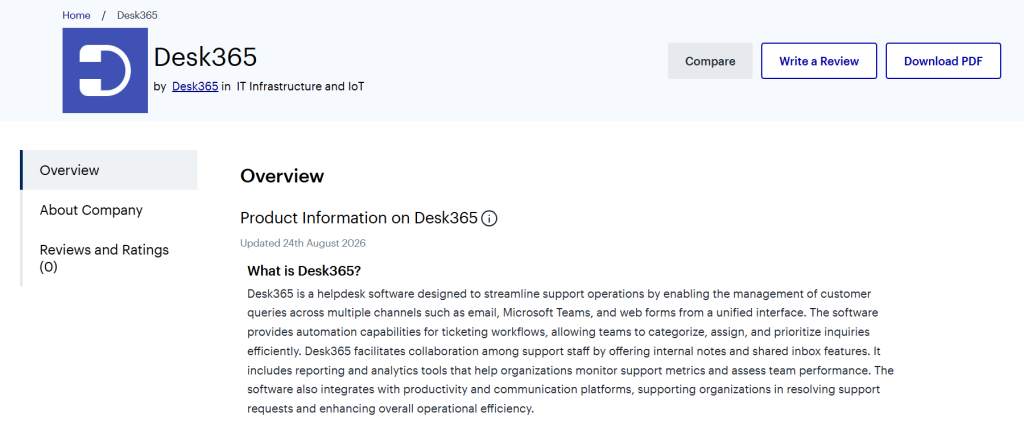
Open the Desk365 profile page on Gartner. From the profile page, navigate to the review section to get started. Alternatively, you can click on this link: https://gtnr.io/6m30PFbqJ.
Step 2: Click "Write a Review"
On the Desk365 Gartner profile page, click “Write a Review” on the right side of the page.
This will take you to the review process.
Step 3: Create your Gartner Peer Insights account
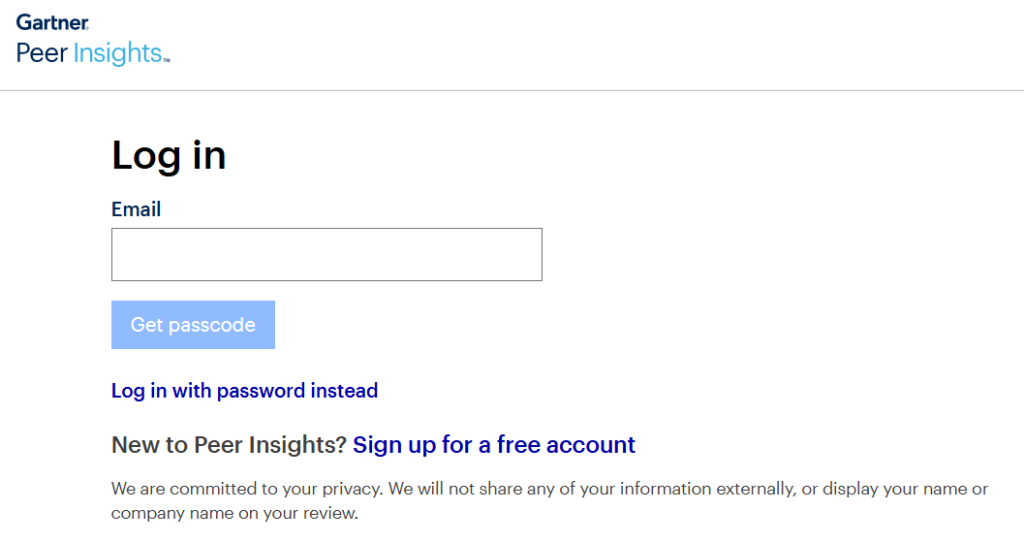
If you already have a Gartner Peer Insights account, select the Log In option and sign in using your registered email address and password.
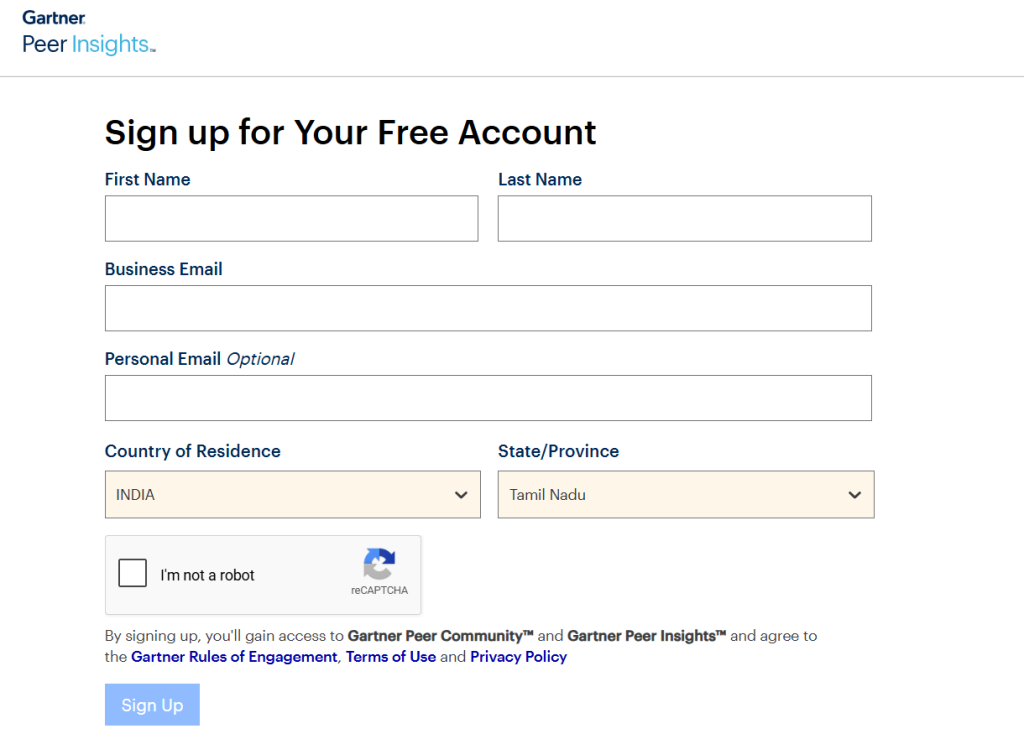
If you do not have a Gartner Peer Insights account, create one by entering the required details, including your First Name, Last Name, Business Email, Country of Residence, and State/Province. You can also provide a Personal Email, although this is optional. Complete the verification and click “Sign Up” to create your account.
Step 4: Select your voucher
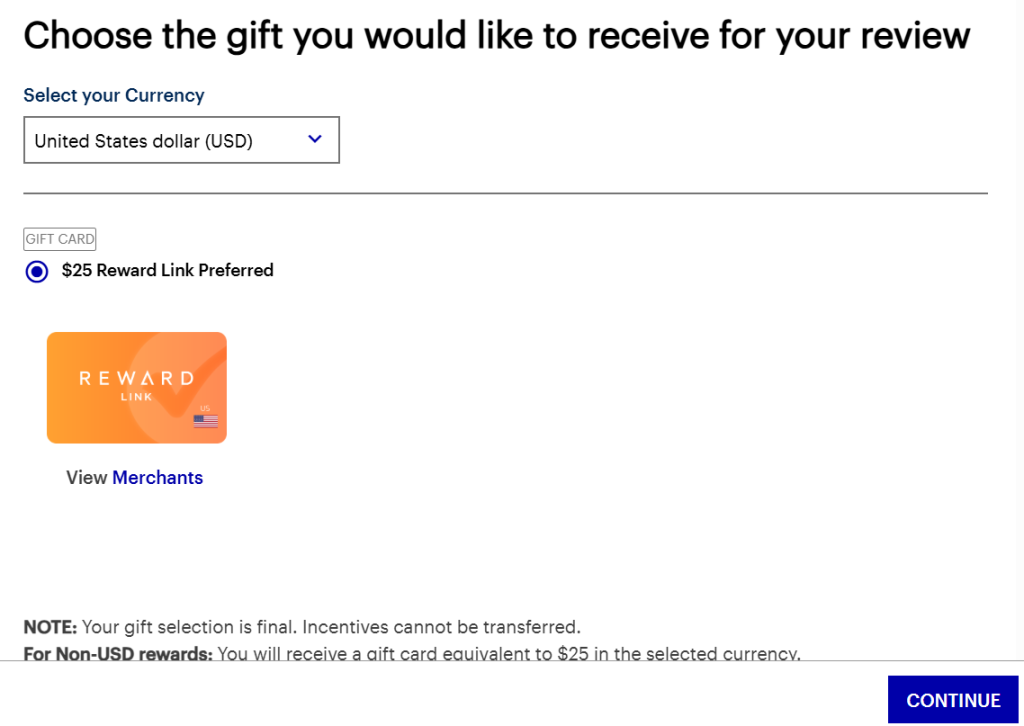
After signing up or logging in, you will be prompted to select the gift you would like to receive for your review.
Select your preferred currency from the available options. The page will then display the available reward in the selected currency.
Review the available gift option and click “Continue” to proceed with the review.
Step 5: Answer the role-based questions
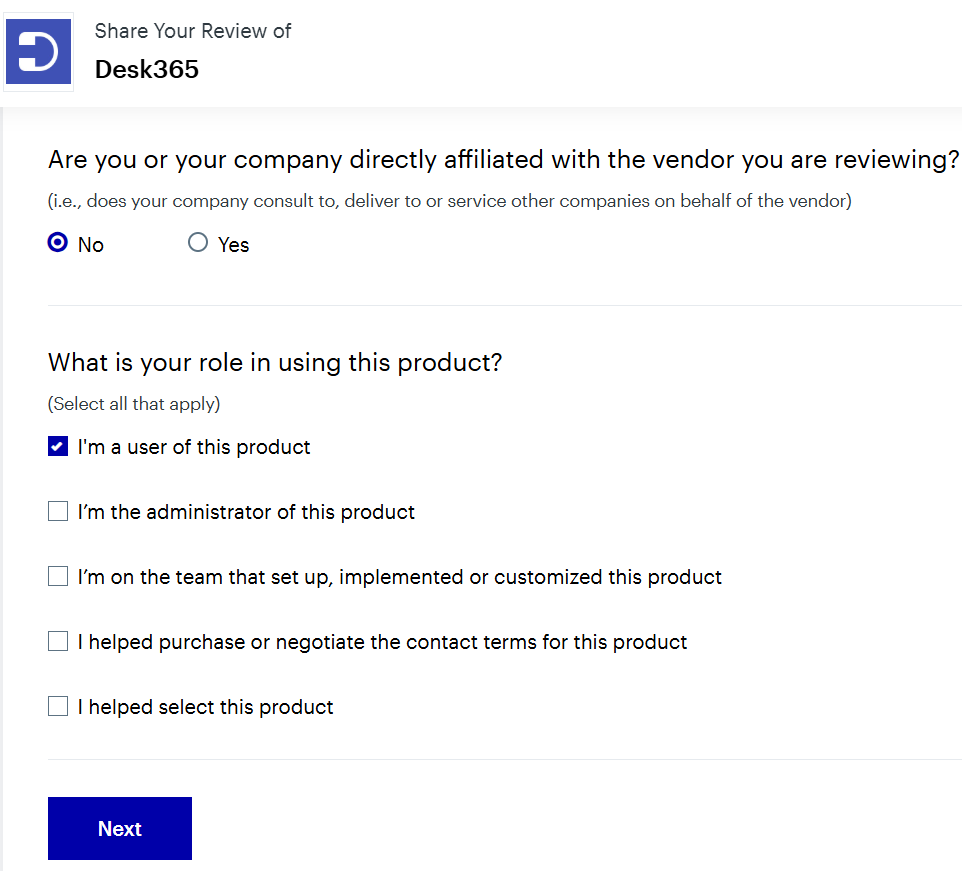
After signing up and accessing the review form, you will be asked a few questions about your relationship with Desk365.
First, confirm whether you or your company is directly affiliated with Desk365 by selecting Yes or No.
Next, select the roles that apply to your experience with Desk365. You can choose one or more options and click “Next” to continue.
Step 6: Rate Desk365
You will be asked a series of questions about your experience with Desk365, including:
- Deployment
- Product experience
- Review summary
- Product capabilities
- Overall experience
Answer the questions based on your actual experience with Desk365.
You will also be asked to rate how likely you are to recommend Desk365 using a 0–10 scale, where 0 means “Not at all likely” and 10 means “Extremely likely.”
Once you have completed the questions and ratings, review your responses and submit the review.
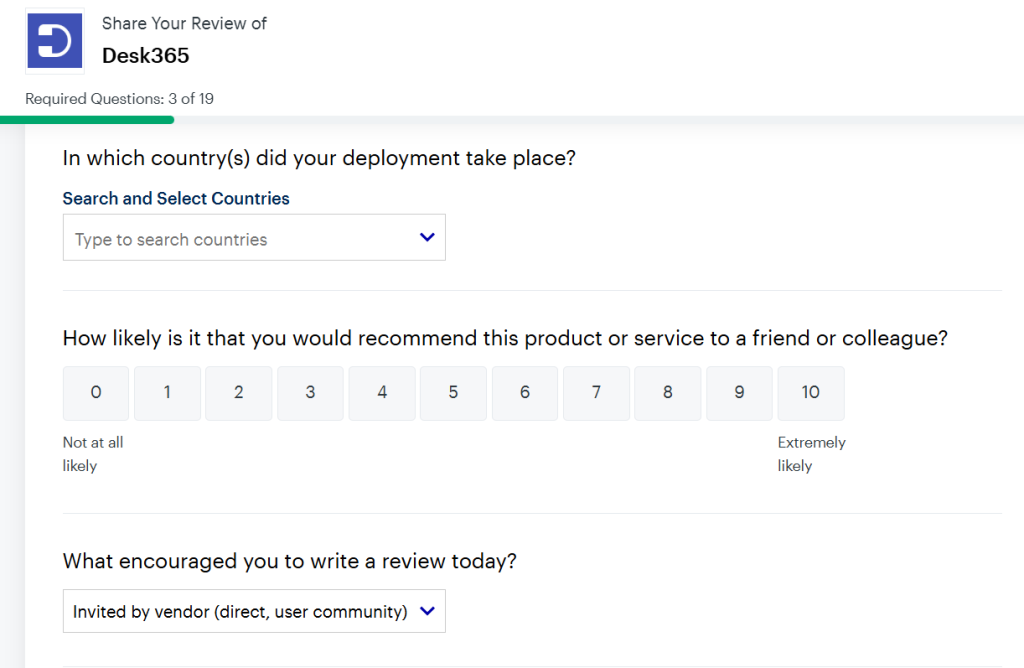
Once you have answered all the questions and provided your rating, click “Submit review” to complete the review.
Your Gartner review should now be submitted.