


TrustRadius gives software users a space to share their firsthand experiences and perspectives. Your review can give other teams a clearer idea of what it is like to use Desk365 in their day-to-day support environment.
You can share your experience with Desk365 by writing a review on the Desk365 TrustRadius profile. The process takes approximately 5–8 minutes.
Your review will help other prospective customers discover Desk365 and understand how it works for teams like theirs.
Follow the steps below to submit your review.
Step 1: Visit the Desk365 TrustRadius profile
Open the Desk365 profile page on TrustRadius. Navigate to the Reviews section to get started.
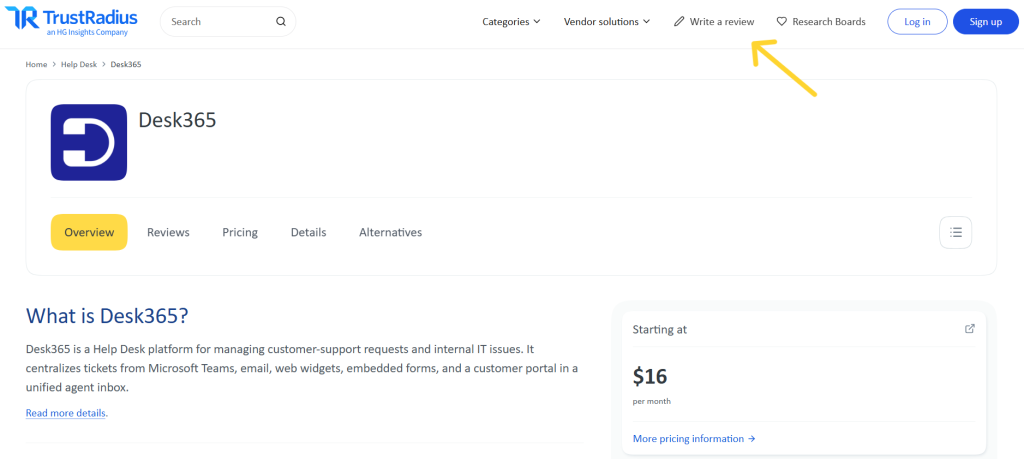
Step 2: Click "Write a Review"
On the Desk365 TrustRadius profile page, click “Write a Review” at the top right of the page.
This will take you to the review process.
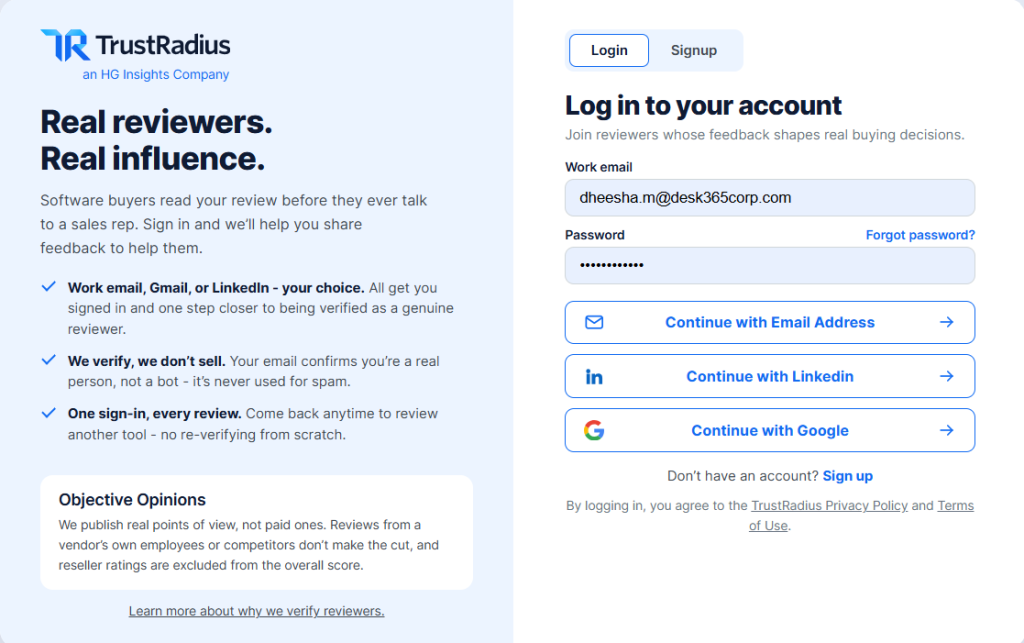
Step 3: Create your TrustRadius account
If you are new to TrustRadius, create an account to continue.
You can sign up using either of the following options:
- Sign up with LinkedIn
- Sign up with your business email
After signing up, verify your email address to continue.
If you already have a TrustRadius account, log in using your existing credentials.
Step 4: Complete the review
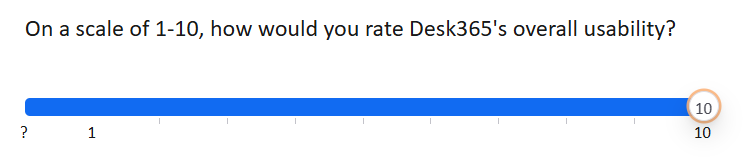
Once you are signed in, complete the review by answering the questions across the different tabs.
The review contains 10 short tabs and takes approximately 3–5 minutes to complete. Answer as many questions as you can based on your experience with Desk365. Optional questions can also provide additional information to help other buyers compare Desk365 with other tools.
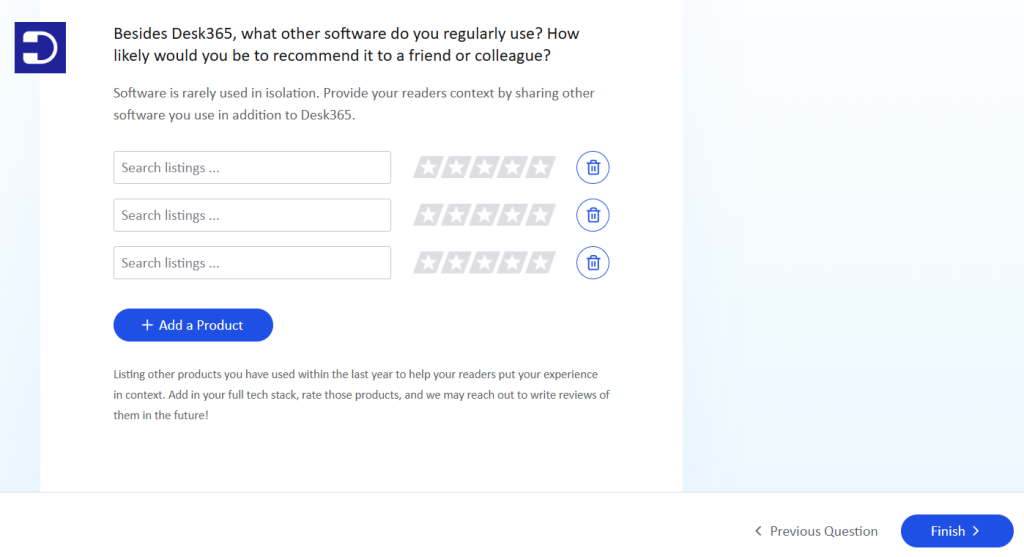
Step 5: Click "Finish"
After completing the review questions, click “Finish” to proceed to the final details.
Step 6: Add your details and submit
Enter your details, including your:
- Job Title
- Job Type
- Department
- Country
You can also choose whether your name appears with the review or whether the review remains anonymous.
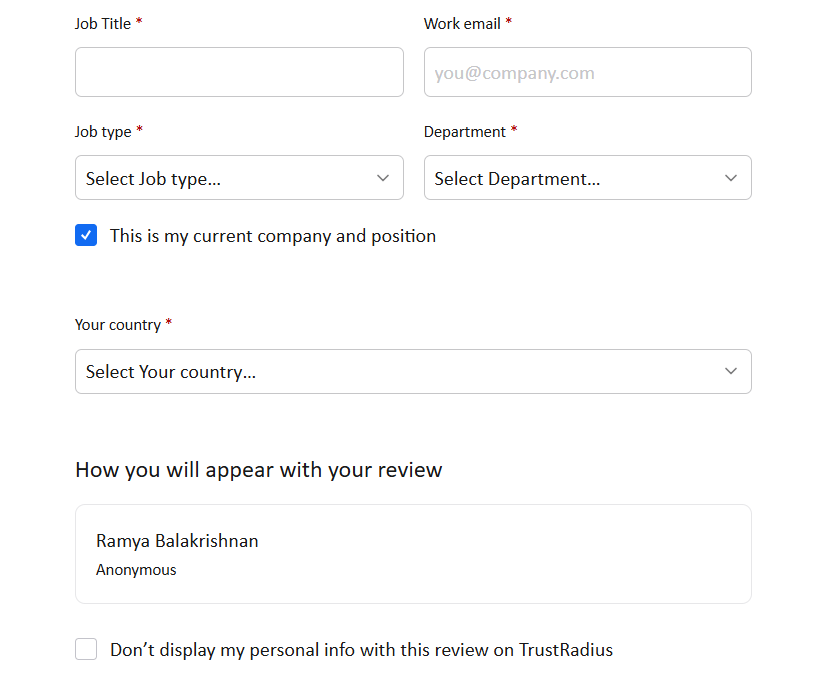
Once you have entered the required information, click “Submit” to submit your review.
Your TrustRadius review should now be submitted.