

The Desk365 Agent Bot helps you collaborate and respond better using the power of Microsoft Teams.
Finding Desk365 in Teams:
Below are the steps to add the Desk365 Agent Bot to your Microsoft Teams instance:
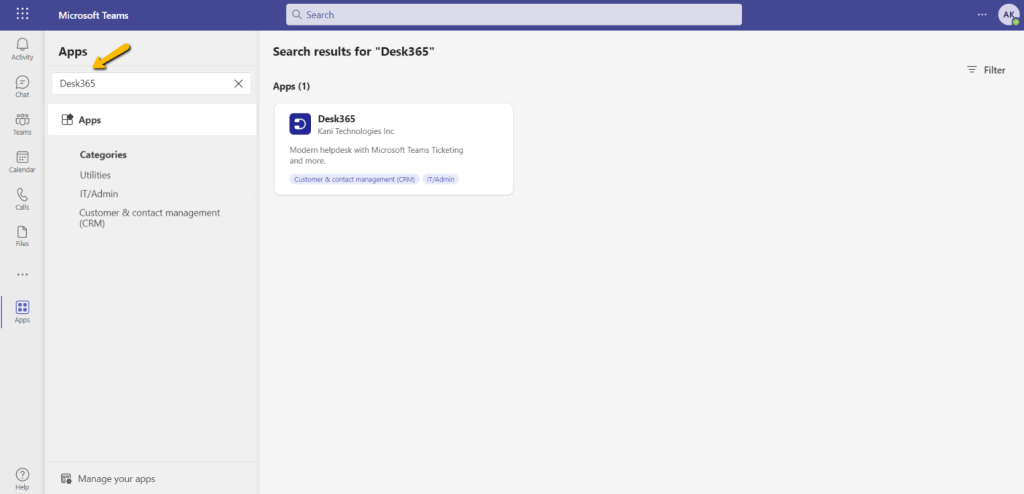
1. Go to Apps on the left of Teams, then search for Desk365.
2. Select the Desk365 app to open the description window.
3. Click the Add button.
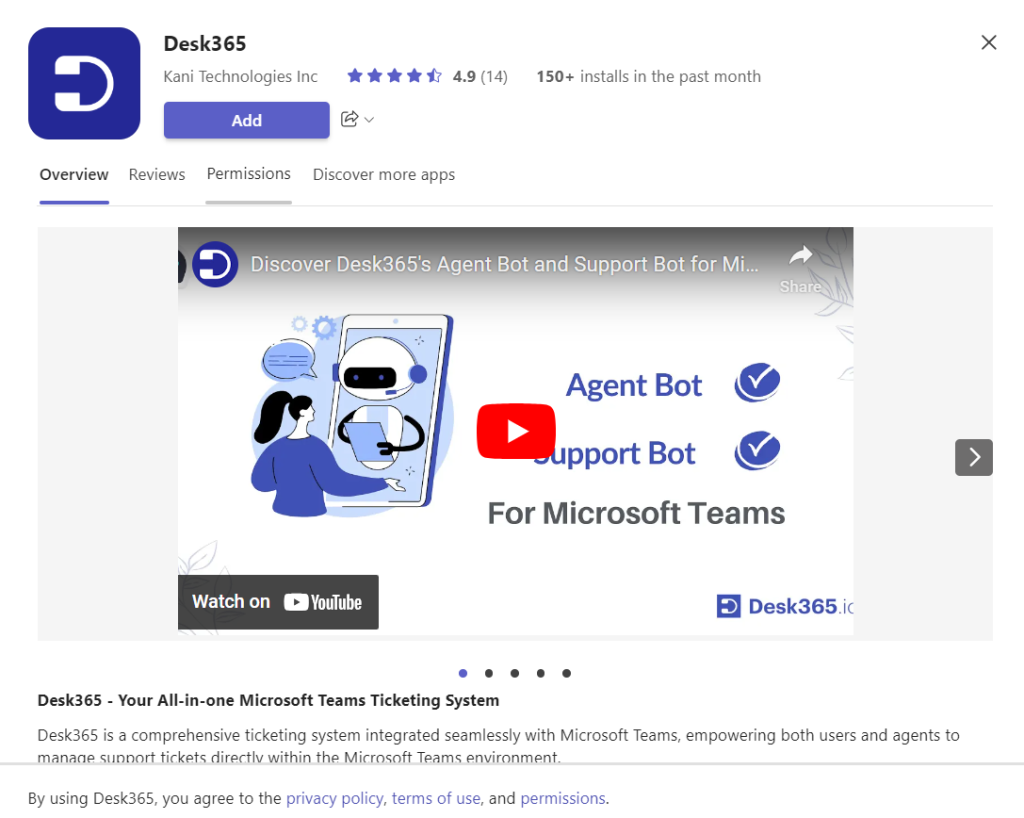
Congrats! You have added the Desk365 Agent Bot to your Microsoft Teams instance.
Note: If your don’t have the necessary privileges to add Teams apps, you’ll need to contact your Teams Administrator to add the Agent Bot.
Welcome Message:
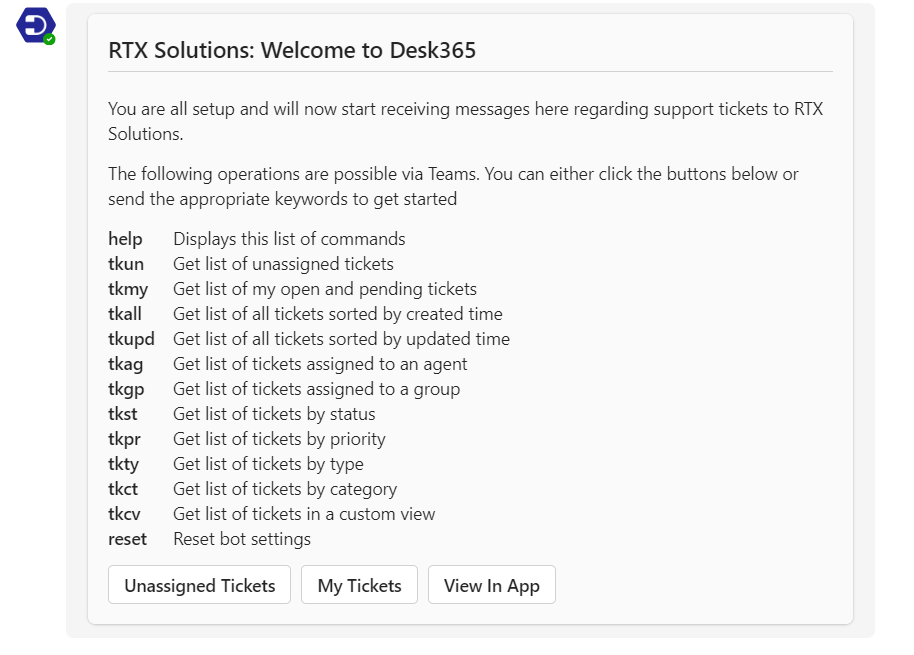
When the Desk365 Agent Bot is installed, it sends a welcome message. This message provides a quick introduction for your agents and some commands to get started.
Frequently Asked Questions
If you can’t add the Desk365 Agent Bot from the Apps section in Microsoft Teams, you may not have the required permissions to install Teams apps. Contact your Microsoft Teams administrator and ask them to add the Desk365 Agent Bot for you.
Make sure notifications are turned on under My Profile and Settings > Notifications. You can also check Settings > Email > Email Deliverability for any bounced emails.
The Agent Bot lets you view your open and pending tickets, view unassigned tickets, reply to tickets, add notes and attachments, and update ticket properties such as status, priority, assignee, and SLA.
Ask your Teams administrator to check the app permissions and make sure Desk365 is allowed for your account or group. After the policy is updated, restart Microsoft Teams and try opening the Agent Bot again.